In this guide, you will learn you how to create single and bulk Active Directory groups with PowerShell. I will provide examples and a script for creating bulk groups from a CSV file.
Create AD Group with PowerShell
The New-ADGroup cmdelet is the command used to create Active Directory groups.
I won’t cover all of the details of this cmdlet instead, I’ll jump right into some examples. You can reference the Microsoft document New-ADGroup for the complete syntax.
Name and GroupScope are the two required parameters, everything is optional.
Example 1: Create a single AD group
New-ADGroup -Name Marketing_local -GroupCategory Security
This command creates a group named “Marketing_local the group category is security.
Example 2: Create a single group with a description
New-ADGroup -Name Account_Printers -GroupScope DomainLocal -Description "Group for permissions to accounting printers"
This example created a group named “Account_Printers” and sets the description.
Example 3: Create a single group and set Managed By
New-ADGroup -Name GIS_Images -GroupScope DomainLocal -ManagedBy robert.allen
In this example, I create a group named GIS_Images and set the managed by to the SAM account name (sAMAccountName) of robert.allen.
Example 4: Create a single group and add it to an organizational unit (OU)
New-ADGroup -Name Marketing_local -GroupCategory Security -Path "OU=ADPRO Groups,DC=ad,DC=activedirectorypro,DC=com"
This example creates the group “Marketing_local” and puts it in the OU named ADPRO Groups.
Now let’s look at creating AD groups in bulk.
Create AD Groups from CSV
The easiest way to bulk create AD groups is by using a CSV file. The CSV file will have all of the group details, we then use PowerShell to import the CSV and create the groups.
Step 1: CSV file configuration
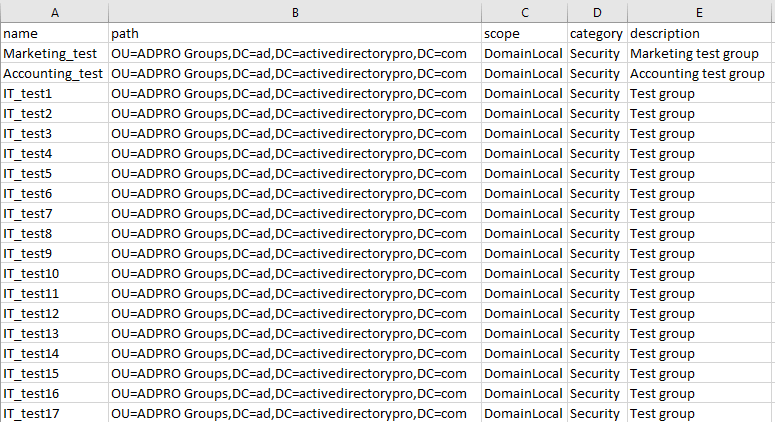
Create a CSV file and add these columns
- name
- path
- scope
- category
- description
Then fill in each column with the group details. Here is a screenshot of my CSV. You can add additional parameters to the CSV you will just need to update the script below to include them.
Save the as a CSV (comma delimited) (.csv) file type. You can name the file name whatever you want.
Step 2: The Bulk Import Script
Here is the PowerShell script for bulk creating groups from the CSV.
You can copy and paste this into PowerShell. The only thing you need to change is the location of the CSV.
Import-Module ActiveDirectory

#Import CSV
$groups = Import-Csv ‘c:\it\scripts\groups.csv‘


# Loop through the CSV
    foreach ($group in $groups) {

    $groupProps = @{

      Name          = $group.name
      Path          = $group.path
      GroupScope    = $group.scope
      GroupCategory = $group.category
      Description   = $group.description

      }#end groupProps

    New-ADGroup @groupProps

} #end foreach loop
Make sure you change this line to the path of the CSV file you created in step 1.
$groups = Import-Csv ‘c:\it\scripts\groups.csv‘
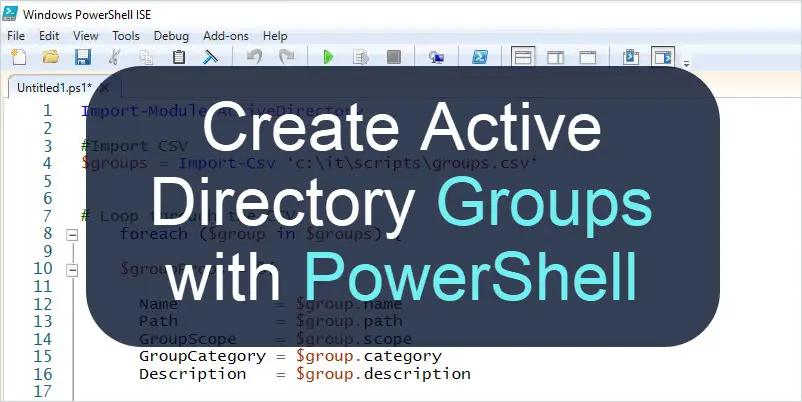
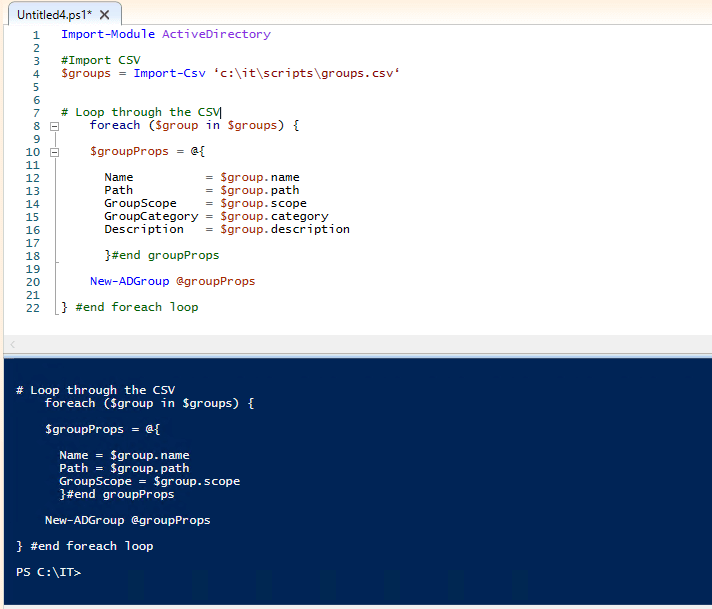
Here is a screenshot of the script in PowerShell ISE.
Create Groups with AD Pro Toolkit
An alternative to PowerShell is to use the AD Pro Toolkit.
With this tool, you can easily perform the following actions:
- Import Groups
- Add Users to Groups
- Remove Users from Groups
- Bulk update group attributes
- Create Group Reports
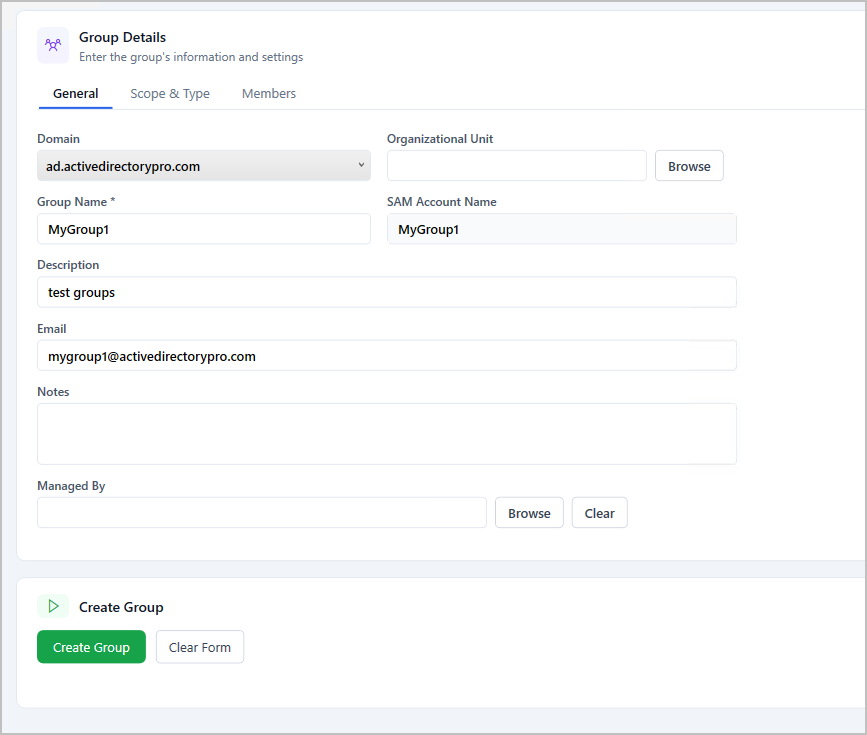
Step 1. Click on Groups > Create Single Group
Step 2. Fill out the form, select scope and type, add members and click “Create Group”.