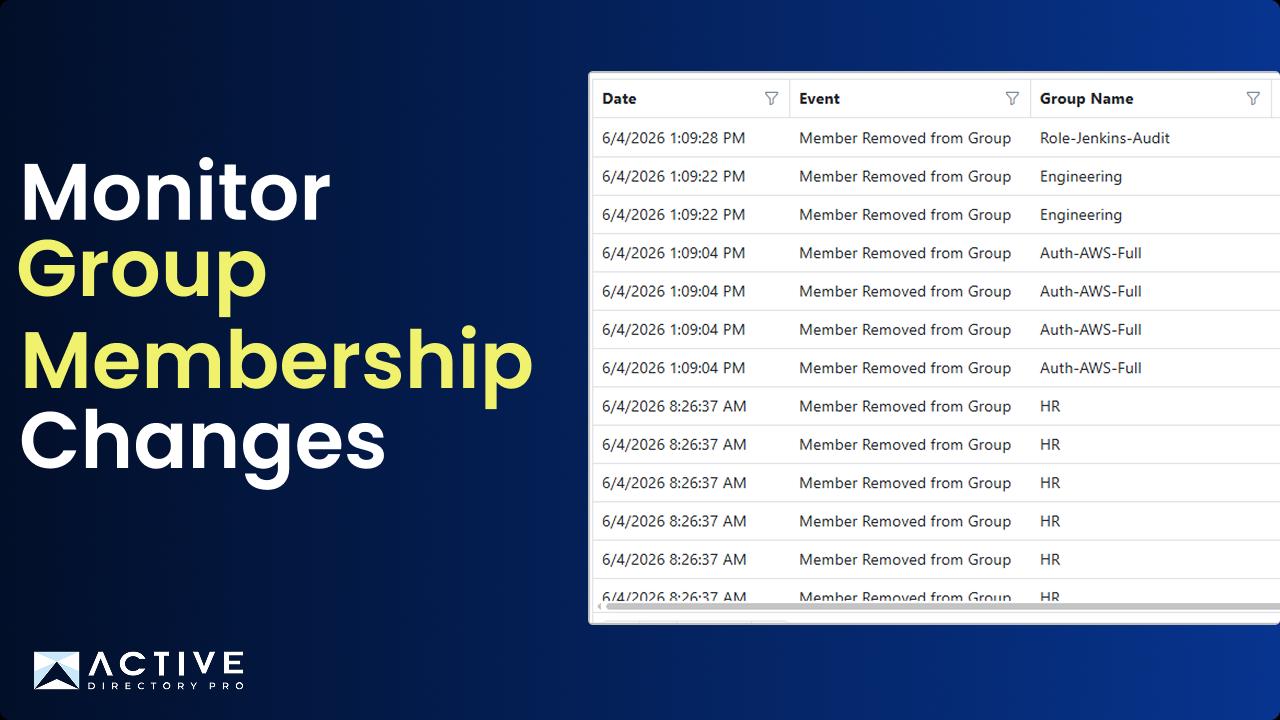
This guide shows you how to monitor group membership changes to Active Directory groups. Track when and who added or removed users to security and distribution groups.
Requirements
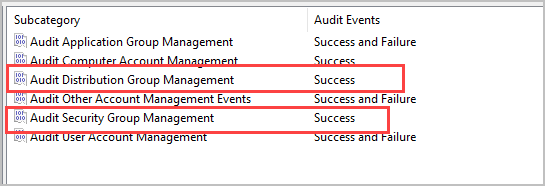
To audit active directory group membership changes the following audit policies must be enabled in the default domain controller’s policy GPO.
- Account Management > Audit Distribution Group Management > Success
- Account management > Audit Security Group Management > Success
Event IDs to Track
To track all group membership changes the following event IDs need monitored:
- 4728 - Member added to a security-enabled global group
- 4729 - Member removed from a security-enabled global group
- 4732 - Member added to a security-enabled local group
- 4733 - Member removed from a security-enabled local group
- 4746 - Member added to a security-disabled local group (distribution)
- 4747 - Member removed from a security-disabled local group (distribution)
- 4751 - Member added to a security-disabled global group (distribution)
- 4752 - Member removed from a security-disabled global group (distribution)
- 4756 - Member added to a security-enabled universal group
- 4757 - Member removed from a security-enabled universal group
- 4761 - Member added to a security-disabled universal group (distribution)
- 4762 - Member removed from a security-disabled universal group (distribution)
AD Audit Pro
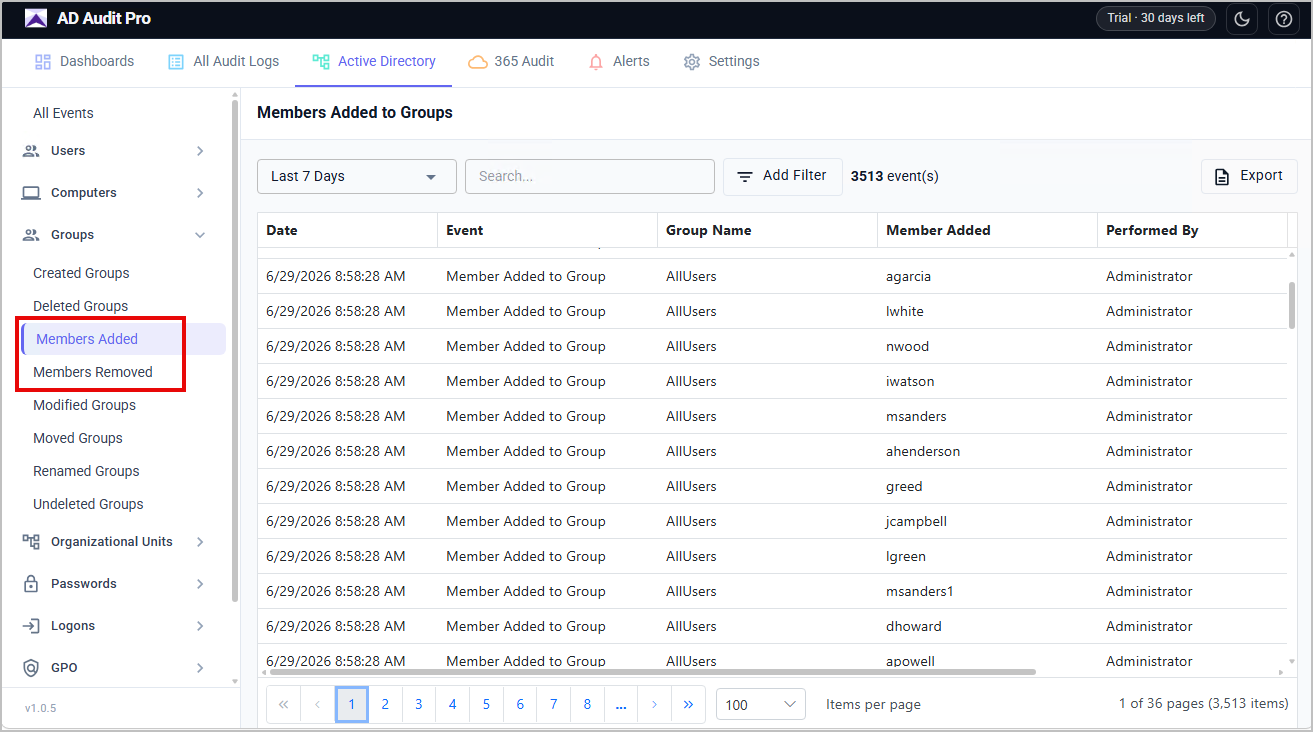
AD Audit Pro monitors group membership changes in real time. It tracks all the required event IDs and makes it easy to see when a change occurred, which group was affected, and who made it. You can set instant email alerts on critical or specific groups like Domain Admins.
Active Directory Group Monitoring
- Open AD Audit Pro
- Go to Active Directory > Groups > Members Added/Members Removed
Microsoft 365 Group Monitoring
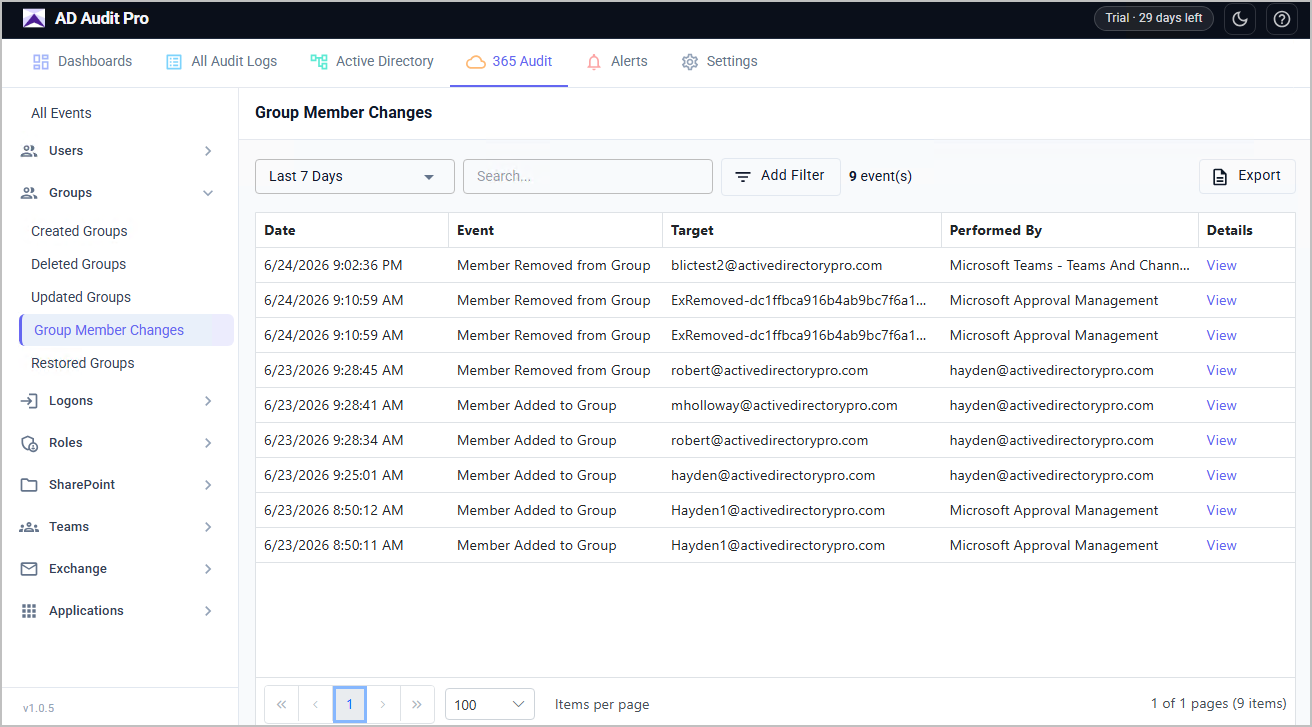
- Open AD Audit Pro
- Go to 365 Audit > Groups > Group Member Changes
PowerShell - Get Group Membership Changes
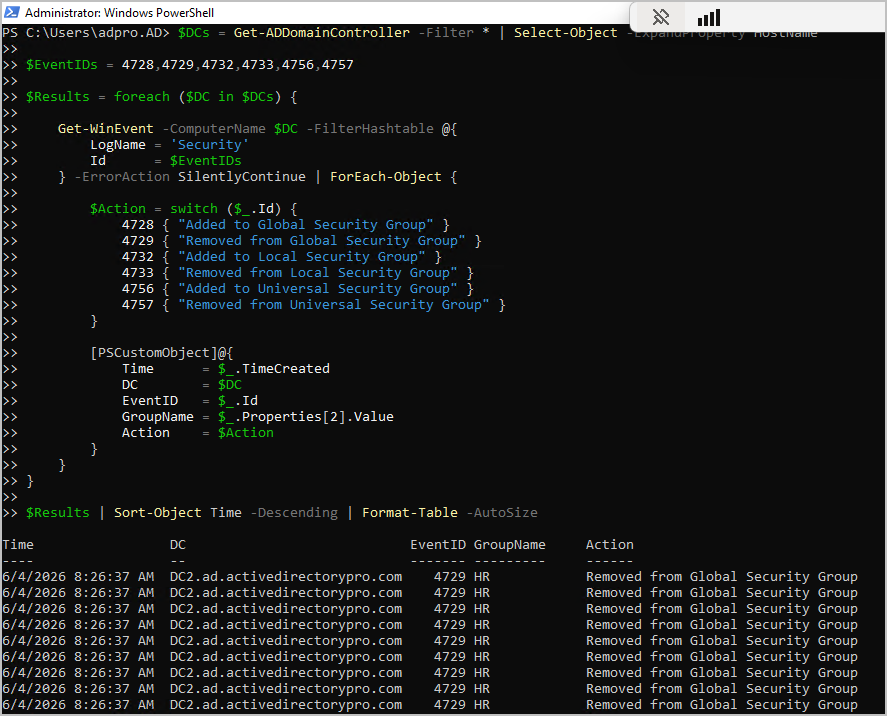
You can get the group membership changes from all domain controllers with the following script.
The drawback to using a script is it’s a manual process that would need to be run on a regular basis.
$DCs = Get-ADDomainController -Filter * | Select-Object -ExpandProperty HostName

$EventIDs = 4728,4729,4732,4733,4756,4757

$Results = foreach ($DC in $DCs) {

    Get-WinEvent -ComputerName $DC -FilterHashtable @{
        LogName = 'Security'
        Id      = $EventIDs
    } -ErrorAction SilentlyContinue | ForEach-Object {

        $Action = switch ($_.Id) {
            4728 { "Added to Global Security Group" }
            4729 { "Removed from Global Security Group" }
            4732 { "Added to Local Security Group" }
            4733 { "Removed from Local Security Group" }
            4756 { "Added to Universal Security Group" }
            4757 { "Removed from Universal Security Group" }
        }

        [PSCustomObject]@{
            Time      = $_.TimeCreated
            DC        = $DC
            EventID   = $_.Id
            GroupName = $_.Properties[2].Value
            Action    = $Action
        }
    }
}

$Results | Sort-Object Time -Descending | Format-Table -AutoSize
Event Viewer - View Group Membership Changes
Using the Event Viewer is a built-in way to track group membership changes, though it takes several manual steps. The drawbacks: logs are stored locally on each domain controller with no central view, every search is manual, and older events can roll off as logs fill up, making long-term tracking and quick investigations difficult.
1. Log into a domain controller
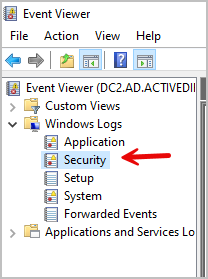
2. Open Event Viewer
3. Go to Windows Logs > Security
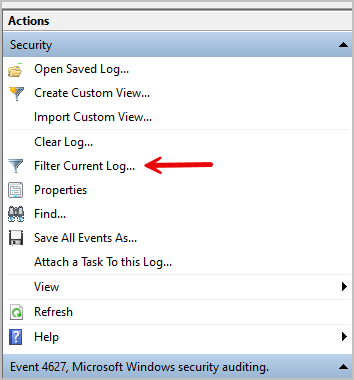
4. On the right-hand side, click Filter Current Log.
5. Enter: 4728, 4729, 4732, 4733, 4746, 4747, 4751, 4752, 4756, 4757, 4761, 4762, then click OK.
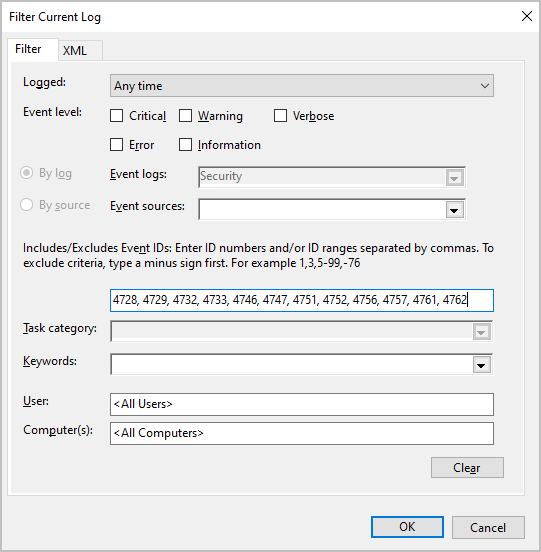
You can now see group membership changes. You will need to click each event to see details such as which group and who made the change.

Monitor Changes to Active Directory Group Membership
Active Directory security groups are the foundation of access control in most Windows environments. As users join the organization, change roles, or leave the company, group memberships must be updated to ensure users have the appropriate permissions. Auditing group membership changes helps administrators detect unauthorized access, support compliance requirements, and quickly investigate security incidents.
While you can use PowerShell scripts to search Windows Security logs for group membership changes, maintaining scripts, scheduling them, and interpreting raw event data can be challenging. Native event logs also make it difficult to quickly identify who made a change, what changed, and when it occurred.
AD Audit Pro simplifies Active Directory group membership auditing by automatically collecting and reporting group membership changes from your domain controllers. Built-in reports clearly show when users were added to or removed from security groups, who made the change, the affected group, and the domain controller where the event occurred.
Group membership auditing is just one of the many auditing features included in AD Audit Pro. You can also monitor changes to user accounts, groups, computers, organizational units (OUs), Group Policy Objects (GPOs), and other Active Directory objects. In addition, AD Audit Pro provides reports for user logons, account lockouts, password changes, administrative activity, and many other security-related events, giving you a complete view of changes across your Active Directory environment.