In this article, I’ll show you how to install and use Managed Service Accounts in Active Directory.
Managed Service Accounts (MSAs) vs Regular Service Accounts
- Managed Service Accounts (MSAs)
- These are a special type of Active Directory accounts designed specifically to run services, applications, or tasks on Windows server.
- Passwords are automatically generated and rotated by default every 30 days.
- Can only be used on one computer unless group managed service accounts (gMSAs) is configured.
- Much more secure by default compared to regular service accounts.
- Regular Service Accounts
- These are regular Active Directory user accounts that are used to run a service or scheduled task
- You set and manage the password manually
- Can be used on multiple computers by default
- Passwords are often set to never expire and often never changed (increase security risk)
- Often poorly managed and difficult to track where they’re in use
- Group Managed Service Accounts (gMSAs)
- gMSAs extend the functionality of MSAs by allowing multiple computers to use the same managed service account.
Comparison Table
| Feature | Managed Service Account | Regular Service Account |
|---|---|---|
| Password Management | Automatic | Manual |
| Can be used on multiple computers | No, requires gMSA | Yes |
| Created via ADUC | No, Powershell only | Yes |
| Interactive Logon Allowed | No | Yes |
| Track where used | Yes | No |
| Security | High | Low |
Requirements
- Domain Controller running Windows Server 2008 R2 or later
- Active Directory module for Windows PowerShell
- The computer using the MSA must be a domain joined computer
Before migrating to managed service accounts, you might want to identify all existing service accounts in your environment and find where they are being used.
How to create and Use Managed Service Accounts (MSAs)
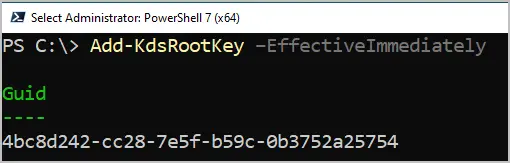
Step 1. Create KDS Root Key
Domain controllers require a root key that is used to generate unique passwords for the service accounts. It’s used by the Key Distribution Service (KDS) on domain controllers to create and keep the same passwords for gMSAs and MSAs across the network.
On your domain controller, open powershell and run the following command.
Note: It can take up to 10 hours for the key to replicate to all domain controllers
Add-KdsRootKey -EffectiveImmediately
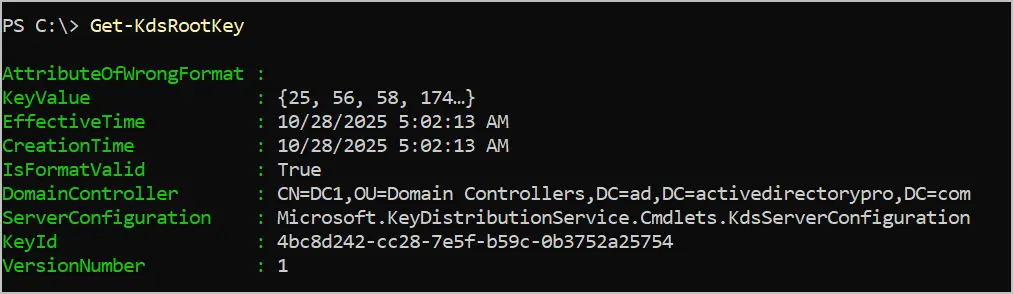
Run the below command to check that the KDS root key has been successfully created.
Get-KdsRootKey
Step 2. Create a Managed Service Account
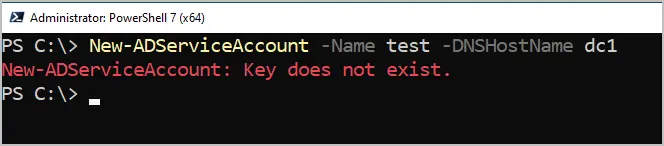
To create a managed service account run the following command. Replace test with a unique name for the account. Replace dc1 with the hostname of your domain controller.
New-ADServiceAccount -Name test -DNSHostName dc1
If you get the error “New-ADServiceAccount: Key does not exist” it means that the Key Distribution Service (KDS) in your domain does not yet have a root key created or available for use. You will need to wait up to 10 hours for the key to replicate to all your DCs.
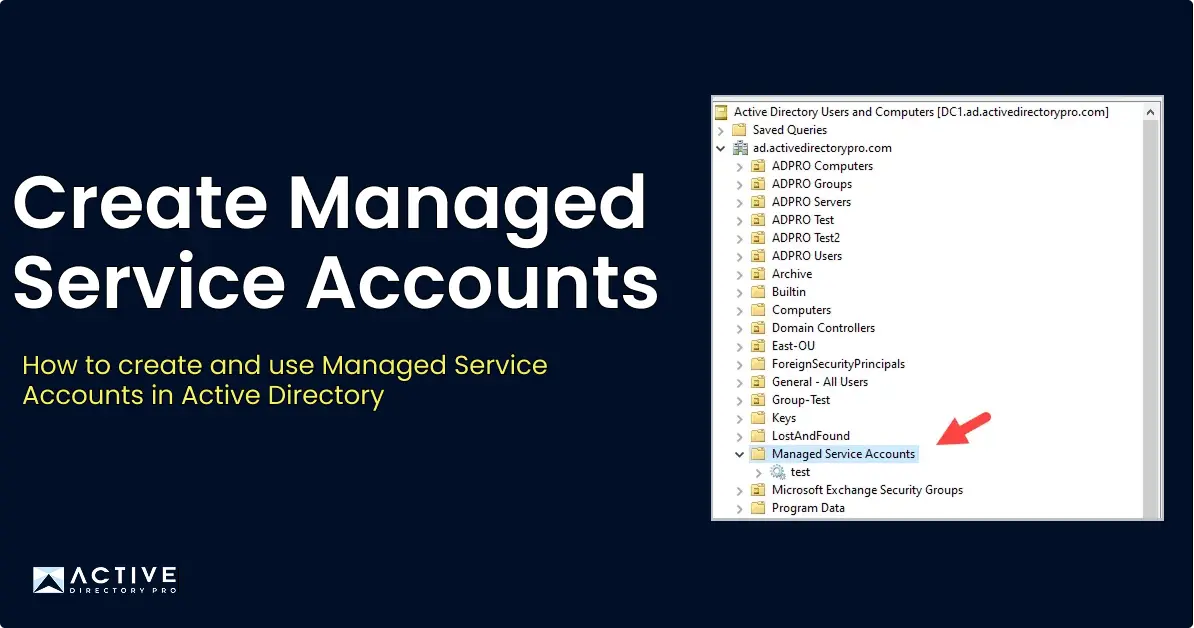
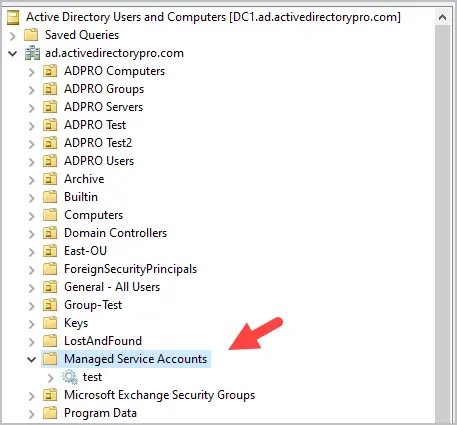
If the command works, it will return nothing and take you back to the prompt. The managed service accounts are created in the following path:
CN=Managed Service Accounts,DC=yourdomain,DC=com
You can also run the following command to display details about the service account. Replace
get-adserviceaccount <name>
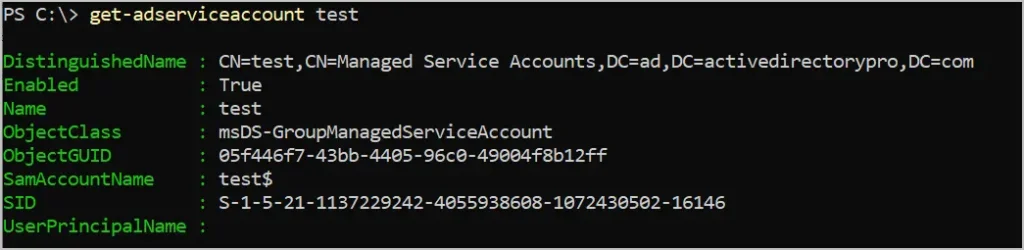
Step 3. Associate the new Service Account with a computer in Active Directory
You must specify which domain computer the service account can run on. Use the below command to associate the computer with a service account.
add-adcomputerserviceaccount -identity <computer name> -serviceaccount <service account name>

Step 4. Install MSA on the Computer
Log into the computer you associated the service account to and run the following command.
Install-ADServiceAccount -Identity <service account name>
If you get this error “Install-ADServiceAccount: Cannot install service account. Error Message: ‘{Access Denied} A process has requested access to an object, but has not been granted those access rights.’.”
This means the MSA is not linked to the computer. Run the below command to fix it.
Set-ADServiceAccount <service account name> -PrincipalsAllowedToRetrieveManagedPassword <computer name>

You can verify the permissions with this command. The computer should be listed in the PrincipalsAllowedToRetrieveManagedPassword property.
Get-ADServiceAccount <service account name> -Property PrincipalsAllowedToRetrieveManagedPassword
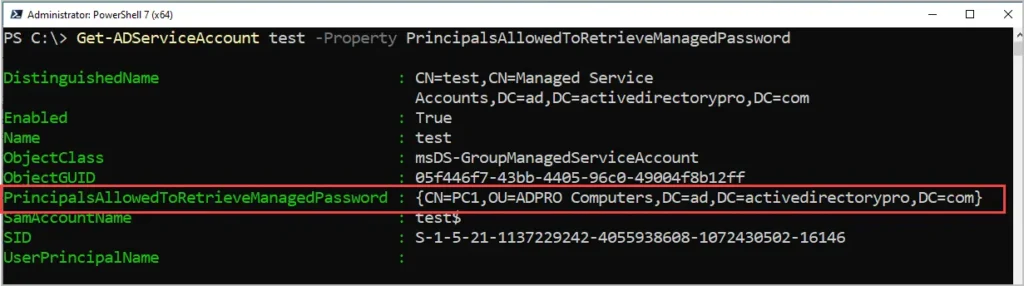
Step 5. Set Windows Service to use the new Managed Service Account
Open Windows Services, find and edit the service that you want to use the new managed service account. Click on “Log On” and then select the account. Leave the password field blank as this will be managed by the service account.
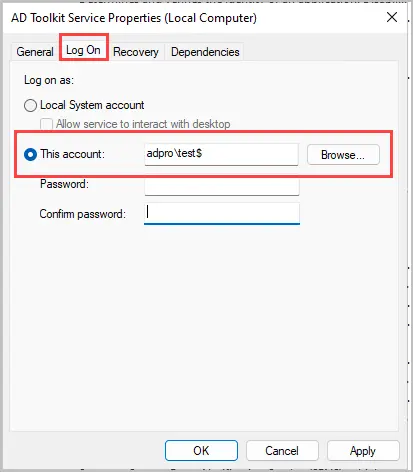
Click Apply and OK. You may need to stop and start the service for it to take effect.
Thats it!
The Managed service accounts password will be automatically changed and rotated every 30 days. Remember if you want to use the same managed service account on multiple computers you will need to use Group Managed Service Accounts which I’ll cover in a separate article.