Need to know who enabled or disabled an Active Directory user account, and when it happened? Tracking these changes is critical for security, auditing, and accountability. In this article, I’ll show you how to identify account enable and disable events using AD Audit Pro and PowerShell.
Requirements
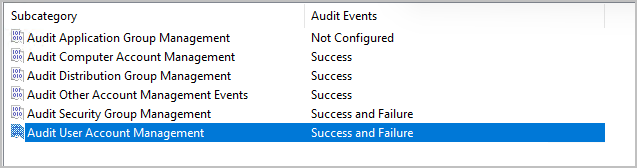
To track who disabled or enabled a user the following audit policies must be enabled in the default domain controller’s policy GPO.
- Account Management > Audit User Account Management > Success and Failure
Event IDs to Track
The following events are logged on the domain controller when a user is disabled or enabled.
- 4725 - A user account was disabled
- 4722 - A user account was enabled
AD Audit Pro Method
AD Audit Pro is an on-prem Active Directory auditing tool that tracks changes in real time. It will easily show who and when a user was disabled or enabled from any domain controller.
Step 1. Open AD Audit Pro
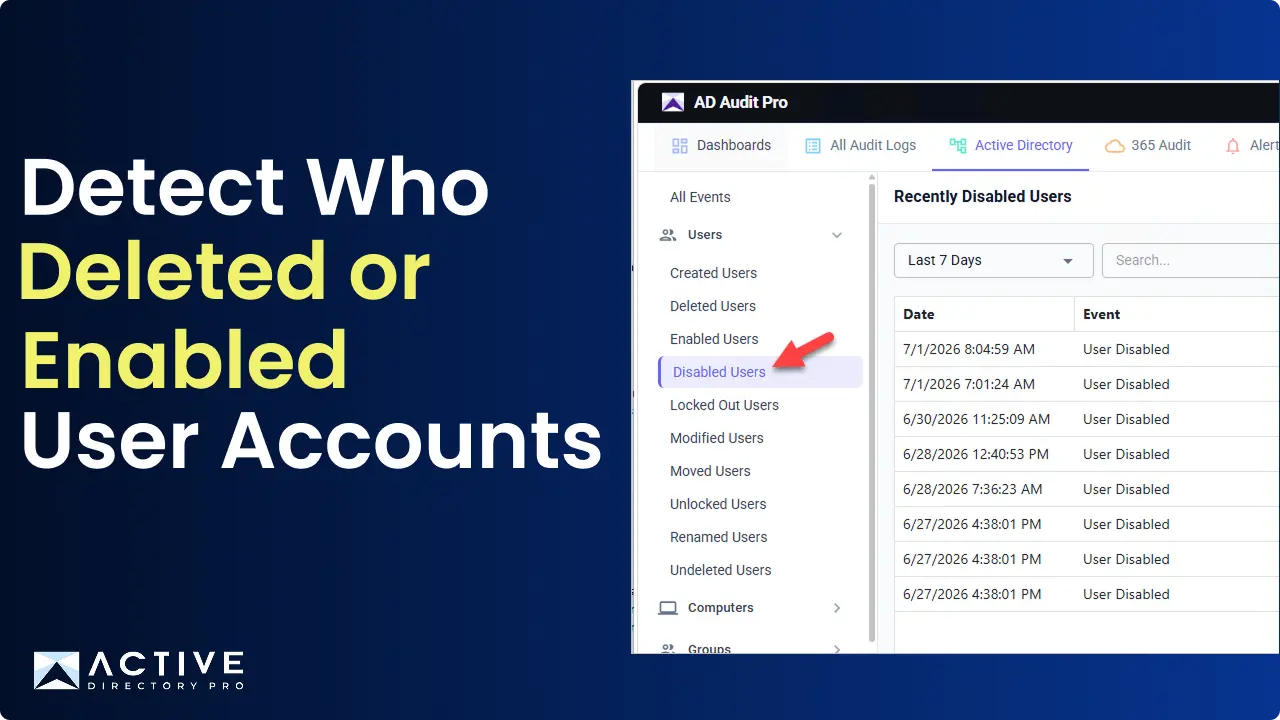
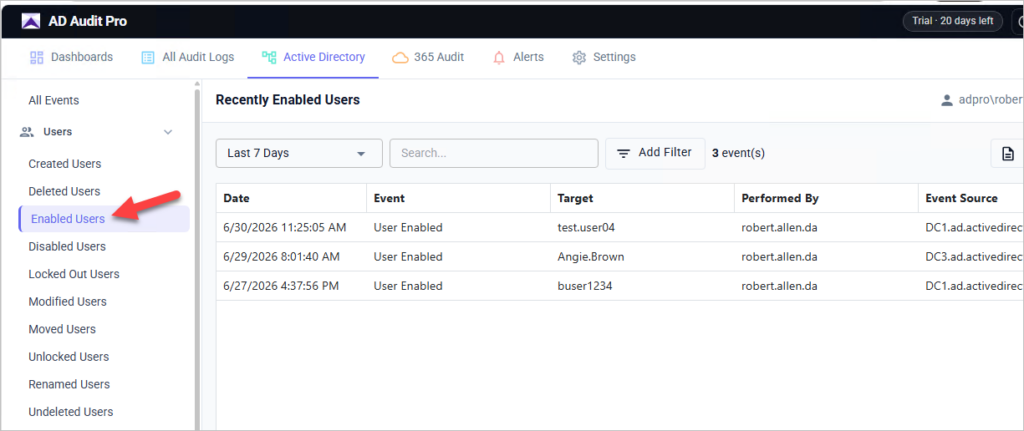
Step 2. Go to Active Directory > Users > Enabled Users
You can see below the date, the target user and who made the change for each enabled users.
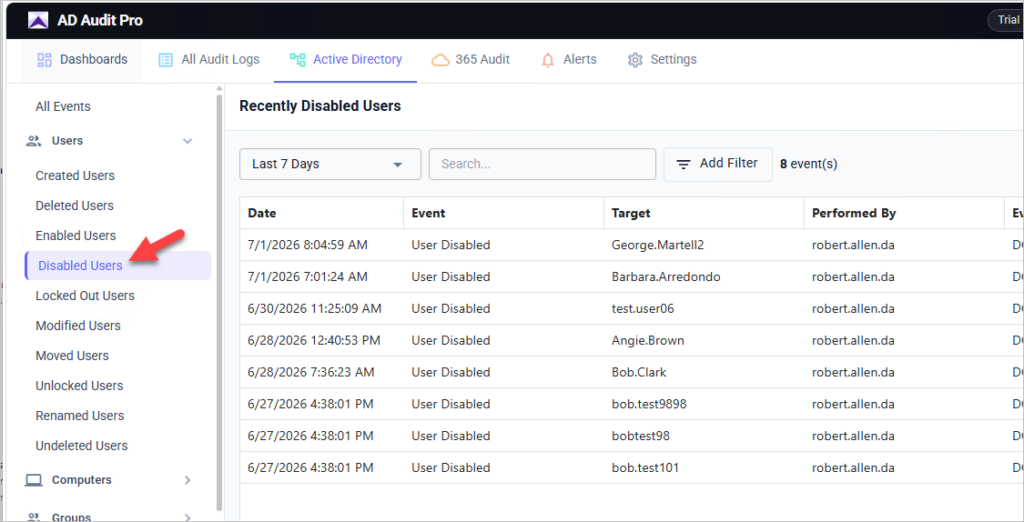
To view disabled user events click on “Disabled Users”
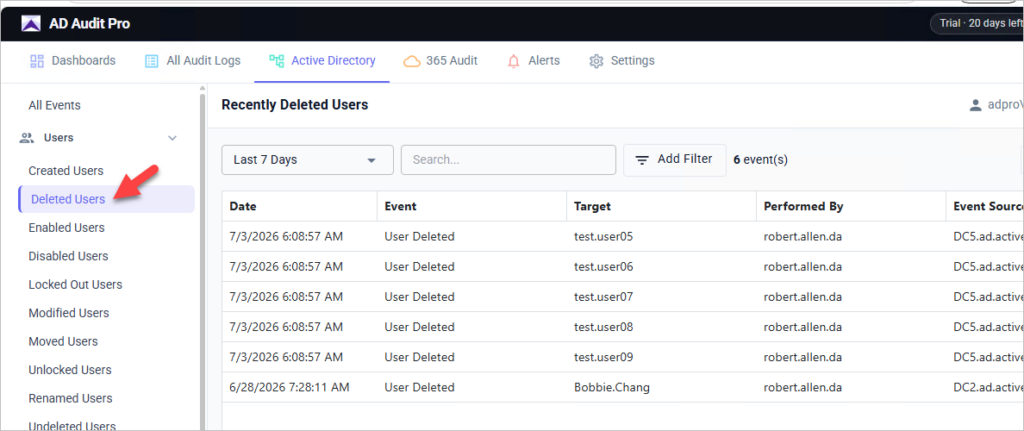
To view deleted user events click on “Deleted Users”
PowerShell Method
To determine who enabled or disabled a user account with PowerShell, you’ll need to search the Security event logs on each domain controller. This is a more manual process than using AD Audit Pro, and it doesn’t provide centralized storage for historical reporting.
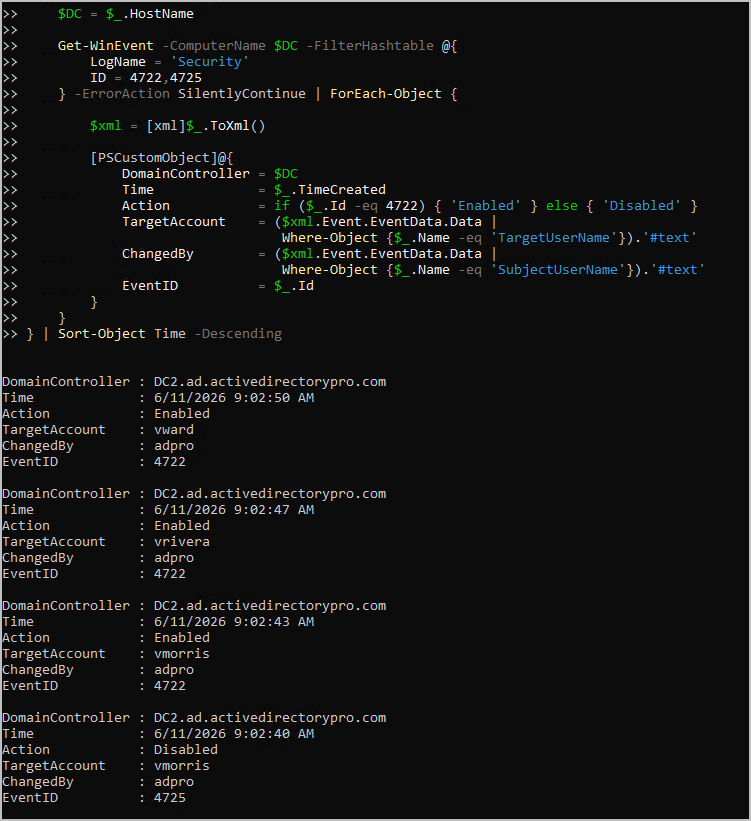
The following command searches the Security event logs on all domain controllers for user account enable (Event ID 4722) and disable (Event ID 4725) events.
Get-ADDomainController -Filter * | ForEach-Object {
    $DC = $_.HostName

    Get-WinEvent -ComputerName $DC -FilterHashtable @{
        LogName = 'Security'
        ID = 4722,4725
    } -ErrorAction SilentlyContinue | ForEach-Object {

        $xml = [xml]$_.ToXml()

        [PSCustomObject]@{
            DomainController = $DC
            Time             = $_.TimeCreated
            Action           = if ($_.Id -eq 4722) { 'Enabled' } else { 'Disabled' }
            TargetAccount    = ($xml.Event.EventData.Data |
                                Where-Object {$_.Name -eq 'TargetUserName'}).'#text'
            ChangedBy        = ($xml.Event.EventData.Data |
                                Where-Object {$_.Name -eq 'SubjectUserName'}).'#text'
            EventID          = $_.Id
        }
    }
} | Sort-Object Time -Descending
Track Account Status Changes to Stay Secure and Compliant
Changes to AD user accounts can have an immediate operational impact. Disabling an account cuts off a user’s access to email, SharePoint, computer access, shared folders and other domain-authenticated systems, while an unexpectedly re-enabled account may signal that someone is trying to regain access they shouldn’t have. Because both scenarios carry real security and productivity consequences, it pays to keep a close watch on these events and be able to answer who made the change, along with when and where it happened.
AD Audit Pro gives you continuous visibility into account activity across Active Directory, surfacing every enable and disable action alongside the user responsible. With scheduled and on-demand reports, your team stays informed of status changes without manually digging through event logs, and built-in search tools let you drill into specific events to confirm each change was legitimate. This makes it easy to catch unauthorized modifications early and keep your environment secure and audit-ready.