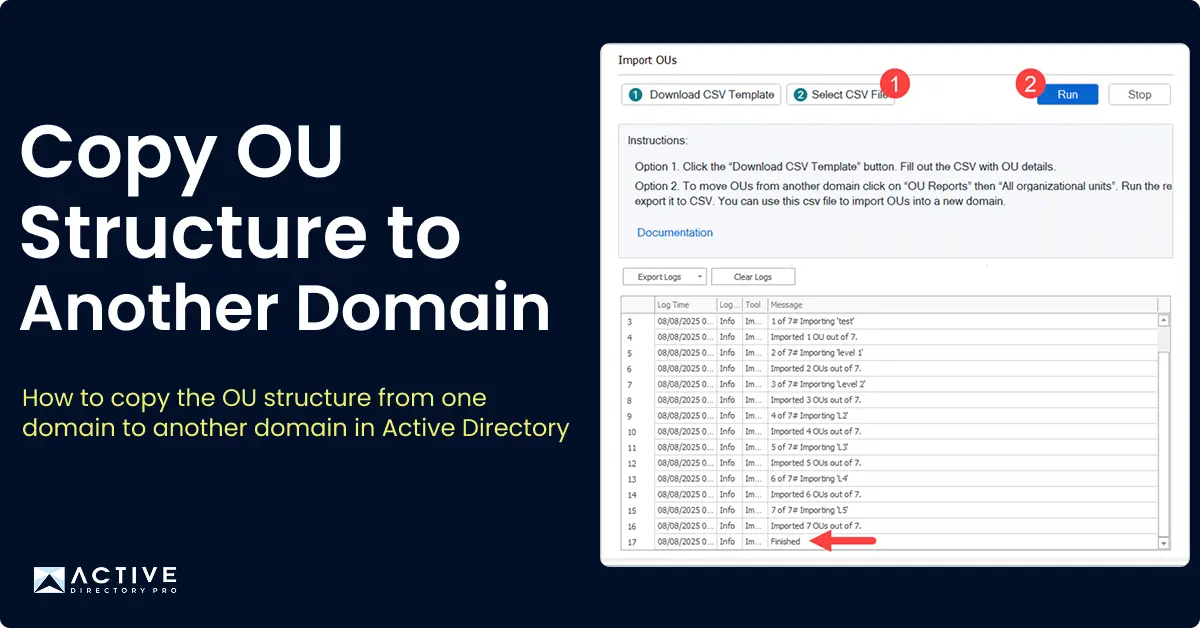
In this guide, I’ll show you how to copy the OU structure from one domain to another using the AD Pro Toolkit.
To copy an OU structure in Active Directory, you will need to export the OUs from your source domain and then import them into the target domain.
Step 1. Click on “OU Reports” and “All OUs”
Step 2. Select an OU by clicking browse or click run to export the entire OU structure
Step 3. Click the Export button and choose “Export to CSV”.
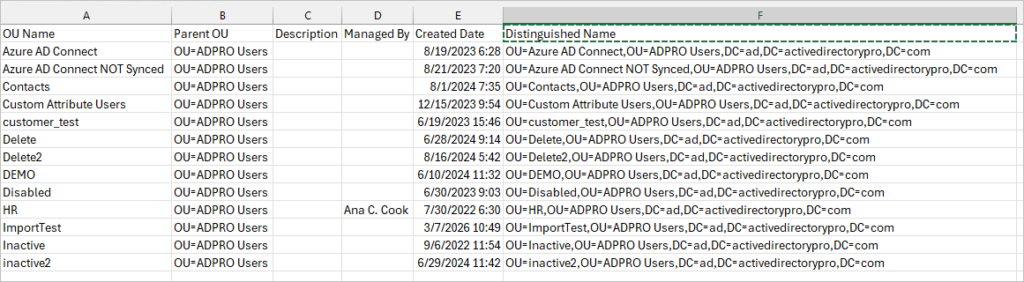
You should now have a CSV file of the OUs you want to import.
Note: The import will only use the Ou Name, Description and Distinguished Name columns from the export.
Export example.
Step 4. On your target domain open the AD Pro Toolkit and click on “Import OUs”.
Step 5. Select your CSV file and click preview. You may need to select “Create parent OUs if missing”.
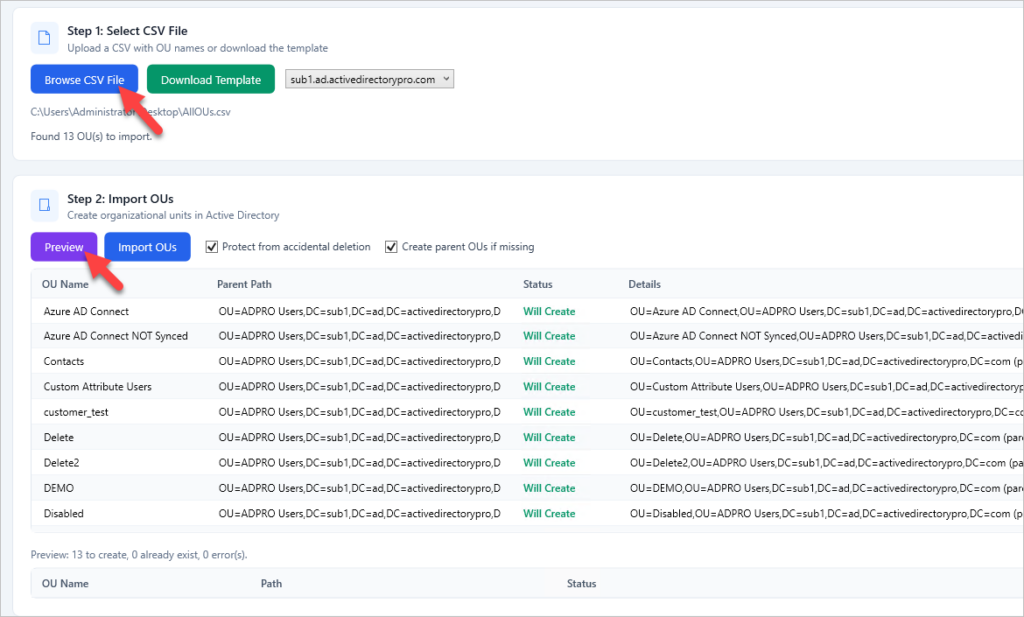
If the preview looks good click the import OUs button.
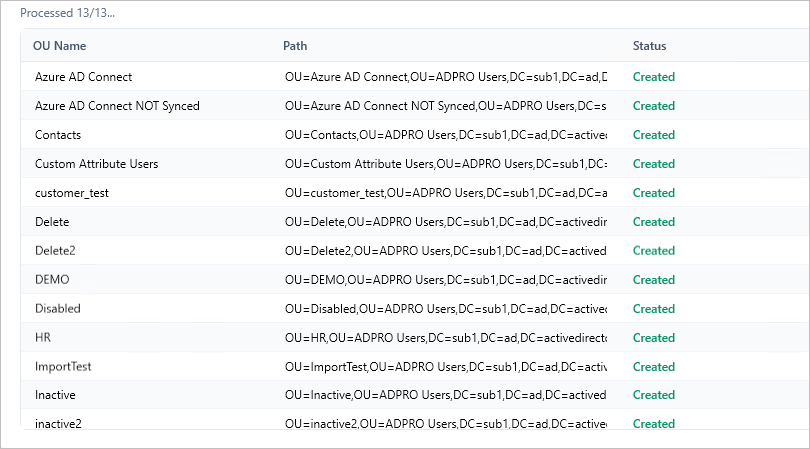
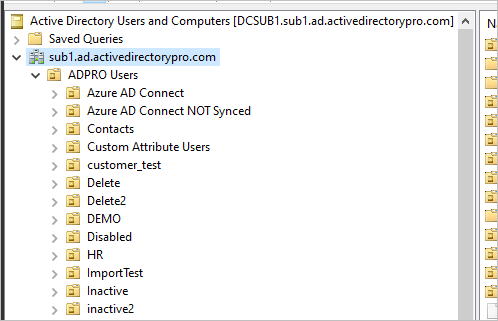
You should now have the OU structure that was from the csv export.