Active Directory (AD) is critical for managing users and resources, but mistakes can lead to security risks and inefficiencies. From stale accounts to misconfigured permissions, common incorrect settings can disrupt operations and compliance. In this article, I walk through the most common AD mistakes to avoid and my recommendations.
Adding too many users to Privileged Groups (Domain Admins)
Overuse of privileged groups, such as Domain Admins, occurs when too many users are added to these groups. The Domain Admins group has full control over Active Directory, allowing its members to perform actions like accessing data, deleting accounts, resetting passwords, and modifying permissions. Accounts in these groups are prime targets for attackers, as they provide easy access to sensitive company data. Minimizing the use of Domain Admins reduces risk, upholds the principle of least privilege, and helps prevent complete domain compromise if an account is breached.
Several other built-in privileged groups in Active Directory should follow the same guidelines as Domain Admins.
Solution
- Review members of the domain admin and other privileged groups.
- Reduce the members of these groups to only administrative staff. Regular users should not be members of these groups.
- Follow principle of least privilege, Admins should have separate accounts for daily tasks and privileged operations.
Using Privileged Accounts for Daily Tasks
Do not log into your computer with a privileged account and do daily work such as checking email, browsing internet, access sensitive data, using applications and so on.
Solution
You should have a separate account that has just enough permissions for daily tasks.
Only use your privilege account for administrative tasks such as creating users, updating group membership, managing group policy and so on.
To learn more, see the Microsoft article on Implementing Least-Privilege Models
Configuring Multiple Password Policies
It’s ok to have multiple password policies but there is a right way and a wrong way to configure it. I often see organizations configure it the wrong way and then ask why it’s not working
For group policy there can only be one password policy for domain users, this is typically configured in the default domain policy GPO.
Wrong Way
Creating multiple GPOs that has password policy settings defined and linking it to an OU or the root domain.
Solution (right way)
If you need Mutiple password policies the correct way is to use fine grained password policies. Remember there can only be one group policy that has password policies configured, others will be ignored. I recommend setting the group policy password policy in the default domain policy GPO.
No Naming Convention for all AD objects
A standardized naming convention for Active Directory objects (such as users, computers, and groups) is essential and simplifies management. Without a clear naming convention, AD objects can become confusing, leading to wasted time identifying their purpose. This can also result in incorrect permissions, duplicated accounts, and security vulnerabilities. As an Active Directory administrator, I find it valuable to quickly identify an account’s purpose by its name. A consistent naming convention ensures objects are created uniformly, making AD management more efficient and secure.
Solution
- Implement a naming convection for Active Directory objects (users, computers, groups, OUs, group policy and service accounts). Be as descriptive as possible, it’s helpful to look at an object and quickly know what and where its being used.
Examples
These are just examples, you can come up with your own naming conventions.
- Username: FirstName.LastName (robert.allen)
- Service Accounts: Use a prefix like SVC (SVC_lansweeper)
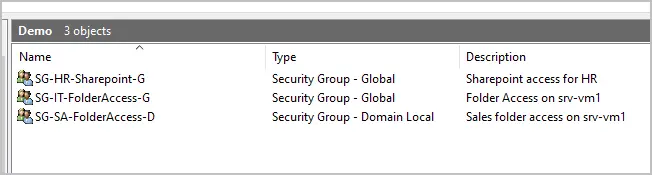
- Groups
- Prefix, department or location, purpose, scope
- Example, SG-SA-FolderAccess-D
- Computers
- Type, department/location, ID
- Example: W-IT-001
- Group Policy
- Example: Computer - LAPS All
Not Using the Description Field
The description field is available for users, groups, computers, and organizational units in Active Directory.
But… it’s often not used.
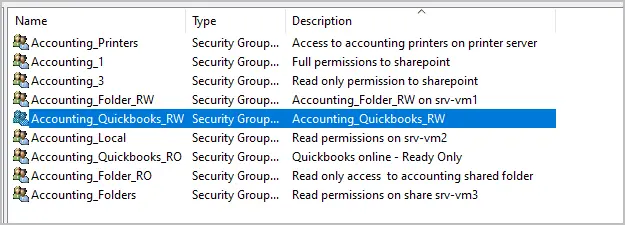
Even if you have a great naming convention it’s still a good idea to add a description to specific objects. You probably don’t need a description on regular accounts, but I highly recommend it for special accounts, service accounts and groups.
Solution
Add a description to special accounts, service accounts and groups (every single group). Give the object a simple description so that anyone can understand what the object is used for.
Groups with a description
Service accounts with a description

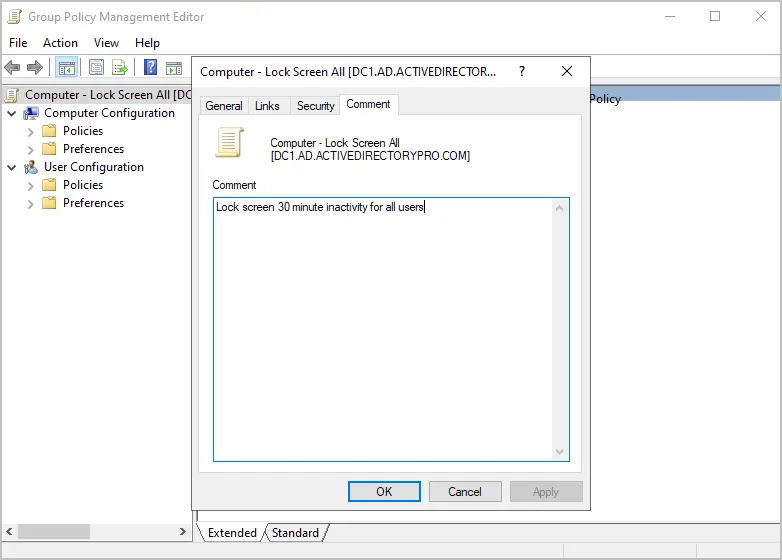
Did you know that GPOs have a comment box? Unfortunately, you have to open and edit the GPO to view it. It can still be useful for admins that management GPOs.
Flat OU Design
A flat OU design in Active Directory is where objects (users, computers, groups) are placed into a single OU with little or no hierarchy.
For example, you have 200 users and 300 computers, and they are all placed into a single OU. A flat OU design makes it hard to apply GPOs, delegate granular permissions, and can create a clutter mess.
Solution
Implement a hierarchical OU Design.
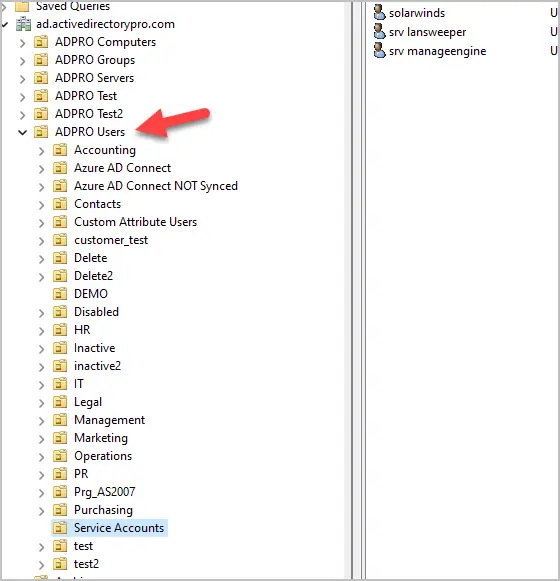
A hierarchical OU design uses nested OUs to reflect organizational structure (e.g., by department, location, or function), allowing for granular GPO application and delegation. For example:
- OU: ADPro Users
- OU: Accounting
- OU: Legal
- OU: Management
- OU: ADPro Goups
- OU: Accounting
- OU: Legal
- OU: Management
- OU: ADPro Computers
- OU: Accounting
- OU: Legal
- OU: Management
Here is a screenshot from my test lab. You can see I put users, groups and computers into their own OUs and then add nested OUs for each department or function.
Unconstrained Delegation Enabled
Unconstrained Delegation Enabled is when a computer object has “Trust this computer for delegation to any service (Kerberos only)” enabled.
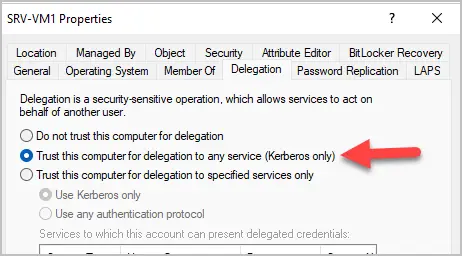
Unconstrained delegation is a major security risk because it can allow a compromised computer to gain access to the entire domain. This is done by impersonating any user who is authenticated to the server which can include privileged accounts like domain admins.
Solution:
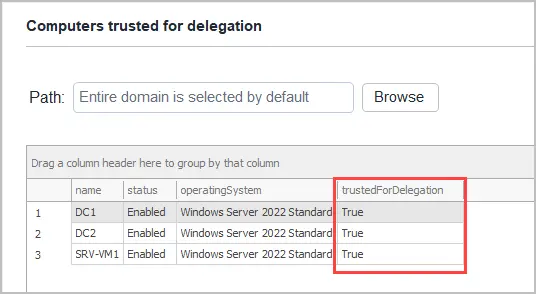
Review computer accounts that have “Trust this computer for delegation to any service (Kerberos only)” enabled. You can easily find these accounts using PowerShell or the AD Pro Toolkit.
PowerShell
Get-ADComputer -Filter {TrustedForDelegation -eq $true}
AD Pro Toolkit
Click on Reports > Computer Reports > Computers trusted for delegation
Kerberos pre-authentication disabled
Kerberos pre-authentication disabled is when an Active Directory user account has “Do not require Kerberos preauthentication” enabled.
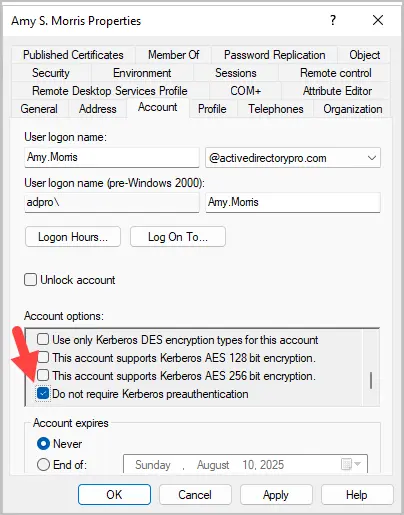
This setting weakens the security on accounts as it allows passwords to be cracked without needing to authenticate first.
What is Kerberos Pre-Authentication?
When Kerberos pre-authentication is enabled, a user sends an Authentication Server Request (AS-REQ) with a timestamp encrypted using their password hash to the Domain Controller (DC). The DC decrypts the timestamp to verify the password and, if successful, responds with an Authentication Server Response (AS-REP) containing a Ticket Granting Ticket (TGT). Part of the AS-REP is signed with the user’s password hash for security.
What does Kerberos Pre-Authentication disabled mean?
When pre-authentication is disabled (by enabling “Do not require Kerberos preauthentication” on a user account) the Kerberos Key Distribution Center (KDC) will respond to an authentication request with an encrypted TGT even if the password is incorrect. This makes the account weak and vulnerable to brute force attacks to crack the password.
Solution
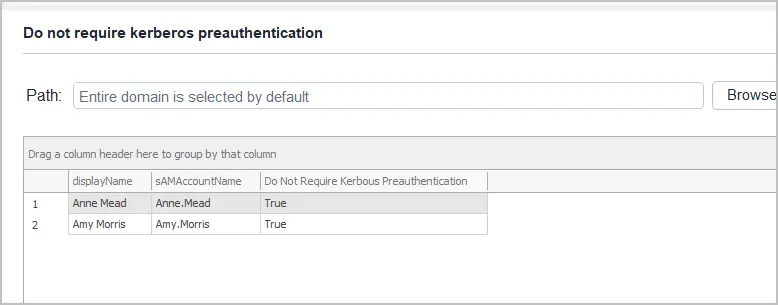
Review accounts that have Kerberos pre-authentication disabled by using the AD Pro Toolkit.
Click on Reports > Security Reports > Do not require Kerberos preauthentication
Not cleaning up stale accounts
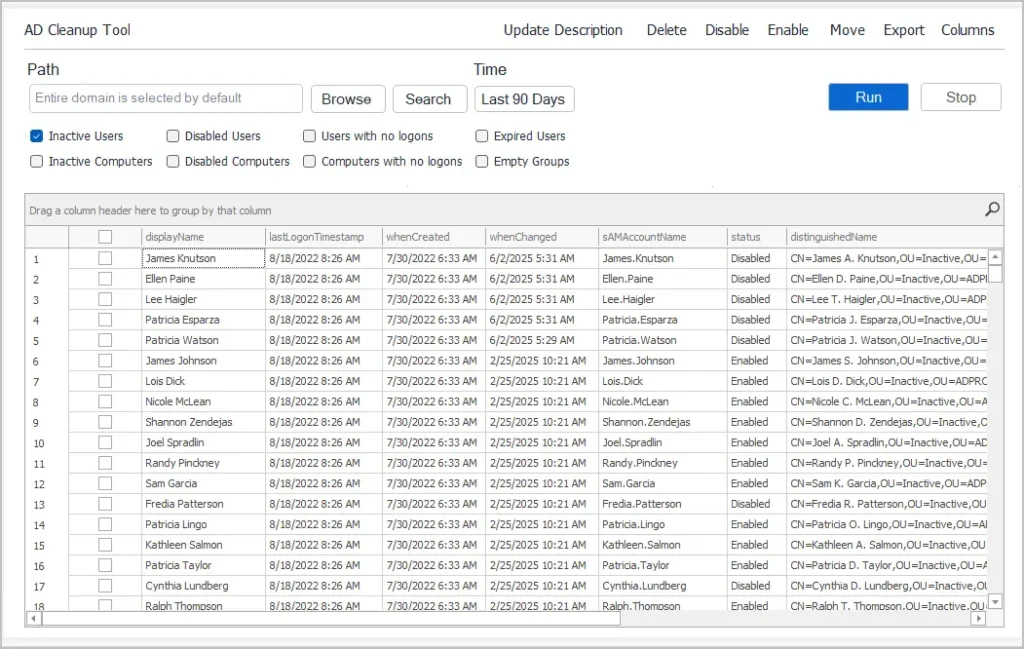
Stale accounts in Active Directory are user or computer accounts that have been inactive for a period of time such as 90 days. These accounts may no longer be needed and should be reviewed and disabled. Stale accounts are a security risk and can be used to gain access to your network and data. In addition to the security risk, stale accounts can clutter AD and make it harder to manage, report and audit your environment.
Solution
- Audit your AD environment for stale accounts on a regular basis (every 30 days). You can identify stale accounts by checking the lastLogonTimestamp attribute.
- Temporarily disable stale accounts for 90 days before deleting.
Example PowerShell command to find stale user accounts
Get-ADUser -Filter {Enabled -eq $true} -Properties lastLogonTimestamp | Where-Object { $_.lastLogonTimestamp -lt (Get-Date).AddDays(-90) }
Example of using the AD Pro Toolkit to automate finding stale accounts.
DNS Misconfiguration
An Active Directory environment relies heavily on DNS to work properly, one incorrect setting can cause authentication failures, replication issues, client resolution issues and network disruptions.
Here are some DNS mistakes to avoid.
1. Domain Controller DNS Order
Configuring domain controllers to use external DNS servers and using the loopback address as the preferred address can cause issues.
Solution
Microsoft recommends pointing the preferred DNS server to another DNS server and the alternate to the loopback address. Let’s take two domain controllers for example.
- DC1
- IP: 192.168.100.10
- Preferred DNS server: 192.168.100.11
- Alternate DNS server: 127.0.0.1
- DC2
- IP: 192.168.100.11
- Preferred DNS server: 192.168.100.10
- Alternate DNS server: 127.0.0.1
2. Pointing clients or servers to external DNS servers
If you point your clients or servers to an external DNS such as 8.8.8.8 it can cause authentication failures, slow logins or name resolution issues.
Solution
Point domain joined systems to your internal DNS servers. Your internal DNS servers will handle external lookups via forwarding or root hint servers.
3. DNS scavenging not enabled
DNS aging and scavenging allow for the automatic removal of old unused DNS records. Stale DNS records can cause name resolution errors which will cause connection and authentication issues. To learn more about DNS scavenging refer to my article how to configure DNS aging and Scavenging.
Solution
4. Incorrect Forwarders or Root Hints
Misconfiguring DNS forwarders or root hints will cause name resolution issues to external resources. This will cause external resources to load slow or completely fail.
Solution
There is nothing wrong with leaving the default of using root hint servers. If you choose to use forwarders pick a reliable DNS server such as your ISP or DNS servers 8.8.8.8.
No System State Backup
Active Directory backups from 3rd party vendors might not be supported by Microsoft unless they are a system state backup (AD aware).
A system state backup includes the critical components needed to restore Active Directory from a complete failure. This includes components such as:
- Active Directory database (NTDS.DIT)
- SYSVOL folder
- Registry
- System files
- Boot files
- Certificate database
Solution
Run a system state backup on the domain controller on a regular schedule. If you have multiple sites, you should consider running a backup on at least one DC in each site.
How to run a system state backup
- Install the Windows Server Backup feature via Server Manager.
- Create a backup schedule
- Choose VSS full backup
- Select schedule
- Select destination
To see full details check out my article on how to backup active directory.
Default Domain Policy Excessive Use
The default domain policy should only be used for account policy settings, password policy, account lockout policy and Kerberos policy. For other policy settings you should put them into other GPOs.
Key issues with excessive use of Default Domain Policy
- Creates a cluttered mess
- Difficult to troubleshoot
- Applies settings to all users and computers
- Can impact performance
- No granular control
- Misconfigurations
- Confusion
Solution
Create separate GPOs for policy settings or group them together. It’s ok to create multiple separate GPOs, there is no impact on performance. For example, you can create separate GPOs for browser settings, Power, Drive mappings, Office settings and so on. The benefit is you get granular control, flexibility and it’s much easier to troubleshoot.
To learn more, check out my article on the 15 group policy best practices.
Auditing Not Enabled
When Active directory auditing is enabled an event log will be created when changes are made to Active Directory. For example, a user was added to the Domain Admins group, the event log will record when this happened, who made the change and who was added to the group.
Auditing is critical for compliance, troubleshooting issues, change management and monitoring for security incidents.
Solution
Enable auditing on the Default Domain Controller Policy. Edit the GPO and edit the Advanced Audit Policy configuration settings. In addition, you will need an auditing tool that will collect the events and allow you to easily review them. If you want to know which auditing tool to use, check out my list of the 6 best Active Directory Auditing Tools.
I hope you enjoyed this article.
If you have questions or comments, please leave them below.