Active Directory stores a user's last logon in two different attributes. The problem is that one of them can be up to two weeks out of date.
In this guide, I'll show you how to get the last logon date with the Get-ADUser cmdlet, how to get the true LastLogon value from every domain controller, and how to build a last logon report you can export.
LastLogon vs LastLogonTimeStamp vs LastLogonDate
It’s important to understand the difference between the logon attributes as they are used for different reasons. When using PowerShell you will see three different lastlogon properties.
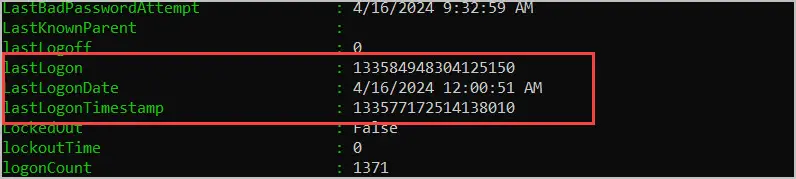
- LastLogon is updated on the domain controller that authenticates the user and is never replicated, so every DC holds a different value. It is the most accurate of the three, but you have to read it from every domain controller to get the real figure. The AD Pro Toolkit does this for you, examples below.
- LastLogonTimeStamp is replicated to all domain controllers, but it runs 9 to 14 days behind. Use it to find stale accounts, not to build last logon reports.
- LastLogonDate is not an attribute at all. It is the calculated, readable version of LastLogonTimeStamp that PowerShell returns.
LastLogon attribute comparison table
| Attribute | Replicated | Accuracy | When to use |
|---|---|---|---|
LastLogon |
No, held per domain controller | Exact | Accurate last logon reports, if you query every DC |
LastLogonTimeStamp |
Yes, to all domain controllers | 9 to 14 days behind | Finding stale and inactive accounts |
LastLogonDate |
Calculated from LastLogonTimeStamp | Same as LastLogonTimeStamp | A readable date in PowerShell output |
Get LastLogonDate with Get-ADUser
In this example, I'll use the Get-ADUser cmdlet to get the LastLogonDate for an Active Directory user. This is the quickest way to check whether an account has gone stale.
- Open PowerShell as administrator. If you are not on a domain controller you may need to import the Active Directory module.
- Run the command below, changing the identity to the account you want to check.
Get-ADUser -Identity robert.allen -Properties LastLogonDate | Select Name, LastLogonDate
To list every user in the domain, swap the identity for a filter.
Get-ADUser -Filter * -Properties LastLogonDate | Select Name, LastLogonDate | Sort LastLogonDate -Descending
Both commands read LastLogonDate, which replicates to every domain controller but can be 9 to 14 days behind. That is accurate enough for finding stale accounts, but not for reporting exactly when somebody last signed in. For that you need the LastLogon attribute, and you need it from every domain controller.
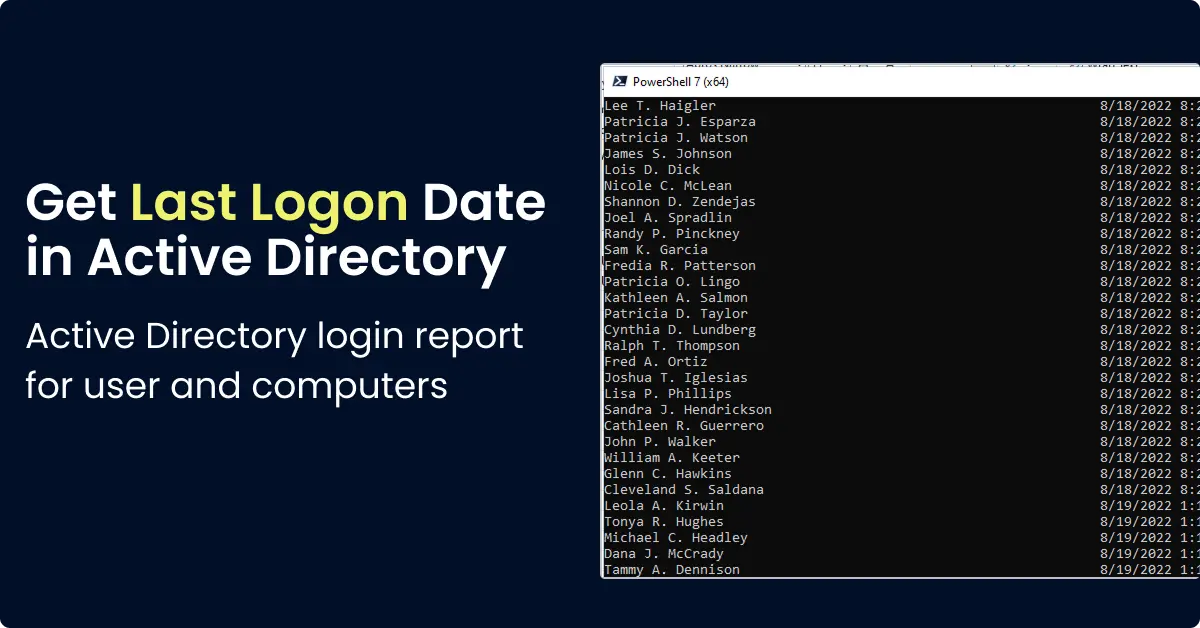
Example output from the above command.

Get LastLogon from All Domain Controllers
In this example, I’ll use PowerShell to get the LastLogon attribute from all domain controllers for a single user. The attribute is never replicated, so checking every domain controller is the only way to know when a user really last logged on.
- Log into a domain controller. If you don’t run this from a DC, you may need to import the Active Directory PowerShell modules.
- Run the script below. Change USER LOGON NAME to the target users logon name. This script will auto detect all your domain controllers and show the LastLogon attribute from each one. This provides the most accurate last logon time for a user.
$user = "USER LOGON NAME"

if (-not (Get-ADUser -Filter "SamAccountName -eq '$user'" -ErrorAction SilentlyContinue)) {
    Write-Warning "User '$user' was not found in Active Directory."
    return
}

Get-ADDomainController -Filter * | ForEach-Object {
    $dc = $_.HostName
    $logon = $null
    $adUser = Get-ADUser -Identity $user -Server $dc -Properties lastLogon -ErrorAction SilentlyContinue
    if ($adUser) { $logon = $adUser.lastLogon }

    [PSCustomObject]@{
        DomainController = $dc
        LastLogon        = if ($logon -gt 0) { [DateTime]::FromFileTime($logon) } else { "Never" }
    }
} | Sort-Object LastLogon -Descending
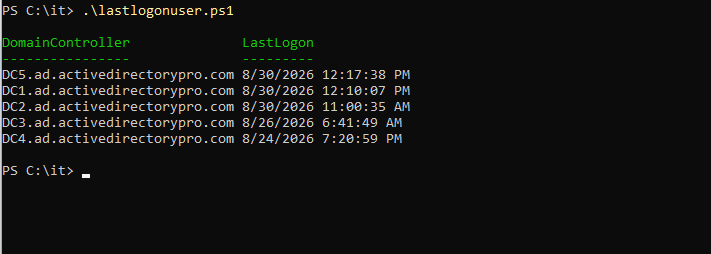
Here is a screenshot of the above script running on my domain account. You can see I have 5 domain controllers and the LastLogon value is different for each one.
Last Logon Report with AD Pro Toolkit
The AD Pro Toolkit collects the LastLogon attribute from every domain controller and shows the most recent value for each user. The toolkit makes it easy to create a last logon report for all users.
- Click on Report > Logon Reports, then click “True Last Logon Time”.
- Click “Run Report” to get the last logon date for all users, or click “Browse” to select an OU or group.
- Click the export button to export the report to CSV, Excel or PDF.
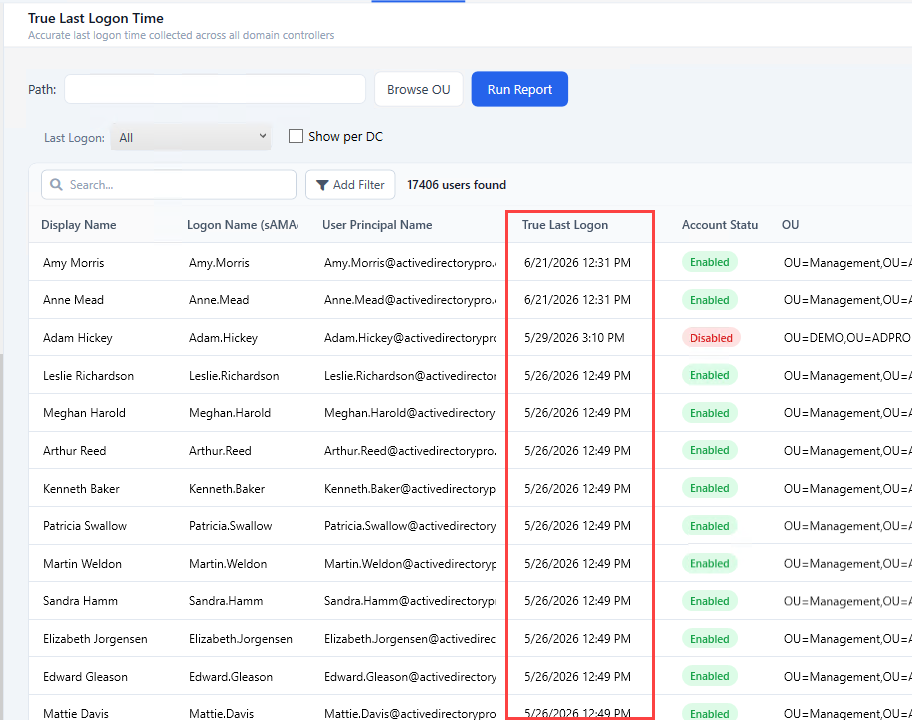
In the below screenshot you can see the true last logon time for all 17,000 accounts in my domain. With the toolkit you can search the results and click any column to filter the results.
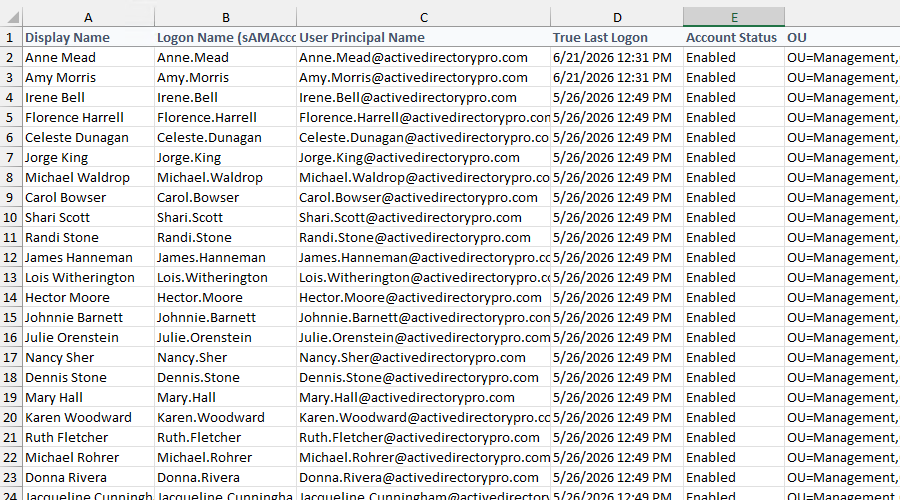
Here is an example last logon report exported to csv using the AD Pro Toolkit.
Frequently Asked Questions
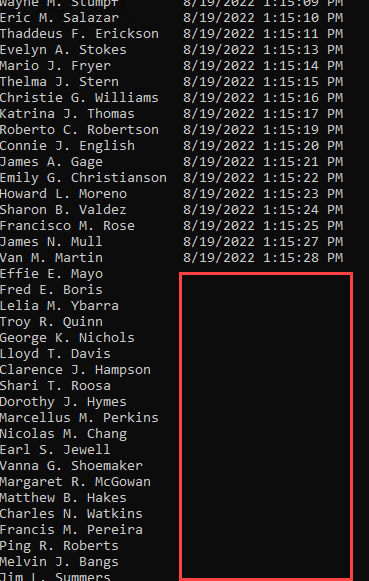
Why is LastLogonDate blank for some users?
The user has never logged in, or the value has not replicated to all domain controllers. Check LastLogon on each domain controller for a more complete picture.
Which attribute should I use for last logon reports?
It depends on how accurate the report needs to be. LastLogonDate replicates to every domain controller, so a single query covers the whole domain, but the value can be 9 to 14 days behind. That is fine for finding stale accounts. For a report of when users actually last signed in, you need LastLogon, which means reading it from every domain controller and keeping the most recent value.
How do I find which computer a user last logged into?
When a user logs into a computer it is not logged in Active Directory. It logs event 4624 on the computer the user logged into. So you would need to collect events 4624 on the end users computer.
Summary
In this guide, I walked through three examples on how to get the Active Directory Last Logon for domain user accounts.
It is important to review the last logon date for user accounts on a monthly basis to find stale user accounts. This can also be used to check the last time a user authenticated to the network. The PowerShell get-aduser cmdlet works great to get user’s last logon details from a single domain controller. To automatically collect the last logon details from all Domain Controllers I recommend the AD Pro Toolkit.