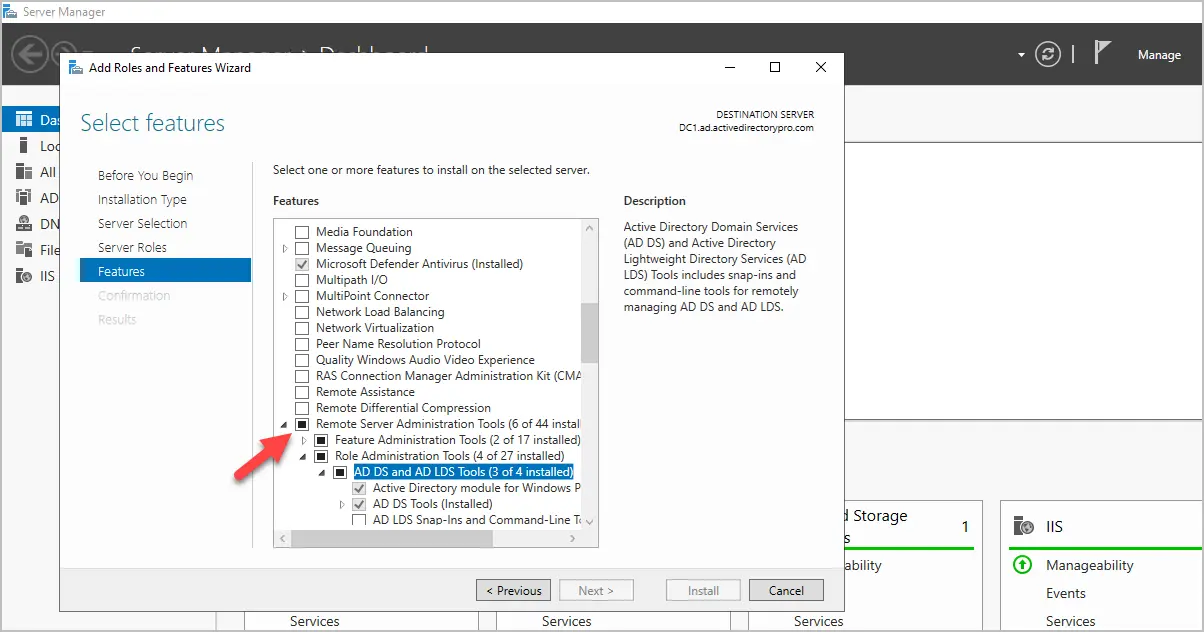
In this guide, I’ll show you how to install RSAT (Remote Server Administration Tools) on Windows 10, Windows 11, and Windows Server. I’ll also show you how to install RSAT using PowerShell.
Note: Starting with Windows 10 October 2018 Update, the RSAT tools no longer need to be downloaded. They are now included with the Windows build and just need to be installed. RSAT tools are only supported on Windows Pro and Enterprise versions of Windows 10 and 11.
Install RSAT on Windows 10
1. Open Apps & features and click on “Optional features”
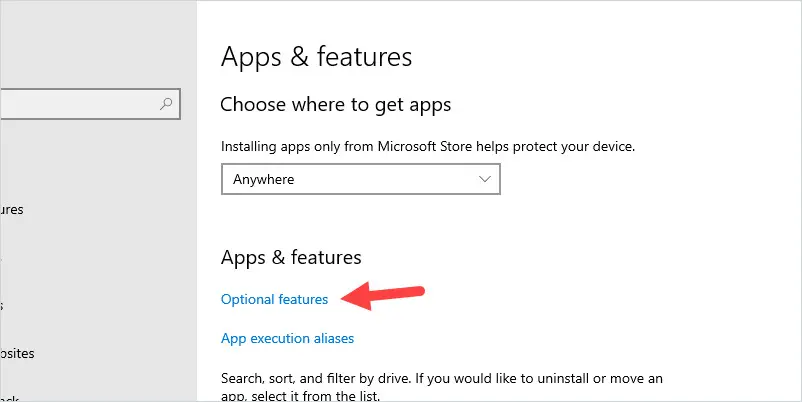
2. Click on Add a feature.
3. Type rsat and then select the RSAT tools you want to install.
In this example, I’ll install the Active Directory, DHCP, and DNS tools.
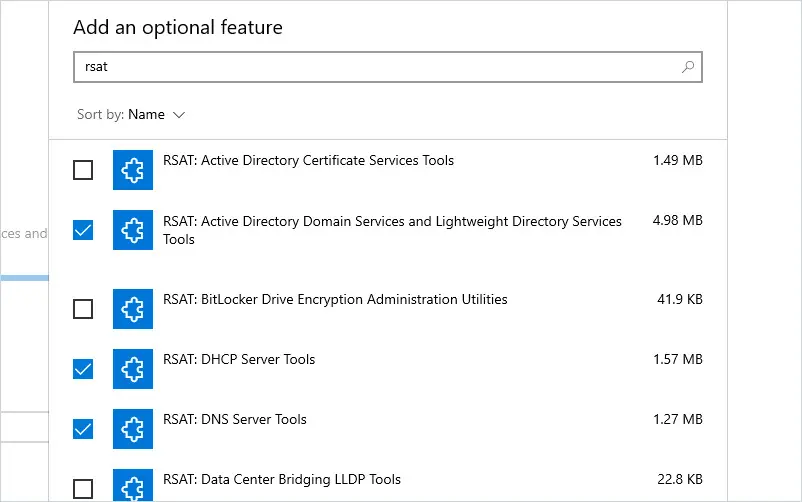
4. Click install to start the installation.
When the installation is complete the status will say installed.
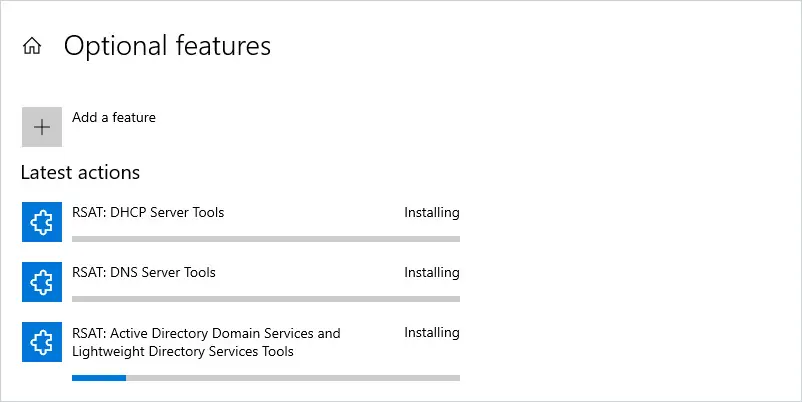
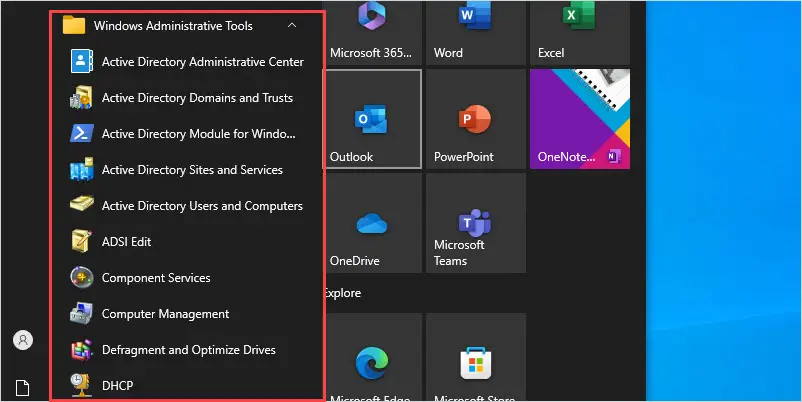
You can now navigate to the start -> Windows Administrative Tools to open one of the RSAT tools.
Install RSAT on Windows 11
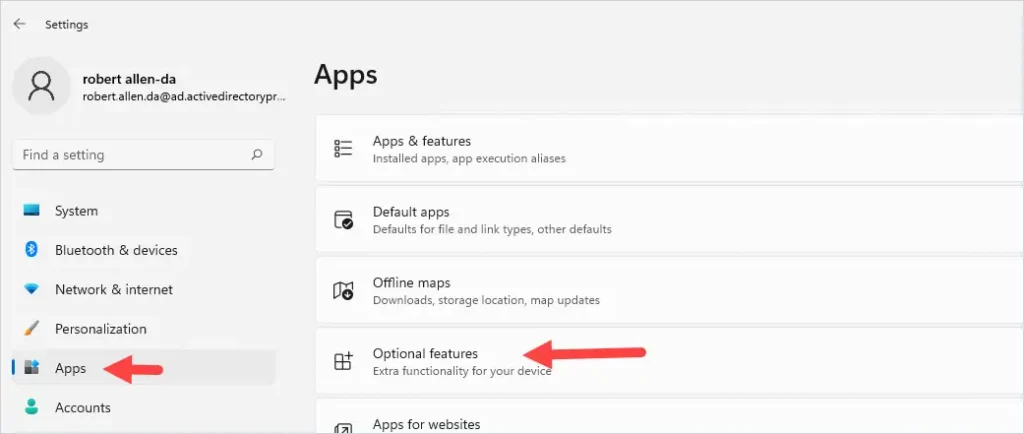
On Windows 11 go to settings and then Apps.
Click on Optional Features.
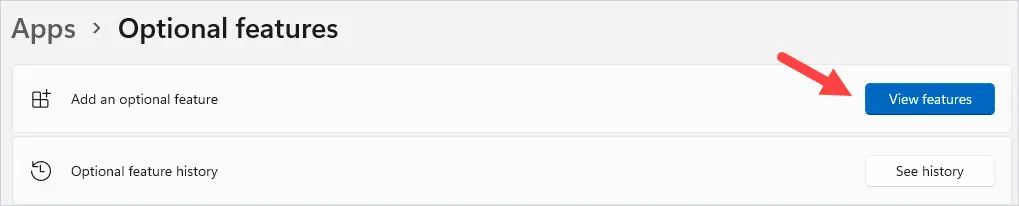
Click on the View Features button.
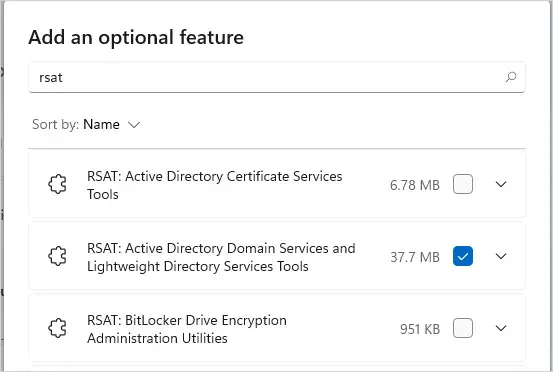
Type in rsat and select the tools you want to install.
In this example, I’ll select the Active Directory Domain Services tool.
Click “Next”.
Click “Install”.
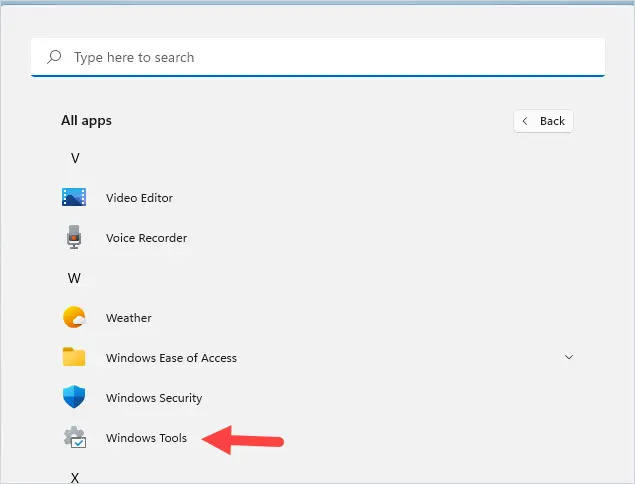
When the installation is complete, you can access the tools by going to all apps -> Windows Tools.
Install RSAT on Windows Server
These steps work for Server 2016, 2019, and 2022.
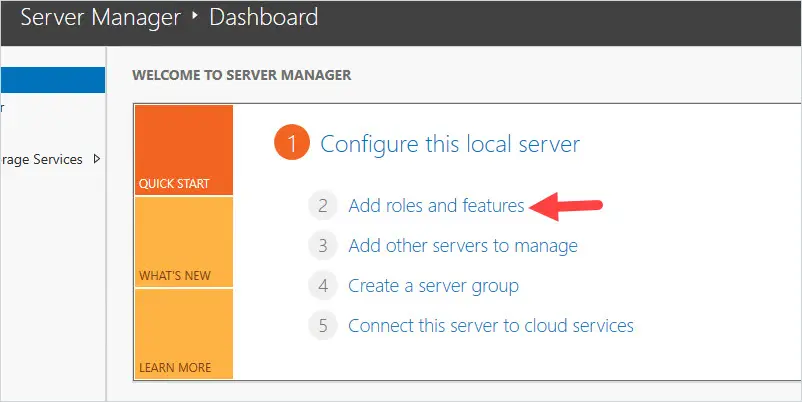
Open the Server Manager and click on Add roles and features
Click Next.
Select “Role-based or featured-based installation” and click next
Select your server and click next.
For server roles click Next. (We are not adding any server roles).
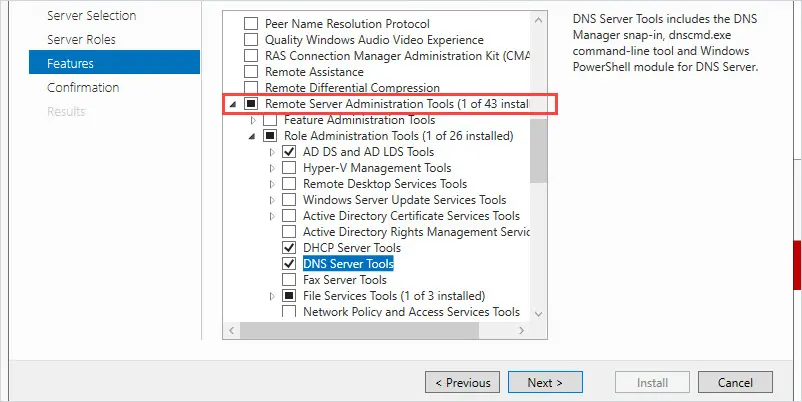
For features scroll down to Remote Server Administration Tools).
Select the tools you want to install and click next.
Confirm the selections and click install.
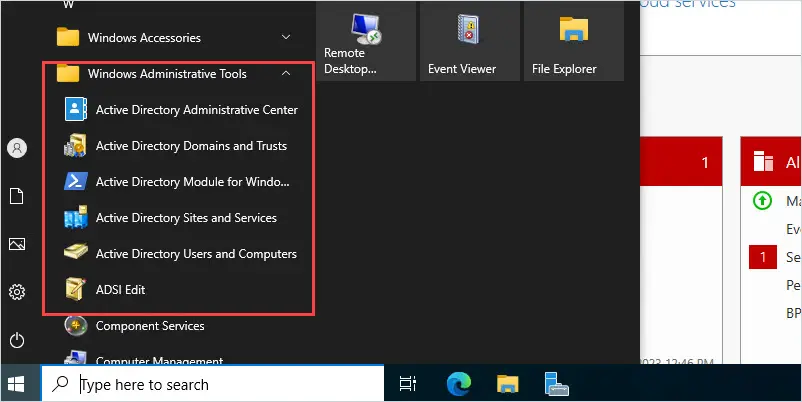
When the installation is complete the tool can be accessed from start -> Windows Administration Tools
Using PowerShell to Install RSAT
You can install individual RSAT tools or all of them using Powershell.
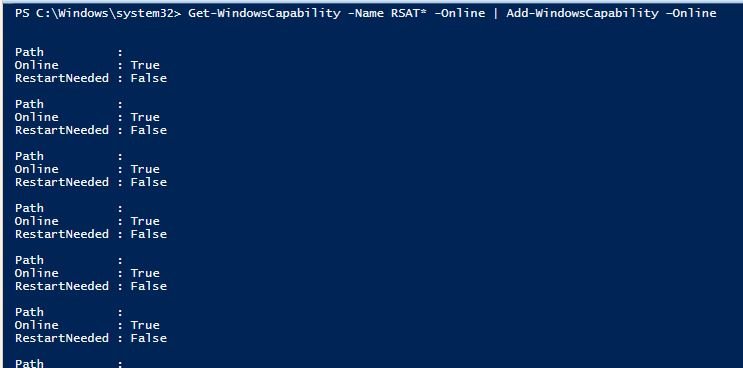
Example 1.Install all RSAT tools run the below command.
Get-WindowsCapability -Name RSAT* -Online | Add-WindowsCapability -Online
Example 2. Install Specific RSAT Tool using PowerShell
To install individual tools you will use the Add-WindowsCapability -Online -Name command followed by the PowerShell tool name.
In this example, I’ll install the Active Directory Domain Servers tools using the command below.
Add-WindowsCapability -Online -Name Rsat.ActiveDirectory.DS-LDS.Tools~~~~0.0.1.0
Use the names below to install other RSAT tools via PowerShell.
Active Directory Domain Servers and Lightweight Directory Services Tools: Rsat.ActiveDirectory.DS-LDS.Tools~~~~0.0.1.0
BitLock Drive Encryption Administration Tools: Rsat.BitLocker.Recovery.Tools~~~~0.0.1.0
Active Directory Certificate Services:
Rsat.CertificateServices.Tools~~~~0.0.1.0
DHCP Server Tools:
Rsat.DHCP.Tools~~~~0.0.1.0
DNS Server Tools:
Rsat.Dns.Tools~~~~0.0.1.0
Failover Clustering Tools:
Rsat.FailoverCluster.Management.Tools~~~~0.0.1.0
File Services Tools:
Rsat.FileServices.Tools~~~~0.0.1.0
Group Policy Management Tools:
Rsat.GroupPolicy.Management.Tools~~~~0.0.1.0
IP Address Management (IPAM) Client:
Rsat.IPAM.Client.Tools~~~~0.0.1.0
Data Center Bridging LLDP Tools:
Rsat.LLDP.Tools~~~~0.0.1.0
Network Controller Management Tools:
Rsat.NetworkController.Tools~~~~0.0.1.0
Network Load Balancing Tools:
Rsat.NetworkLoadBalancing.Tools~~~~0.0.1.0
Remote Access Management Tools:
Rsat.RemoteAccess.Management.Tools~~~~0.0.1.0
Remote Desktop Services Tools:
Rsat.RemoteDesktop.Services.Tools~~~~0.0.1.0
Server Manager:
Rsat.ServerManager.Tools~~~~0.0.1.0
Shielded VM Tools:
Rsat.Shielded.VM.Tools~~~~0.0.1.0
Storage Migration Service Management Tools:
Rsat.StorageMigrationService.Management.Tools~~~~0.0.1.0
Storage Replica Module for Windows PowerShell:
Rsat.StorageReplica.Tools~~~~0.0.1.0
System Insights Module for Windows PowerShell:
Rsat.SystemInsights.Management.Tools~~~~0.0.1.0
Volume Activation Tools:
Rsat.VolumeActivation.Tools~~~~0.0.1.0
Windows Server Update Services Tools:
Rsat.WSUS.Tools~~~~0.0.1.0
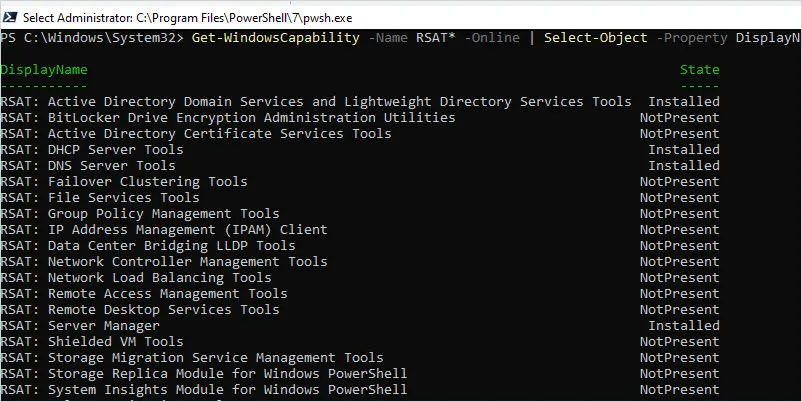
You can use PowerShell to view which RSAT tools are installed with the following command.
Get-WindowsCapability -Name RSAT* -Online | Select-Object -Property DisplayName, State
RSAT Limitations & Alternatives
RSAT provides basic tools for managing Active Directory but has some limitations. There is no built-in reporting, no bulk editing, and no way to automate common tasks like cleanup or user provisioning. If you need these features, the AD Pro Toolkit fills those gaps, a modern interface, bulk user updates, 200+ pre-built reports, stale account cleanup, and scheduled automation, all from a single GUI.