In this guide, you will learn how to export AD group members to csv. I will show you how to get a list of groups and members with PowerShell and the AD Pro Toolkit. You can easily list group members with PowerShell but getting details for each user can be challenging. I’ll show you how to get a detailed group members report with the AD Pro Toolkit.
Step 1: Load the Active Directory Module
To connect and query an AD group with PowerShell the Active Directory module needs to be loaded.
The Active Directory module can be installed with the following methods:
- RSAT tools installed
- Windows Server 2008 R2 and above with the AD DS or AD LDS server roles
You can run the following command to see if you have installed.
Get-Module -ListAvailable
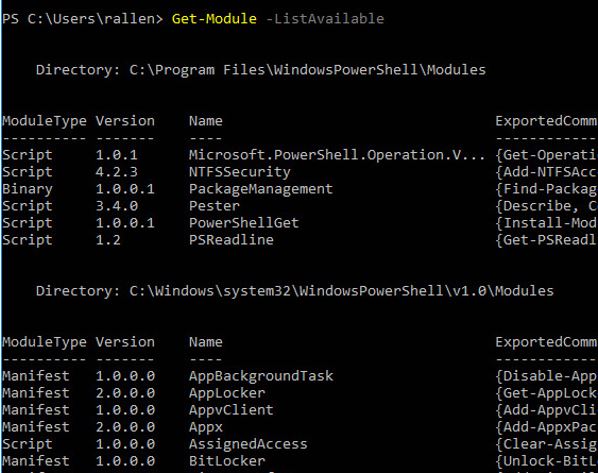
As you can see, I don’t have the module installed.
If you already have the module loaded then jump to step 2, if not then follow these instructions.
To get the Active Directory module installed on my Windows 10 PC, I will need to download and install the RSAT tools.
With the RSAT tools installed, I run the Get-Module -ListAvailable command again
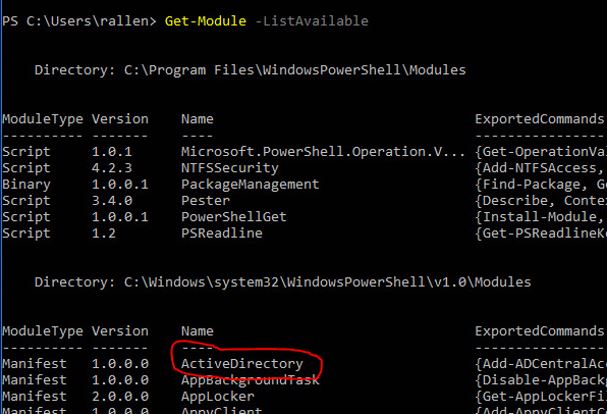
Now I have the module installed, let’s move on to step 2.
Step 2: Use Get-ADGroup to find the group name
If you already know the name of the group, then skip to step 3.
If you’re not sure what the group name is, you can issue the following PowerShell command to list all Active Directory groups.
Get-ADGroup -filter * | sort name | select name
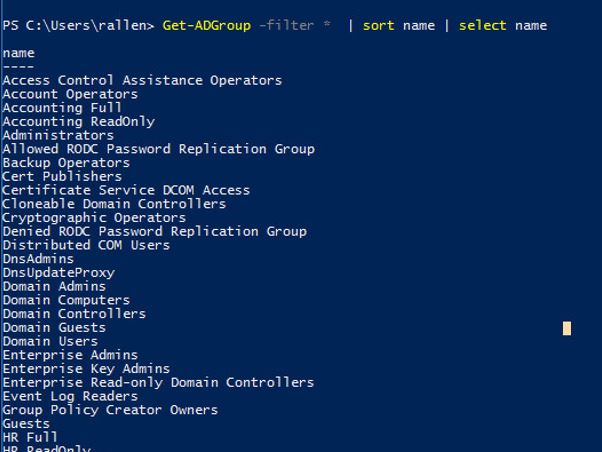
Above, is a screenshot of some of the groups listed in my domain. I had an HR group but wasn’t sure of its complete name, I can see it’s HR full. I’ll use that group in step 3 to list out the members.
Step 3: List members of AD Group
The following PowerShell command will list all members of my HR Full group.
Get-ADGroupMember -identity "HR Full"
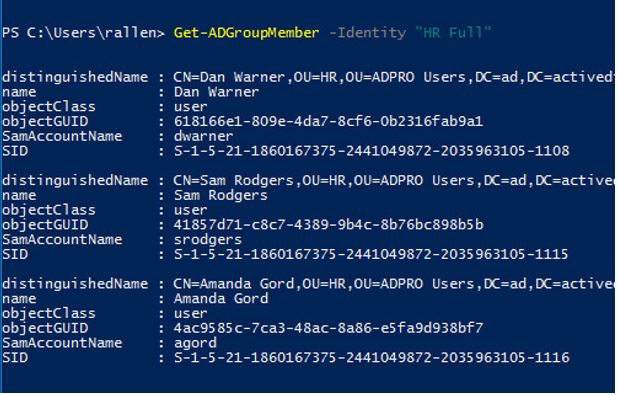
You can see the above command provides more details on the group members than I need.
We can filter out the results and just get the member name with this command.
Get-ADGroupMember -identity "HR Full" | select name
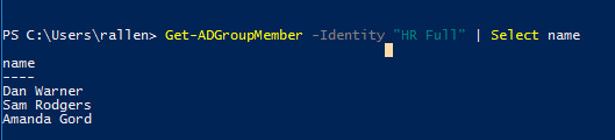
Perfect, now I just need to export this to CSV.
Step 4: Export AD group members to CSV file with PowerShell
The last step is to export the results to a CSV file.
This is done by adding Export-csv to our above commands. The full command looks like this.
Get-ADGroupMember -identity "HR Full" | select name | Export-csv -path c:\it\filename.csv -Notypeinformation
Pretty easy right?
Easily Export AD Group Members with AD Pro Toolkit
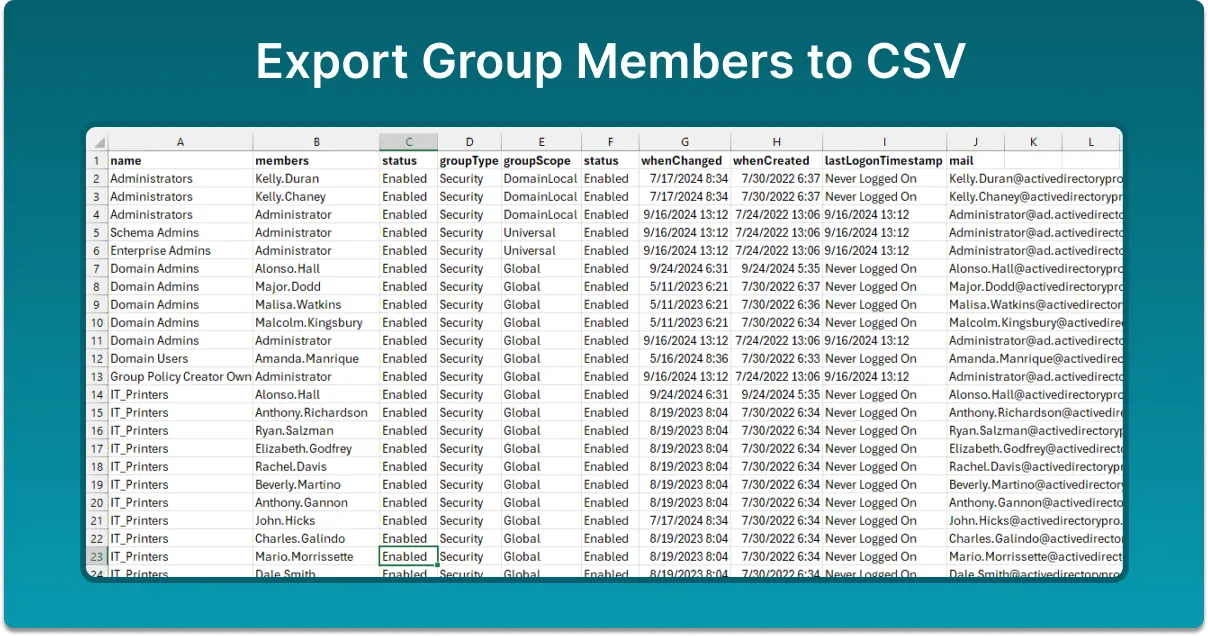
Exporting group members to CSV with PowerShell can become a time consuming and complex process. With the AD Pro Toolkit this task is very easy, you can create detailed group member reports with the click of the button.
The AD Pro Toolkit includes an Active Directory reporting tool with over 200 built-in reports. This is a huge time saver and eliminates the need to constantly making changes to complex PowerShell scripts.
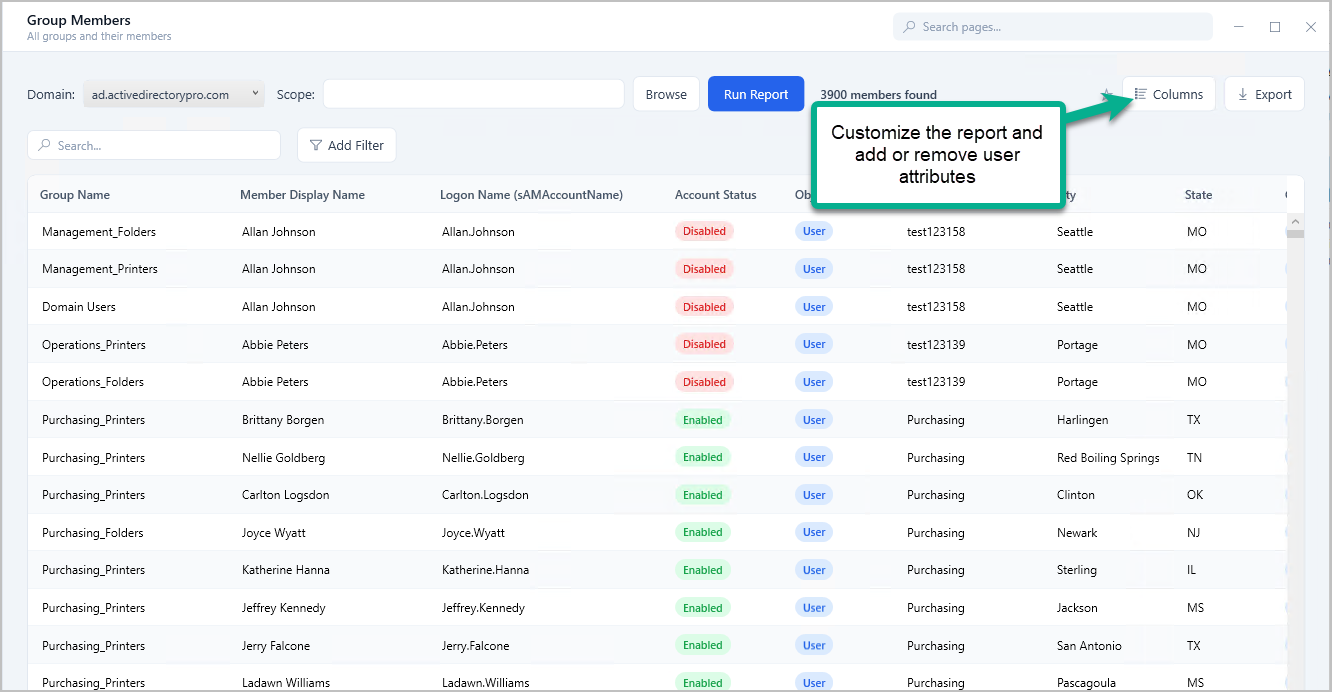
Use the attribute selector to add or remove details to the group members export.
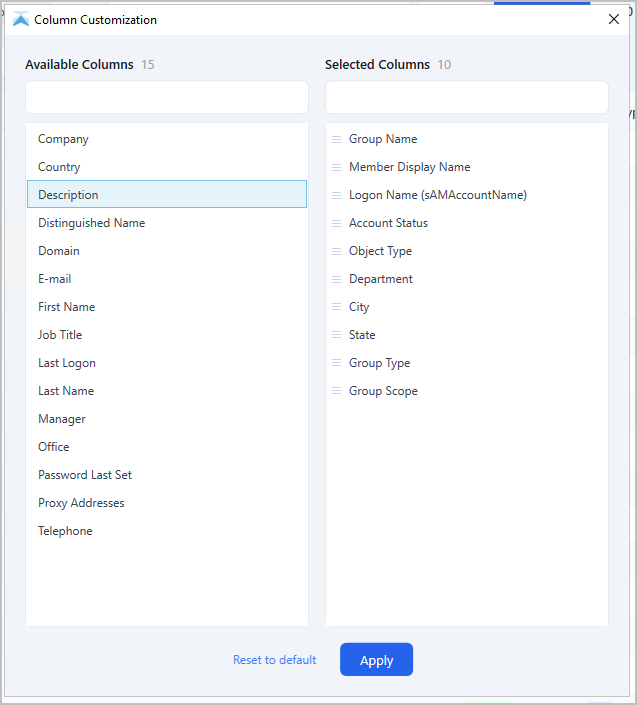
Group members reports include:
- domain
- group type
- group scope
- User Account status (enabled or disabled)
- User lastLogonTimestamp
- User email
- User department, job title, city, state, company, office, phone, manager
- You can customize the report to include the details you need
- Send email reports and include the group members csv export
How to Export AD Group Members with AD Pro Toolkit
Step 1. Download the AD Pro Toolkit
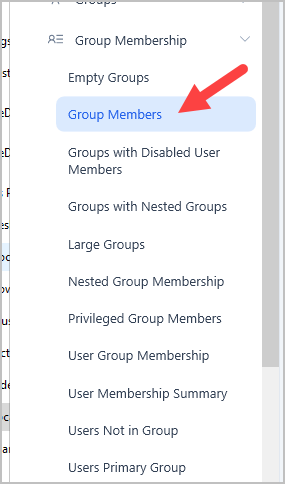
Step 2. Open Group Members Report
Click on “Group Membership” and select “Group Members”.
Step 3. Select groups or path
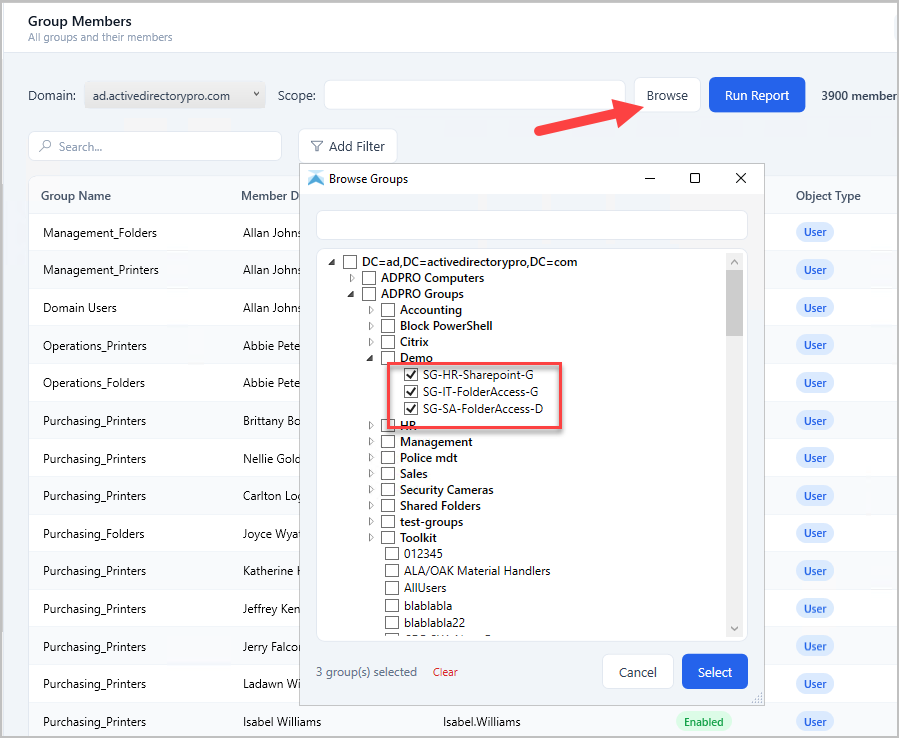
By default, the tool will run for all groups in your domain. To select specific groups or an OU click the “Browse” button. In this example, I have selected three groups that I want to export its members.
Step 4. Add or Remove Attributes
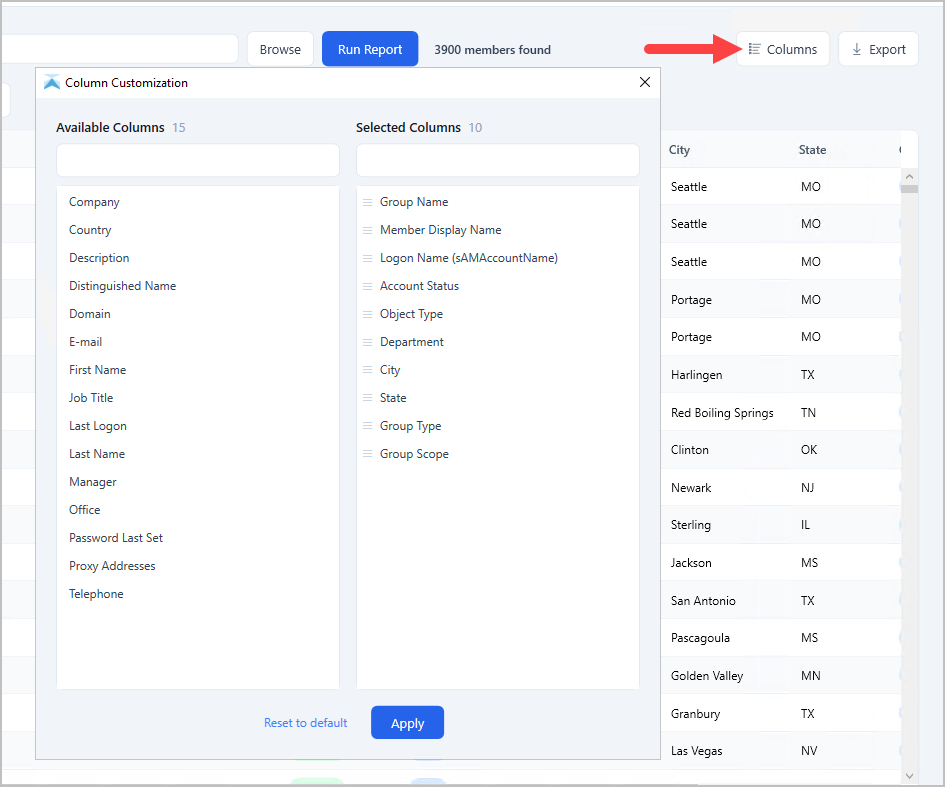
You can display additional details for each member of the group. For example, if I need to show the mail, whenCreated and whenChanged for each group member I can add those to the report. Click the “Columns” button if you want to add or remove attributes for the group members.
Step 4. Click “Run” to preview the export
This will display the groups and the group members for what you have selected. It creates a preview of what you want to export.
Step 5. Export Group Members
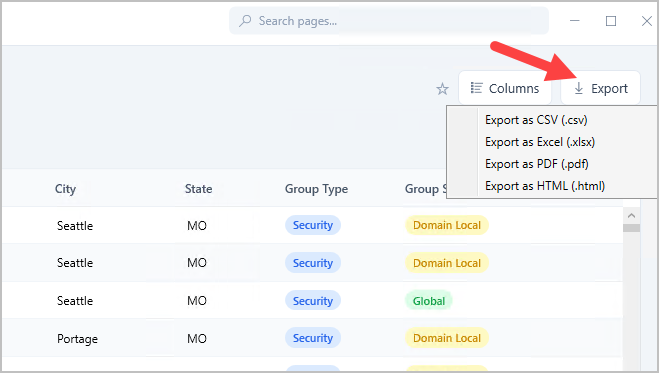
Click the “Export” button to export the group members to CSV. You can also choose to export the list to excel or PDF.
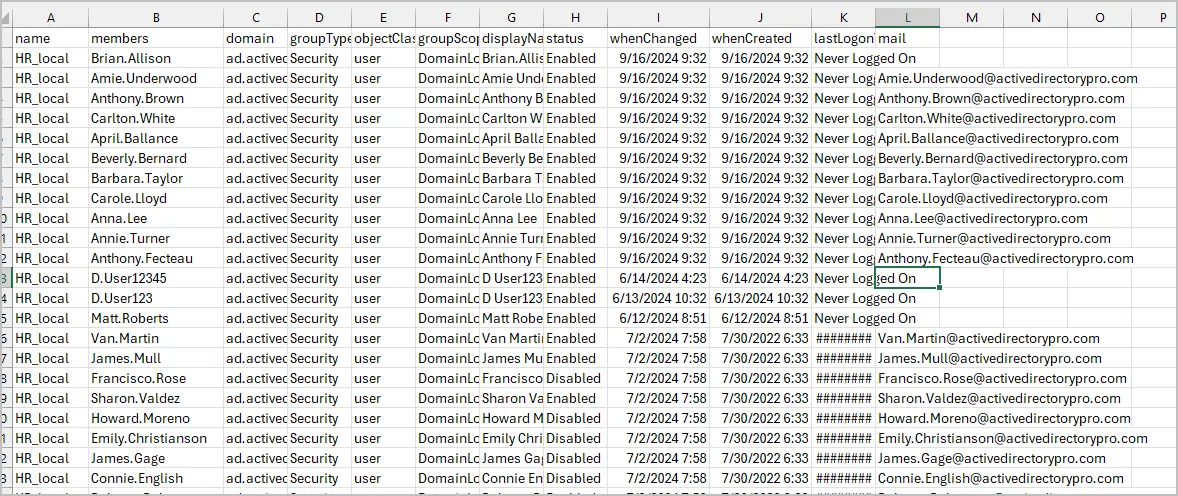
Group members CSV example
Export AD Group Members in a single row
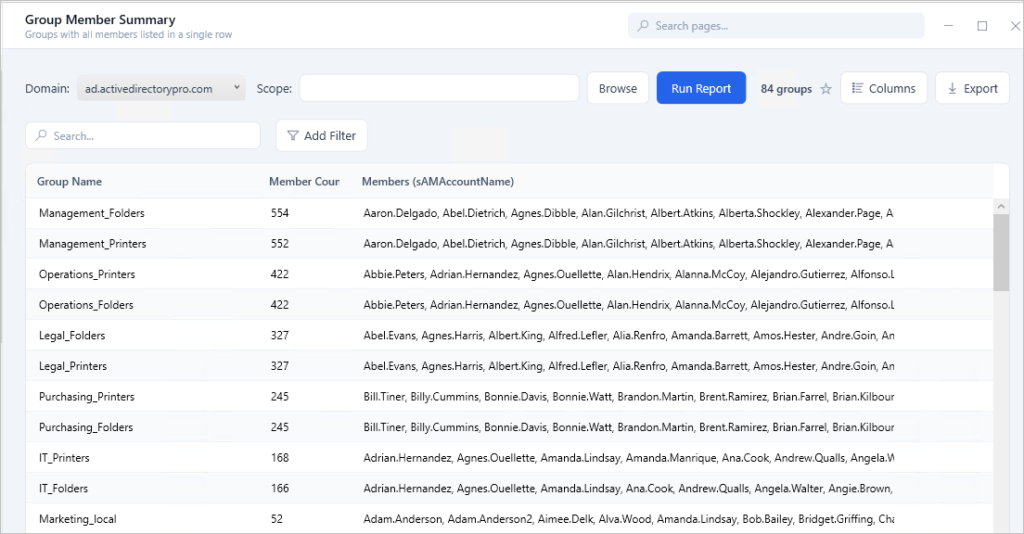
I’ve had several requests to add a report that shows the group and the group members in a single row. This report is now included in the toolkit. Below is an example, you can see the group name in one column and then in the next column it lists all of the group members in a single row.
To run this report click on “Group Member Reports” and then Group Members (Single line).
Nested Groups and Members
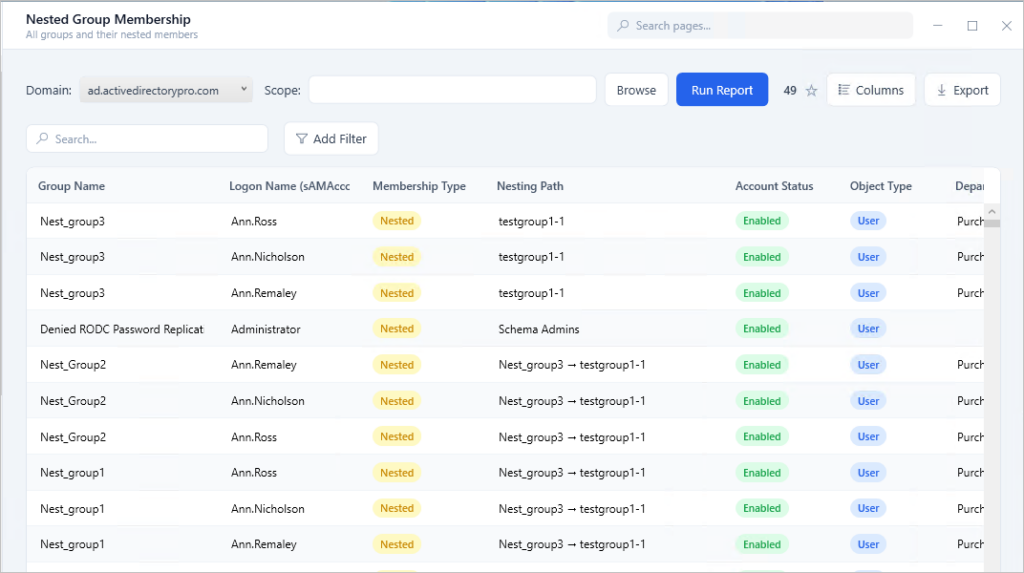
To get a list of nested groups and members click the “Nested Group membership report. This will list all groups that are members of another group. If the parent group has members, you can expand it to see the list.
Export only Security Group Members
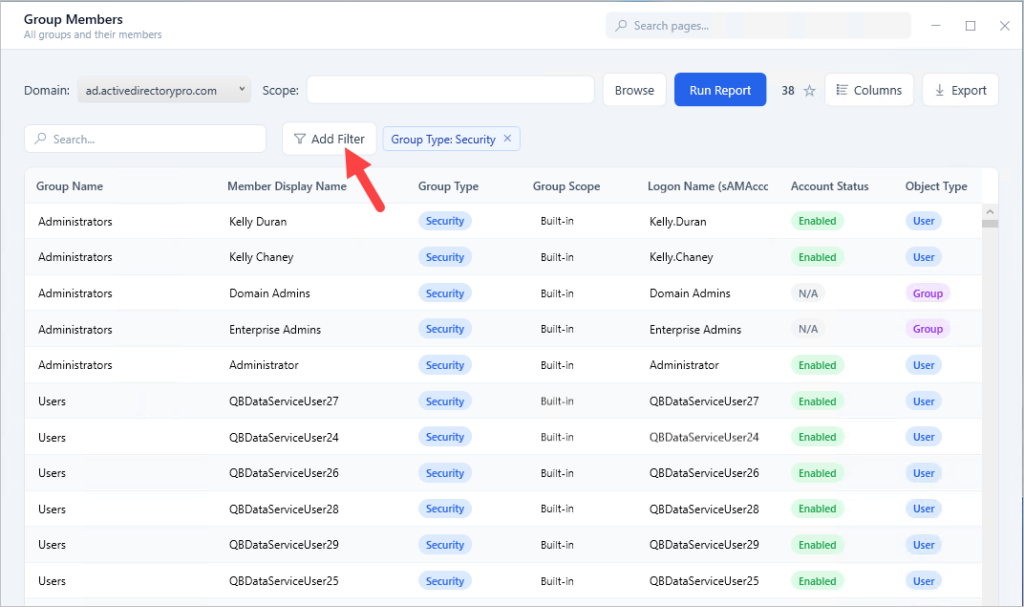
If you only want to export the members of a specific group type such as security, follow these steps.
- Run the group members report for all groups in your domain
- Next, Click “Add Filter” Select “Group Type” and only select Security
Now the tool will only display security groups and the group members. Click the export button to export the report.
The toolkit includes over 200 reports that can be customized, scheduled and export. Below are some additional group and group member reports included.
- Nested groups
- Nested groups tree view
- Groups with no members
- Large groups
- Group member count
- User group membership
- All security groups
- All distribution groups
- Recently modified groups
- Recently created groups
Schedule Automatic Group Membership Reports
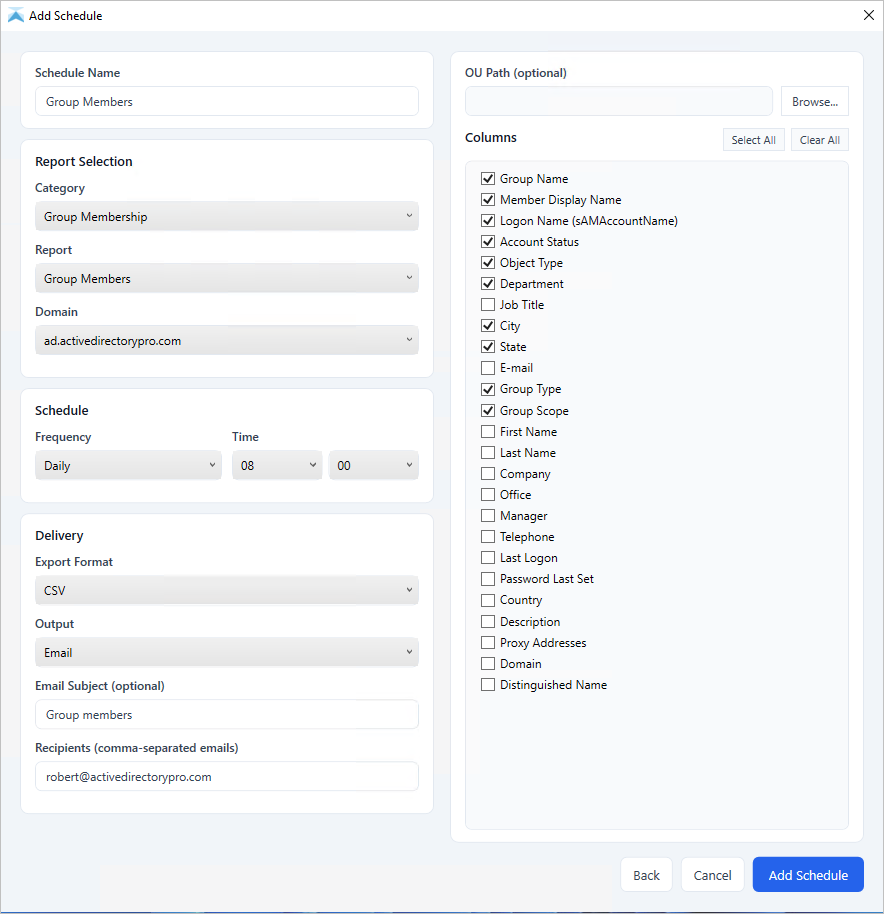
With the AD Pro Toolkit, you can schedule email reports of group members. This will email you a list of groups and members on a daily, weekly or monthly basis.
- Click on “Scheduled Report”.
- Click “New Schedule”.
- Select “Reports”
- Enter schedule details and click save
I hope this detailed guide helped you to export group members to csv. Exporting group members with PowerShell is pretty easy but can get complicated when trying to include additional user details. Next, you might also want to see our guide on how to export active directory users to csv.