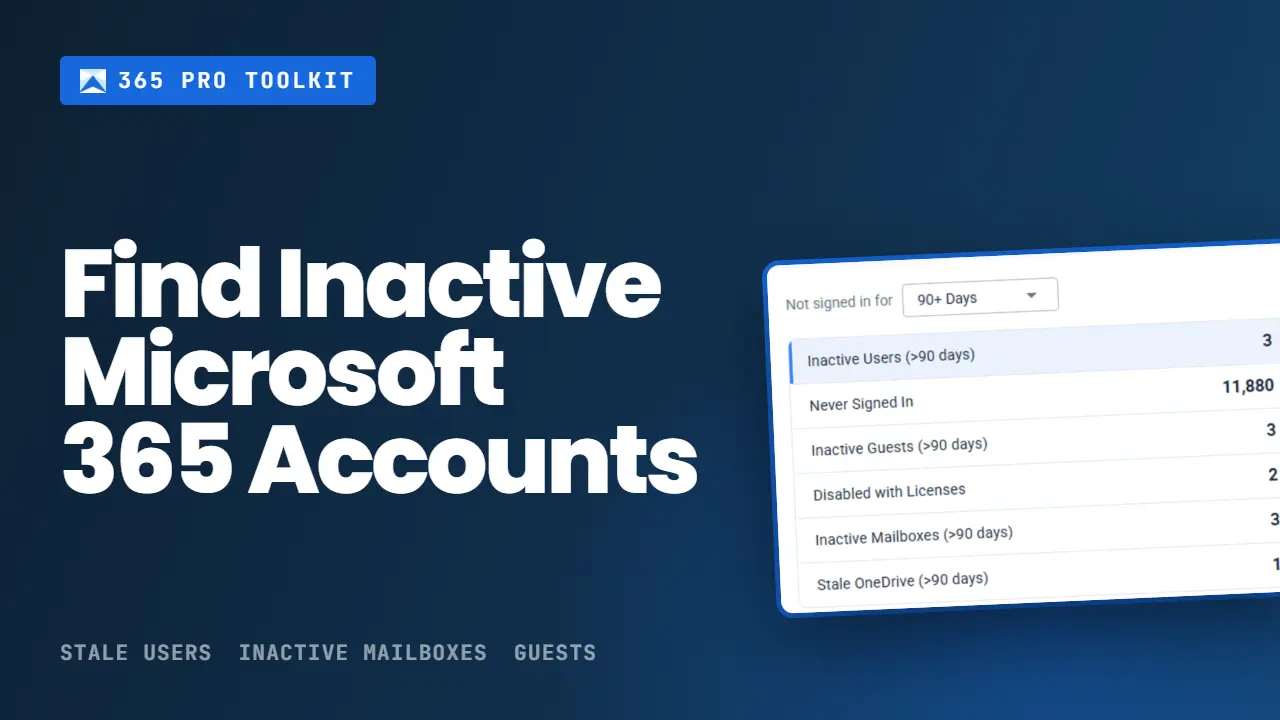
There are multiple ways to find inactive Microsoft 365 user accounts. In this guide, I’ll show you 3 options: the Last interactive sign in time in the Entra admin center, PowerShell and the 365 Pro Toolkit.
Before you start
- Entra ID P1 or P2 required - sign-in activity is a premium feature. Without an Entra ID P1 or P2 license, the Last Sign-in columns and the signInActivity property will be blank.
- Reports Reader role - or higher. Security Reader, Security Administrator, and Global Administrator also work.
- For PowerShell - the AuditLog.Read.All and User.Read.All Graph permissions.
Find Inactive Microsoft 365 Users in the Entra Admin Center
Step 1. Sign in to Microsoft Entra admin center
Step 2. Browse to Entra ID > Users
Step 3. Click Manage View and select edit columns
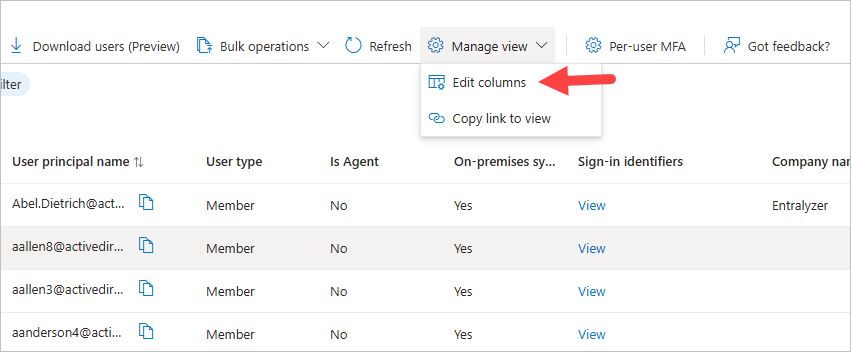
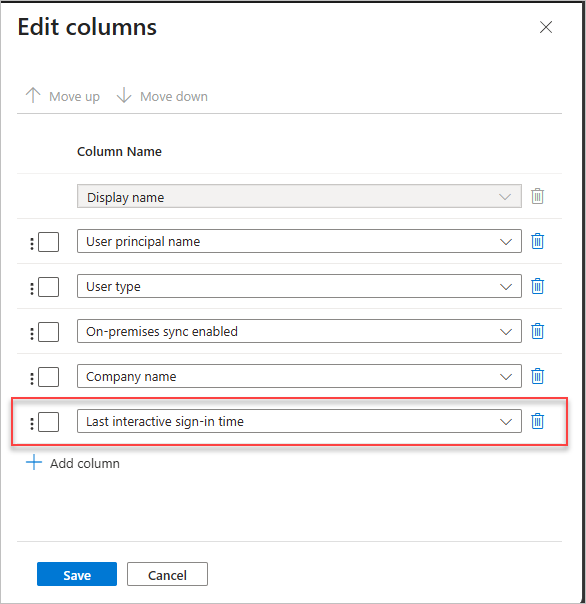
Step 4. Click Add column and add the column Last interactive sign in time and click save.
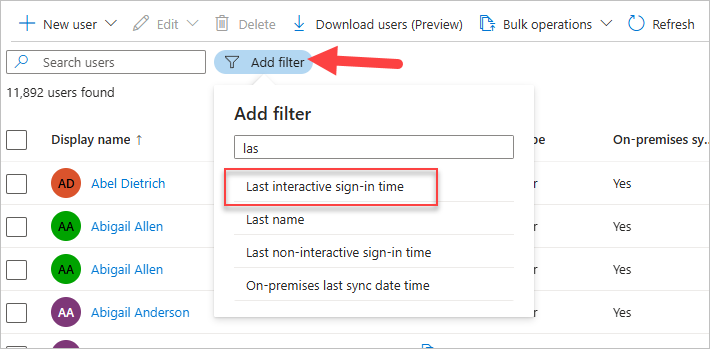
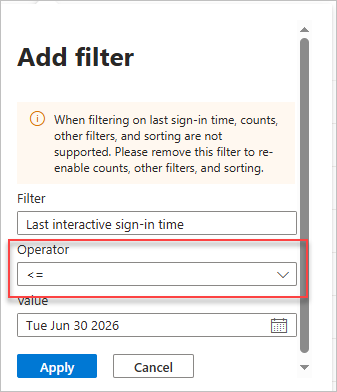
Step 5. Click Add filter and select Last interactive sign-in time
Step 6. Select the les than or equal to <= operator and select a date.
To find accounts with no sign in activity select a date 30 days from today.
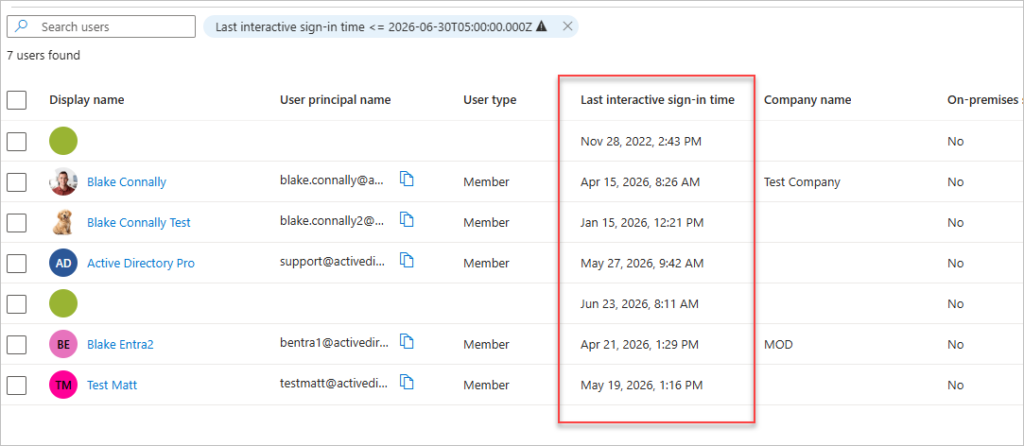
Click Appy and you will get a list of accounts that match the filter.
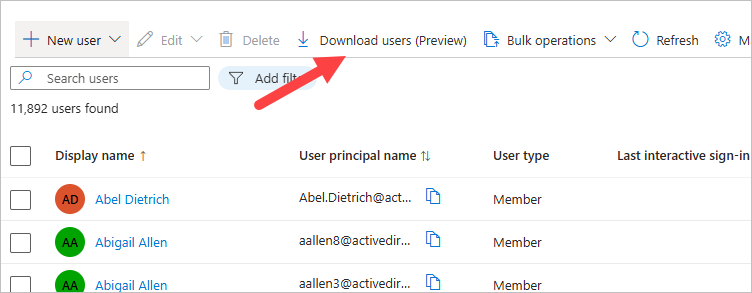
To export the list of users, click on the download users button.
Find Inactive Microsoft 365 Users with PowerShell
With PowerShell you can get the LastSignInDateTime and LastSuccessfulSignInDateTime for a single or all users. You can modify the script to adjust the timeframe or properties.
- lastSignInDateTime - the last interactive sign-in attempt, successful or failed. A user typing a password, approving MFA, or signing in through the browser. Background app activity isn’t counted.
- LastSuccessfulSignInDateTime - the last time the account was successfully authenticated, interactive or not. The only one of the two that tells you the account was genuinely accessed.
Check single user sign in activity
Use this command if you want to check the last sign in details for a single user.
Get-MgUser -Filter "userPrincipalName eq 'user@yourdomain.com'" -Property signInActivity | Select-Object -ExpandProperty SignInActivity
Screenshot

Find all inactive Microsoft 365 users
To find all inactive accounts based on a timeframe follow these steps.
Step 1. Connect to graph
Connect-MgGraph -Scopes "User.Read.All","AuditLog.Read.All"
Step 2. Run the following script
Change the cutoff date to adjust the inactivity time. For example, change -90 to -60 or -30.
<#
=============================================================================================
Name:           Get Inactive Entra ID (Azure AD) Users Report
Description:    This script finds Microsoft 365 accounts with no successful sign-in in the last 90 days and outputs them to the console/pipeline
Version:        1.0
Requires:       Microsoft.Graph.Users module, AuditLog.Read.All + User.Read.All scopes
Website:        activedirectorypro.com

Usage:
~~~~~~
Connect-MgGraph -Scopes 'User.Read.All','AuditLog.Read.All'
.\Get-InactiveEntraUsers.ps1
.\Get-InactiveEntraUsers.ps1 | Export-Csv .\inactive-users.csv -NoTypeInformation

Notes:
~~~~~~
- Filters on lastSuccessfulSignInDateTime, not lastSignInDateTime. The latter counts failed attempts, so it can make an inaccessible account look active.
- Accounts that have never signed in are excluded (no date to measure). Swap in the commented filter line inside the script to include them.
- Change the 90 in $cutoff to adjust the inactivity threshold.
=============================================================================================
#>

$cutoff = (Get-Date).AddDays(-90)
$scanned = 0
$found   = 0

$results = Get-MgUser -All -Property displayName,userPrincipalName,signInActivity |
  ForEach-Object {
      $scanned++
      if ($scanned % 50 -eq 0) {
          Write-Progress -Activity 'Checking sign-in activity' `
                         -Status  "$scanned users scanned - $found inactive found" `
                         -CurrentOperation $_.UserPrincipalName
      }
      $_
  } |
  Select-Object displayName, userPrincipalName,
    @{n='lastSuccessfulSignInDateTime'; e={$_.SignInActivity.LastSuccessfulSignInDateTime}},
    @{n='lastSignInDateTime';           e={$_.SignInActivity.LastSignInDateTime}} |
  Where-Object {
      # Accounts with no successful sign-in on record are skipped -- there is no date to
      # measure. Use the commented line instead to include them.
      if ($_.lastSuccessfulSignInDateTime -and $_.lastSuccessfulSignInDateTime -lt $cutoff) { $found++; $true } else { $false }
      # if (-not $_.lastSuccessfulSignInDateTime -or $_.lastSuccessfulSignInDateTime -lt $cutoff) { $found++; $true } else { $false }
  }

Write-Progress -Activity 'Checking sign-in activity' -Completed

Write-Host "Scanned $scanned users. Found $found with no successful sign-in since $($cutoff.ToString('yyyy-MM-dd'))." -ForegroundColor Cyan

$results | Sort-Object lastSuccessfulSignInDateTime
Screenshot

Identify Inactive Microsoft 365 Accounts with 365 Pro Toolkit
With the 365 Pro Toolkit you can easily find the following inactive accounts.
- Inactive Microsoft 365 users
- Never signed in accounts
- Inactive guests
- Disabled with a license
- Inactive mailboxes
- Stale OneDrive accounts
Open the 365 pro toolkit and Click on Tools > Users > Stale accounts
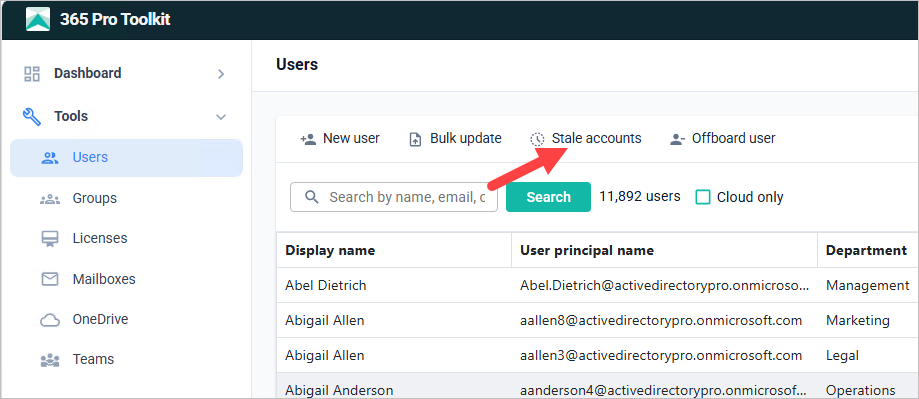
The tool will automatically list inactive users, mailboxes and OneDrive accounts for the last 90 days. Use the dropdown to change the timeframe.
Inactive Users
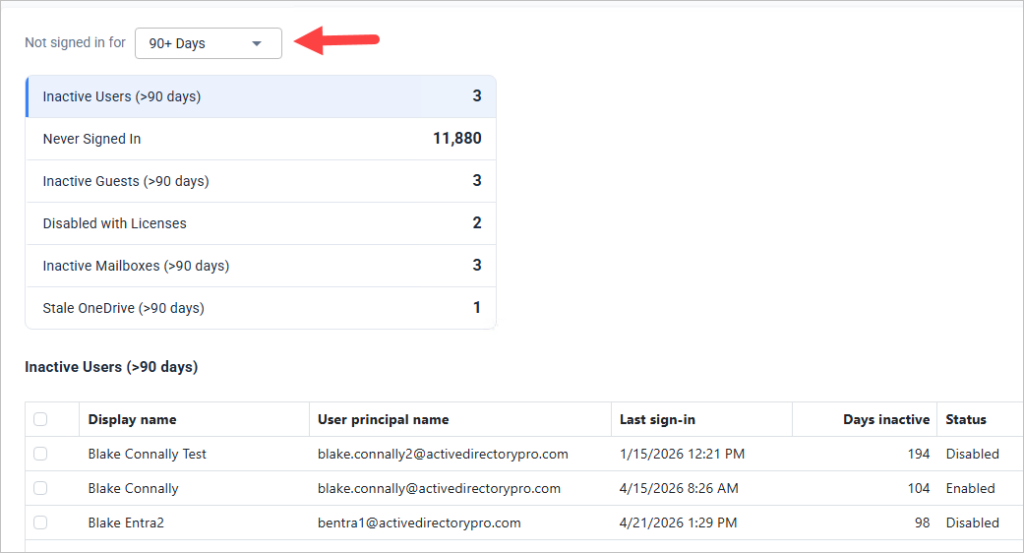
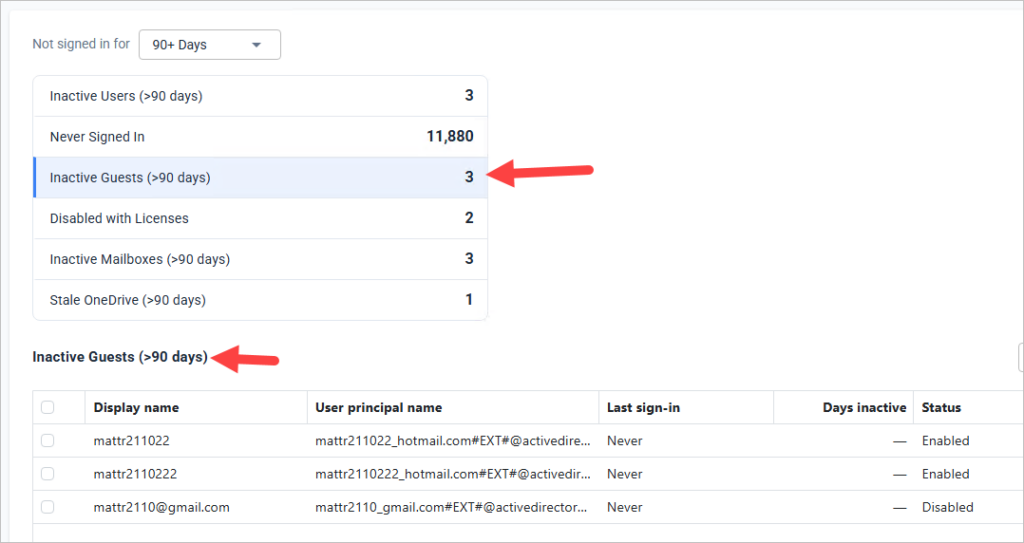
Click the account type will update the inactive users table at the bottom.
For example, if I click on Inactive Guests the table updates.
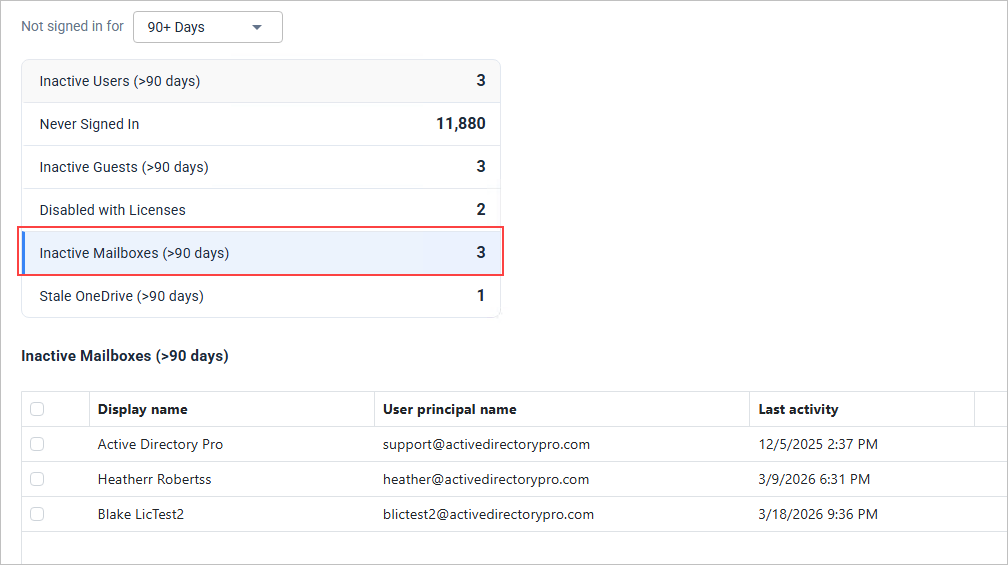
Inactive Mailboxes
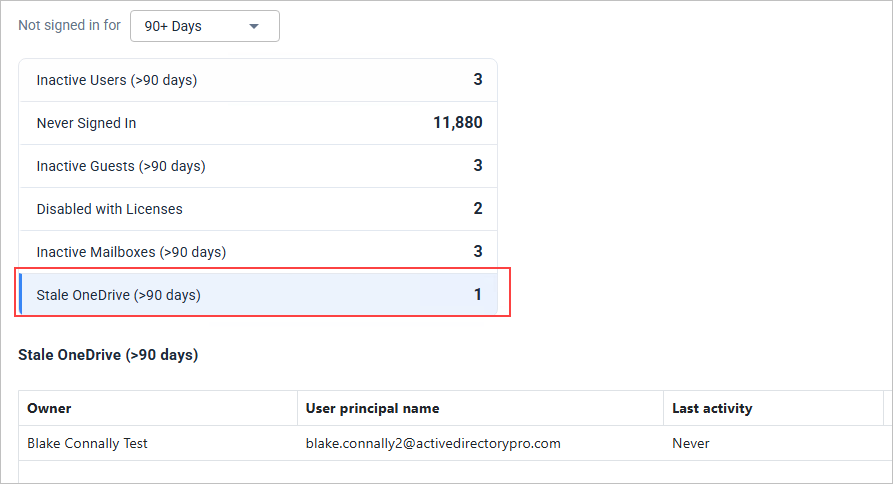
Stale OneDrive accounts
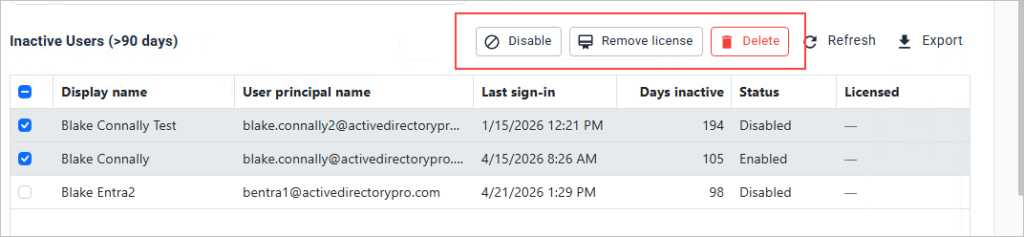
The 365 Pro Toolkit also lets you take actions on inactive accounts. Select one or multiple accounts and choose from the actions bar on the right.