Removing local admin rights is one of the most effective ways to improve security across your network. Users with local admin access can install software, change system settings, and introduce vulnerabilities. In this guide, I’ll show you how to remove local admin rights using Group Policy, and with the AD Pro Toolkit.
How to Remove Local Admin Rights Remotely
The AD Pro Toolkit includes a Local Admins Report Tool that makes it easy to report and remove local admin rights.
Browse to Security > Local Admin Report. You can scan all computers or click Browse to select an OU.
Select the users and groups you want to remove and click the “Remove Selected” button.
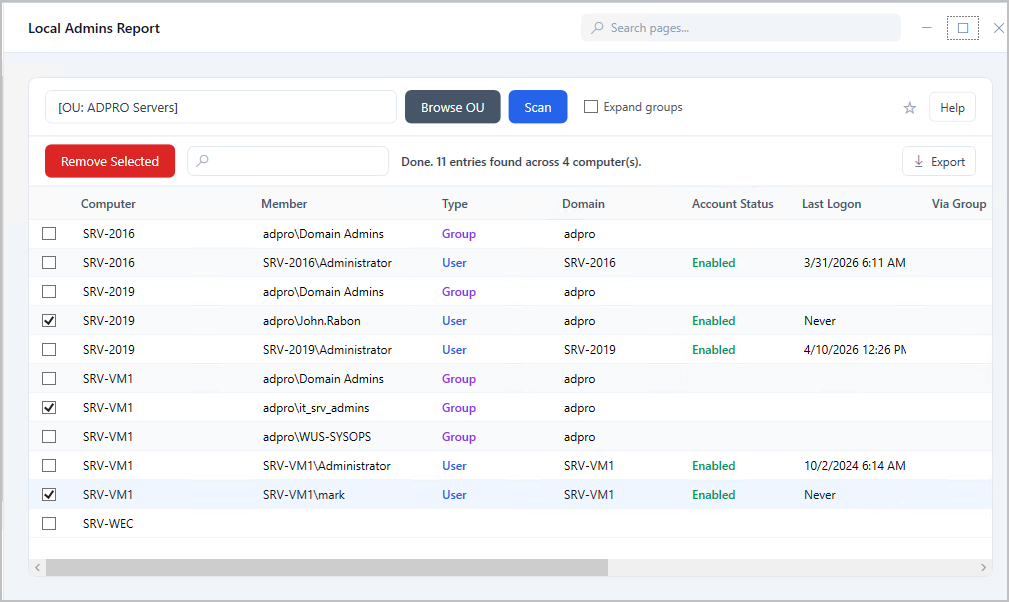
You can also export the list of local administrator accounts by clicking the “Export” button.
Download a Free Trial of the AD Pro Toolkit
How to Remove Local Admin Rights Using GPO
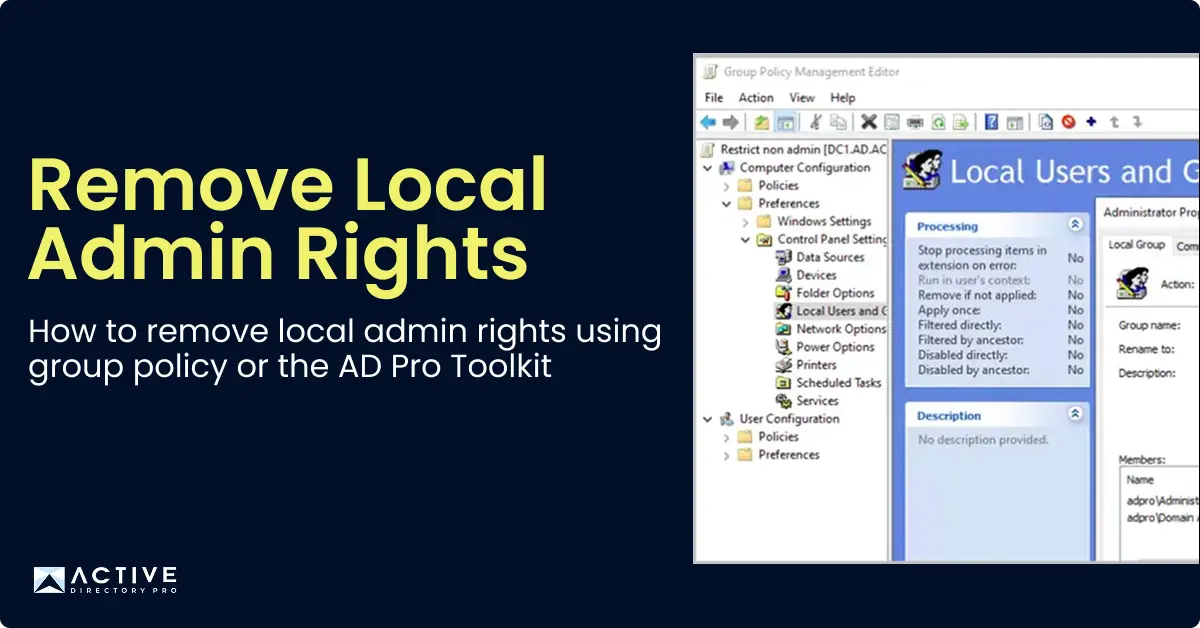
Group Policy is the best way to remove local admin rights across multiple computers at once. You can use Restricted Groups or Group Policy Preferences to control who is in the local administrators group. Link the GPO to an OU and it applies automatically to every computer in that OU.
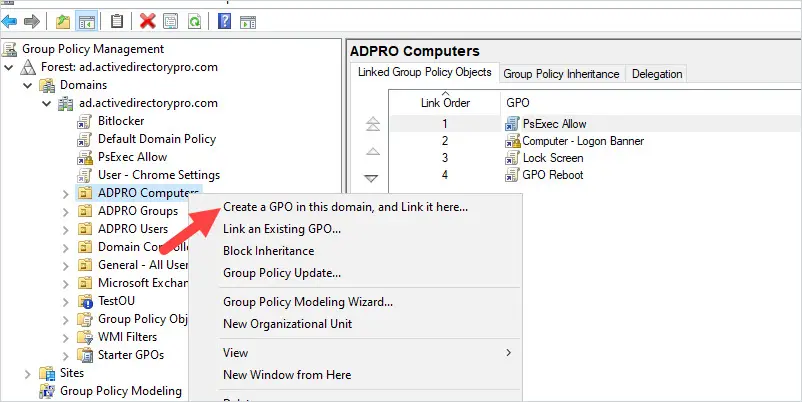
Step 1. Right-click the organizational unit where you want the GPO applied and select “Create a GPO in this domain, and link it here”
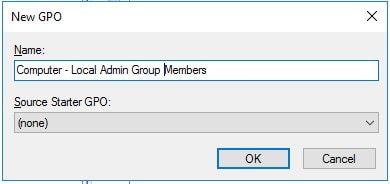
Step 2. Name the GPO and click OK
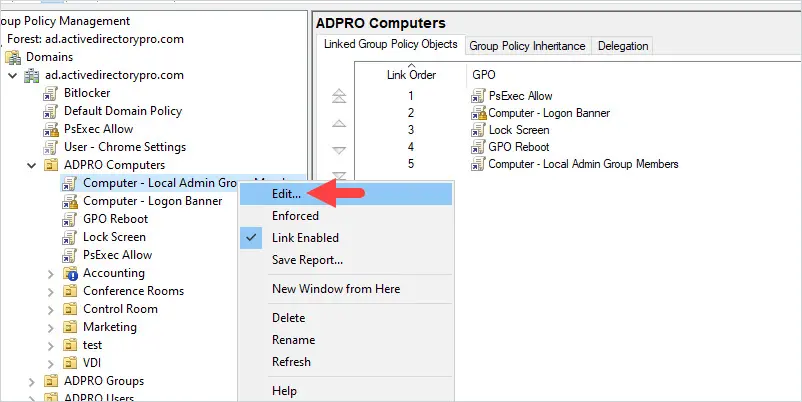
Now you need to edit the GPO.
Step 3. Right-click the GPO and click edit
Step 4. Browse to the following GPO settings
Computer Configuration -> Preferences -> Control Panel Settings -> Local Users and Groups
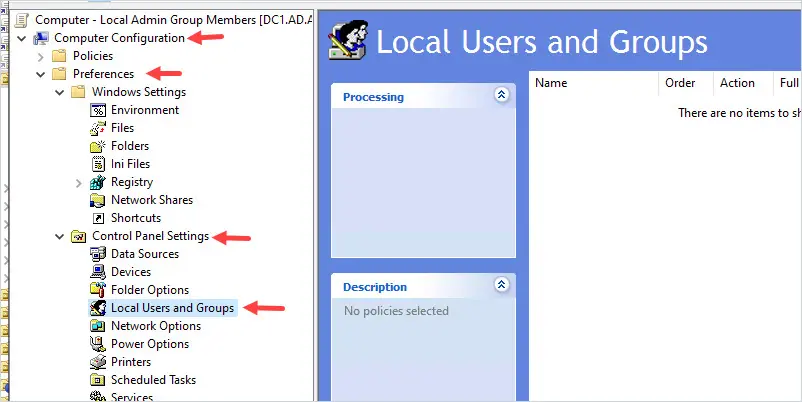
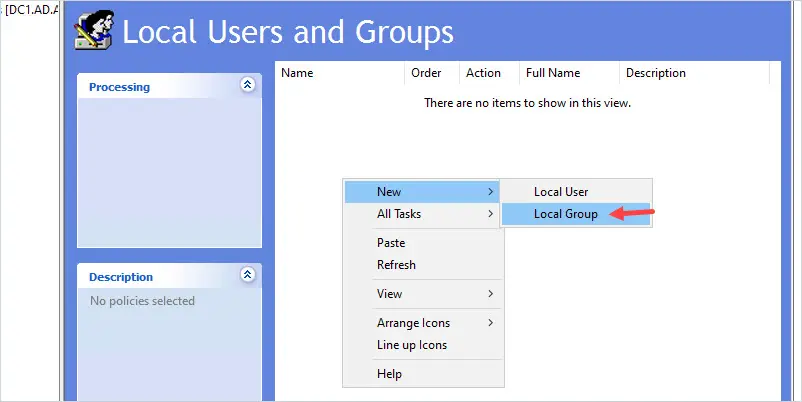
Step 5. Now right-click in the right side window and select new -> Local Group
New Local Group Properties
- Action: Update
- Group name: Administrators (built-in)
- Delete all member users: This will delete all the users from the local administrator group. I’m going to check this box.
- Delete all member groups: This will delete all the groups from the local administrator group. I’m going to check this box.
Members:
Click add and select the members you want to be added to the local administrator group. You probably want to keep the local administrator account and domain admins group as local admins… but that is totally up to you. I’m going to also add a group that has the helpdesk staff so they have local admin rights on the computers.
Screenshot of my settings
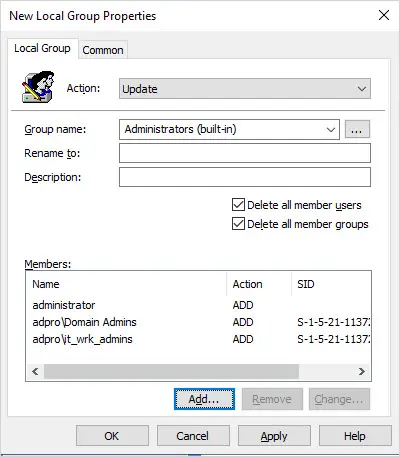
The above settings will delete all users and groups from the local administrator’s group and then add back the users specified in the member’s box. This will clean up all unwanted accounts and add only the accounts you have approved via the GPO.
Note: A user with admin rights could still modify the group membership locally but when the GPO refreshes it will revert back to the GPO settings.
Step 6. Run gpupdate or Reboot Computer
Now that the GPO is created and linked to an organizational unit let’s test it.
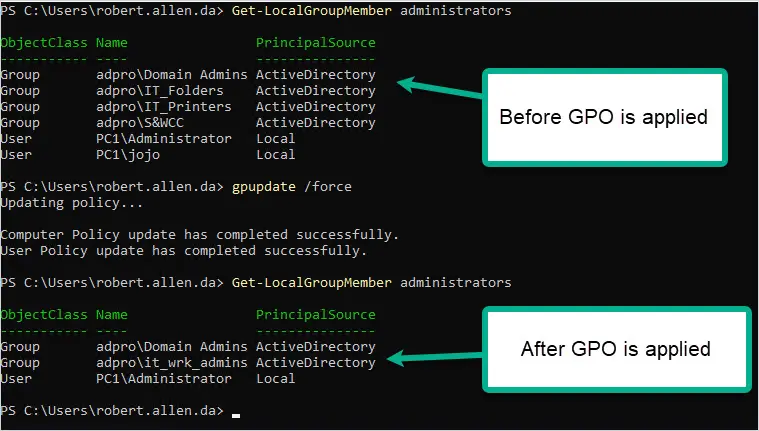
On PC1 I will run the following command to force a group policy update.
gpupdate /force
Once the command completes I’ll check the group membership again. Below is a screenshot of the before and after. You can see the GPO has removed the members of the local administrator group and configured the members to the GPO settings. See my article Find Local Administrators on all computers to learn how to create a report on all computers.
Pretty cool right?
You can see from the screenshot that the unwanted accounts have been removed from the administrator group. The GPO removed three groups and two local user accounts. It then added the domain admins group, the IT_Wrk_Admin group, and the local administrator account.
Any computer you apply this policy to will get these exact settings. If you choose to delete all member user and group accounts it will indeed remove those accounts from the local administrator’s group. I recommend you test this before rolling it out into production.
When it is done running you can sort and filter on any column. You can export this report to CSV for your records. It’s a good idea to share this report with staff so they have an idea of who has admin rights and who will be removed.
Exclude Computers from the GPO Policy
If you need to exclude a computer from this policy follow these steps:
Tip: There are many poorly coded programs out there that don’t run without giving users admin rights. If you can avoid these programs please do so. It’s ridiculous that there are still companies selling software that cannot run with admin rights…again try to avoid these programs. If you can’t then look into privilege escalation programs like BeyondTrust and PolicyPak. These programs allow you to configure programs to run without giving the user administrator rights.
Step 1. Create a new active directory group. Name it whatever you want.
Step 2. Add the computer account that you want to exclude into this group.
Step 3. In the group policy management console, select the GPO you created and select the delegation tab.
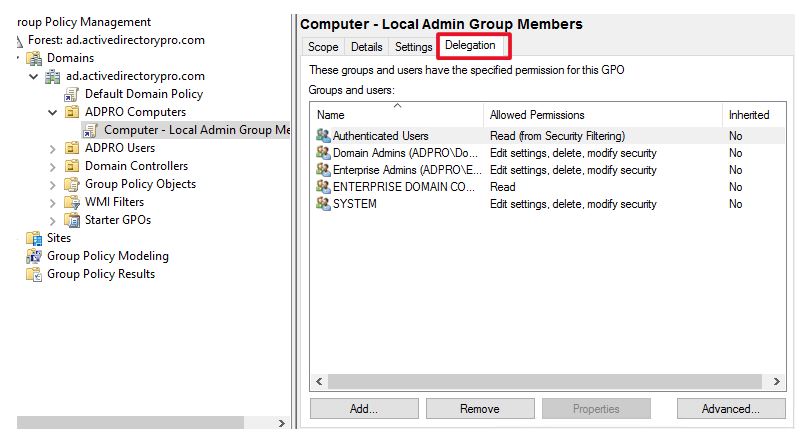
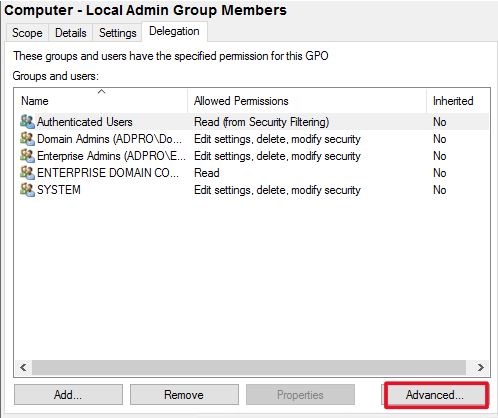
Now click the advanced tab
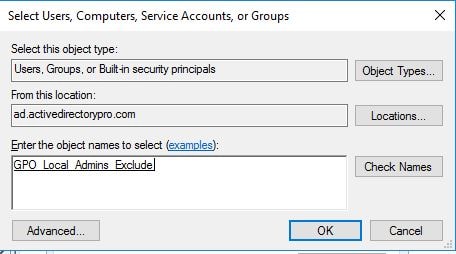
Click add and select the group you just created.
Now make sure this group has only these permissions:
Read: Allow
Apply group policy: Deny
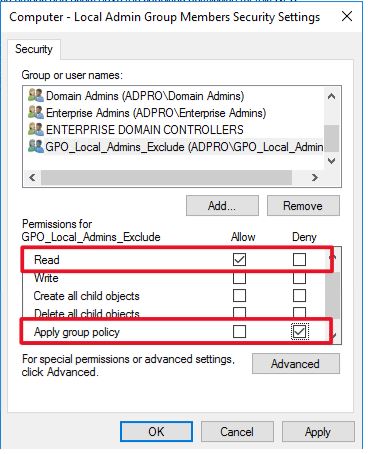
This will deny any member of this group from applying the GPO. This is a very simple approach to excluding computers from applying this GPO. It also makes it easy to manage, if you want to know who is excluded from a GPO you can just check the members of the AD group.
Now, I’ll verify the computer is excluded by using the gpresult command.
To see all the GPOs applied to a computer and user type this command.
gpresult /r
You will need to be an administrator on the computer to get the computer results.
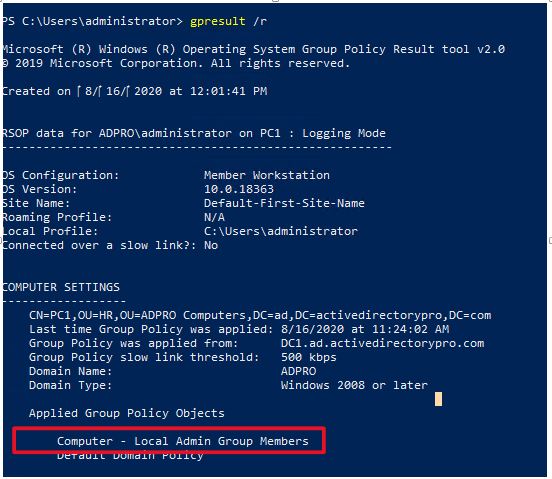
You can see the GPO “GPO Computer - Local Admin Group members” is applied to this computer. I will reboot the computer and run the command again. Once I reboot I should no longer see that GPO being applied to this computer because it’s being denied from applying.
I will run gpresult /r again
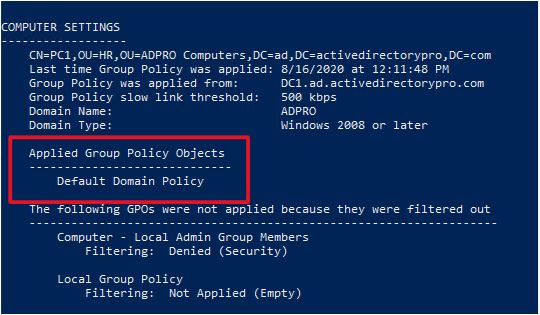
You can see the GPO is no longer applied to this computer. To learn more about filtering group policies check out my group policy management guide.
You can use the AD Pro Toolkit to easily create a report and export it to CSV file.
Remove Local Admin Rights Using the Command Line
You can remove a user from the local administrators group directly from the command line using net localgroup:
net localgroup administrators "domain\username" /delete
For remote computers, use PowerShell’s Invoke-Command to run the command remotely:
Invoke-Command -ComputerName PC01 -ScriptBlock { Remove-LocalGroupMember -Group "Administrators" -Member "domain\username" }
Learn More