Active Directory Cleanup Tool

Cleanup Inactive User and Computers in Active Directory

Download Free Trial Schedule Demo

Enhance Security and Ensure Compliance Requirements

Removing unused accounts, reduces the risk of unauthorized access. It also minimizes the attack surface for potential threats.
Cleaning up AD also helps to ensure compliance with standards like GDPR, HIPAA, and others.

Find Inactive Users and Computers

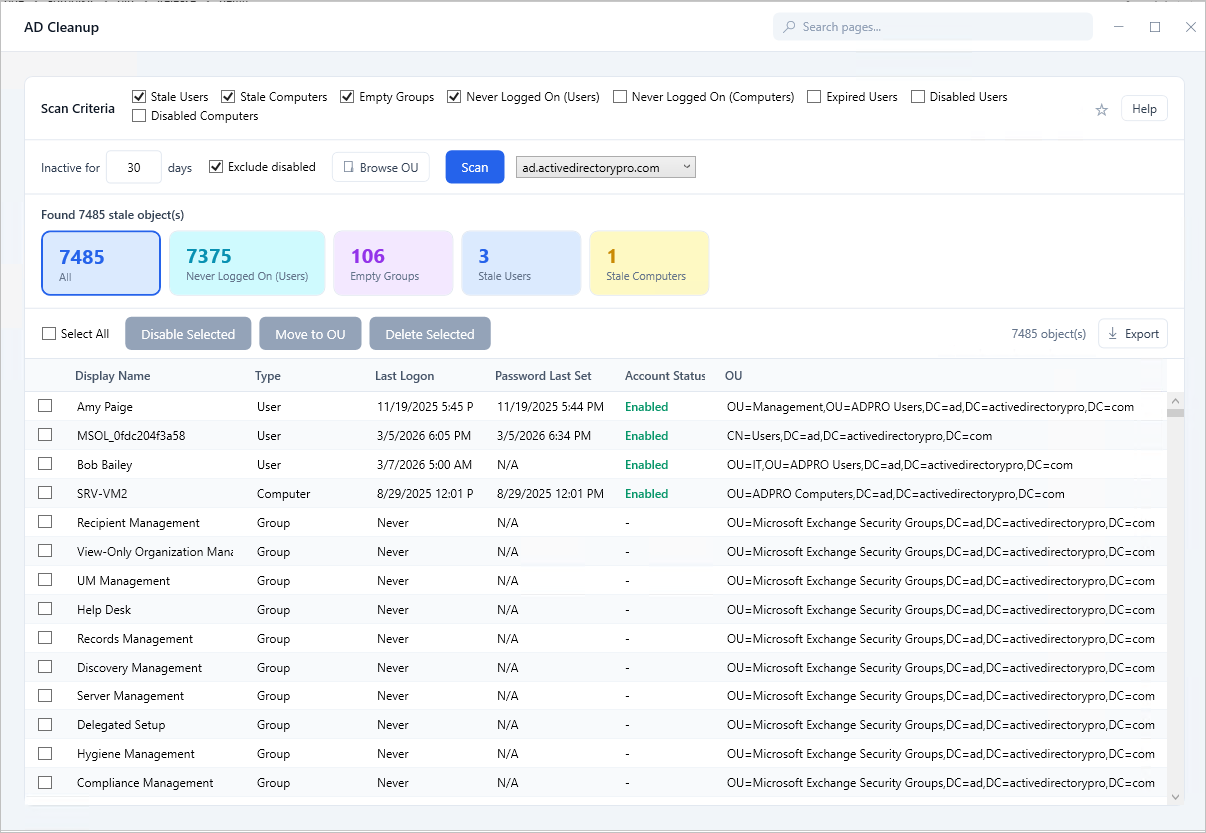
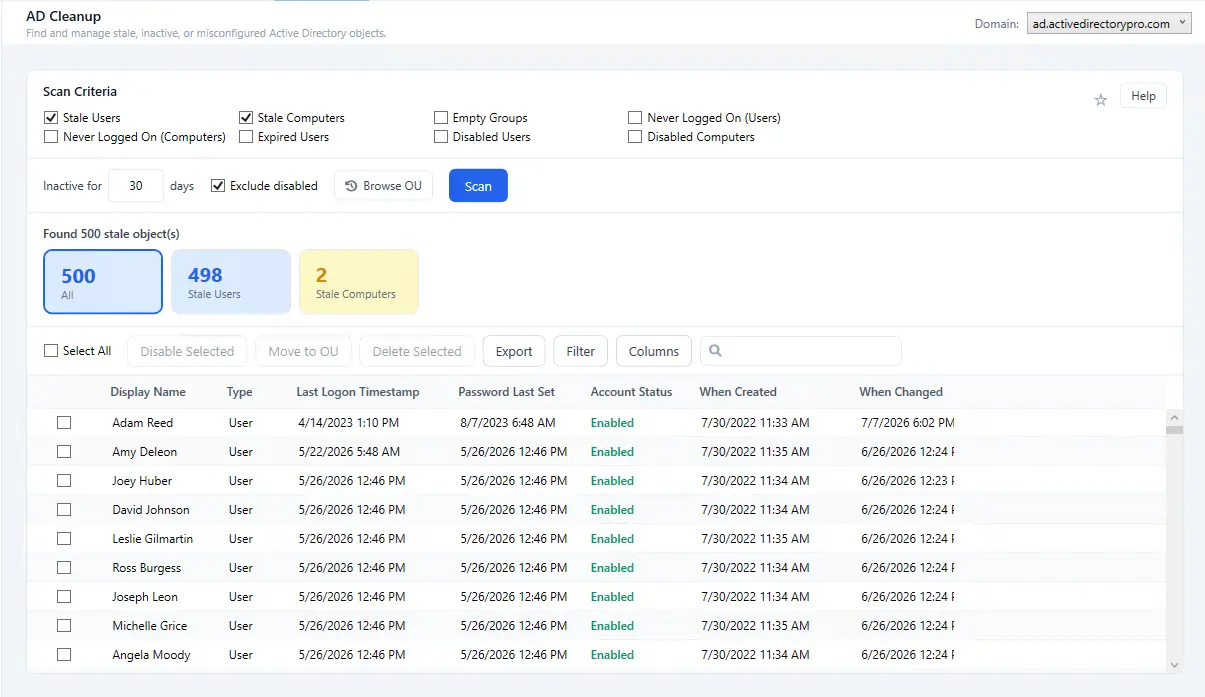
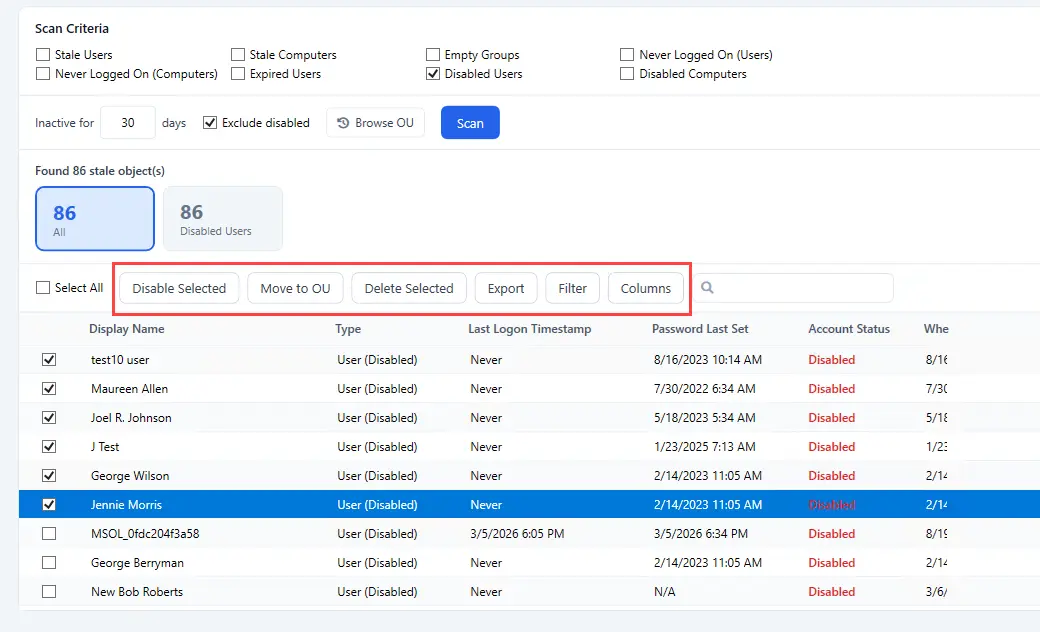
The Active Directory Cleanup Tool makes it easy to identify inactive user and computer accounts in your AD environment. It scans your directory for objects that haven’t logged in within a specific timeframe, giving you a clear list of accounts that may no longer be needed. The results include key details like last logon timestamp, status, OU, department, title and other attributes. This helps you maintain an organized, accurate, and up-to-date Active Directory with minimal effort.

  • Scan entire domain or specific OUs
  • Select inactive timeframe
  • Find inactive users or computers
  • Find users with no logons
  • Inactive accounts in x days
  • Disable, move, and export account reports
find inactive users and computers
cleanup stale accounts

Cleanup Stale Accounts

Cleaning up stale accounts is an important step in maintaining a secure and efficient Active Directory. By removing or disabling accounts that are no longer in use, you reduce unnecessary clutter, tighten access control, and limit potential entry points for unauthorized access. The AD cleanup tool allows the following actions on accounts:

  • Update account descriptions
  • Delete accounts
  • Disable accounts
  • Enable
  • Move accounts to another OU
  • Export report to CSV, Excel or PDF

Find Users with No Logon History

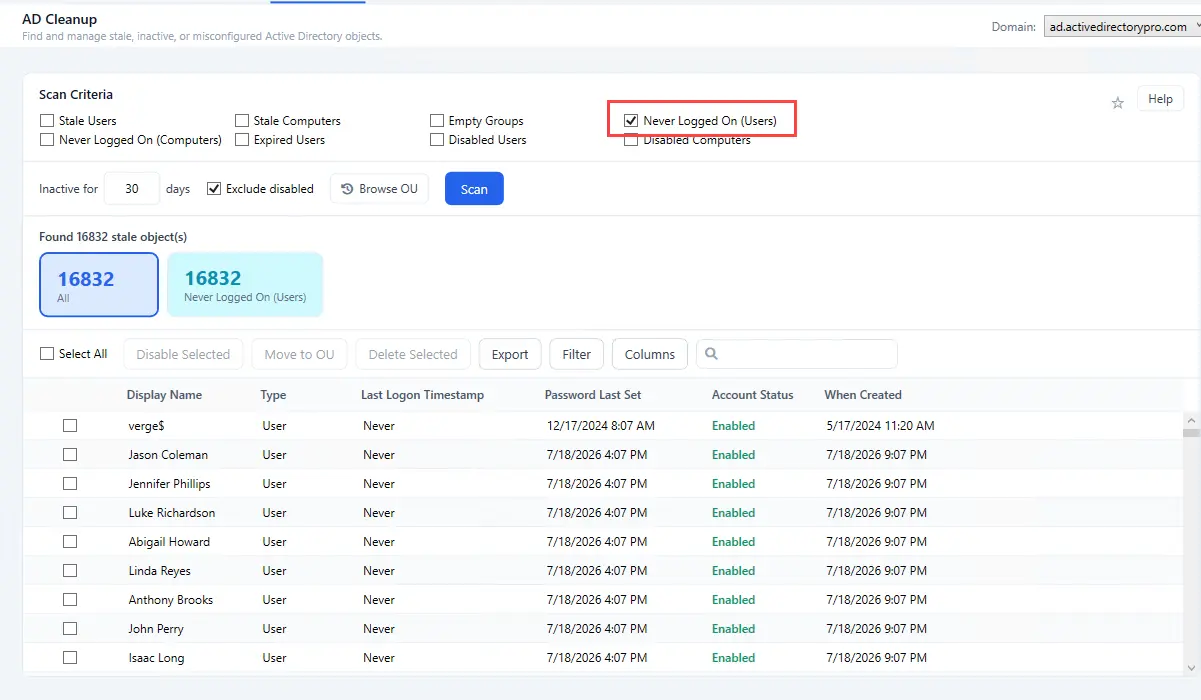
Users with no logon history often indicate accounts that were created but never utilized, misconfiguration, or abandoned during onboarding. These accounts can create confusion in audits and introduce security risks if left unmanaged. Identifying them helps ensure your directory reflects active and real accounts.

You can address unused accounts by removing, disabling, or managing them, which helps maintain a cleaner, more accurate, and more secure Active Directory environment. Click on “Users with no logons” to view a list of accounts with no logon history.

users with no logon
Automate AD Cleanup

Automate AD Cleanup

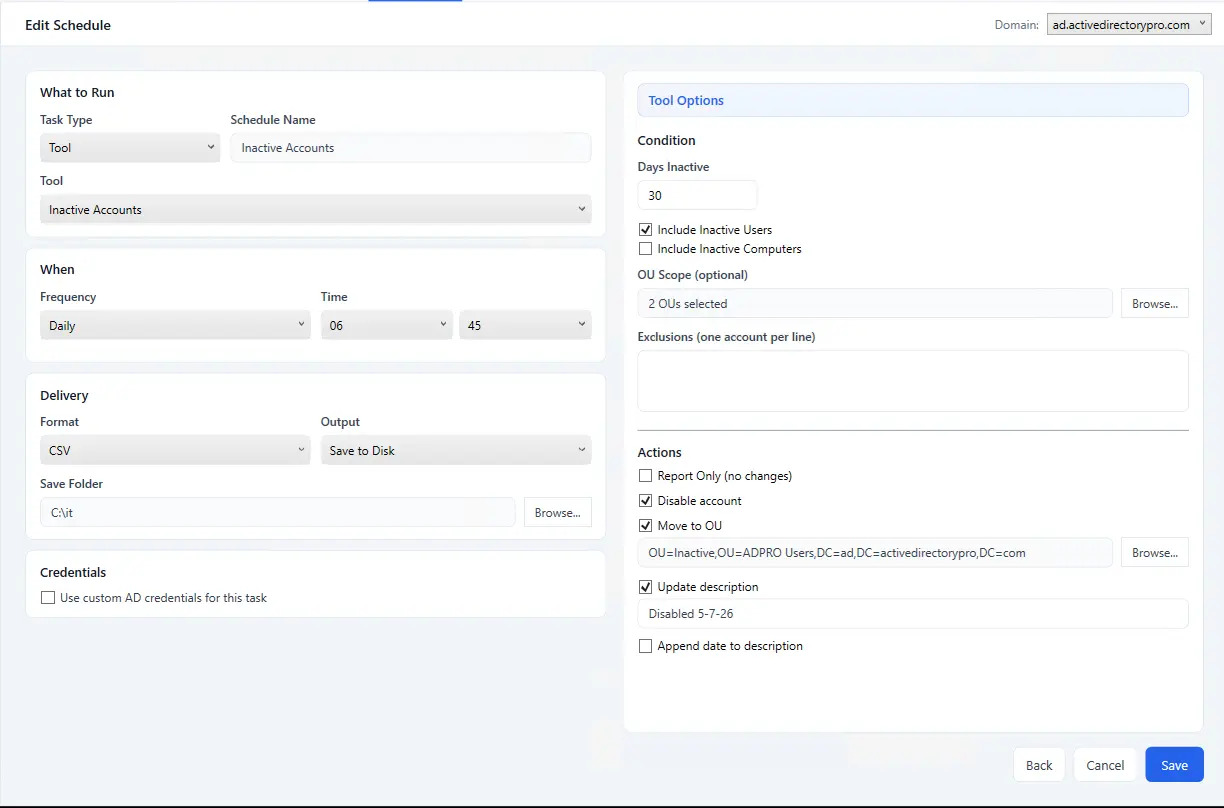
Automated AD cleanup streamlines the ongoing maintenance of AD by regularly identifying and handling inactive or unnecessary accounts without manual effort. By using our built-in task scheduler, you can automate finding stale accounts and take actions on them to ensure your environment stays organized and secure. This consistent, hands-off approach helps keep Active Directory accurate and up to date while freeing up time and saving you from manual work.

  • Inactive Accounts – Automate finding inactive accounts
  • Delete Accounts – Automate deleting inactive accounts
  • Disabled Accounts – Run actions on disabled accounts

Users with Old Passwords

You can add additional columns to the inactive users report to help identify stale accounts. For example, the password last set column will show you when the user last changed their password. Combine this with the users last logon timestamp and you get an accurate snapshot of when the account was last used.

  • Password last set
  • Users with old passwords
  • Password not required
  • Password set to never expire
users with old passwords
Cleanup Group Policy Objects

Cleanup Group Policy Objects

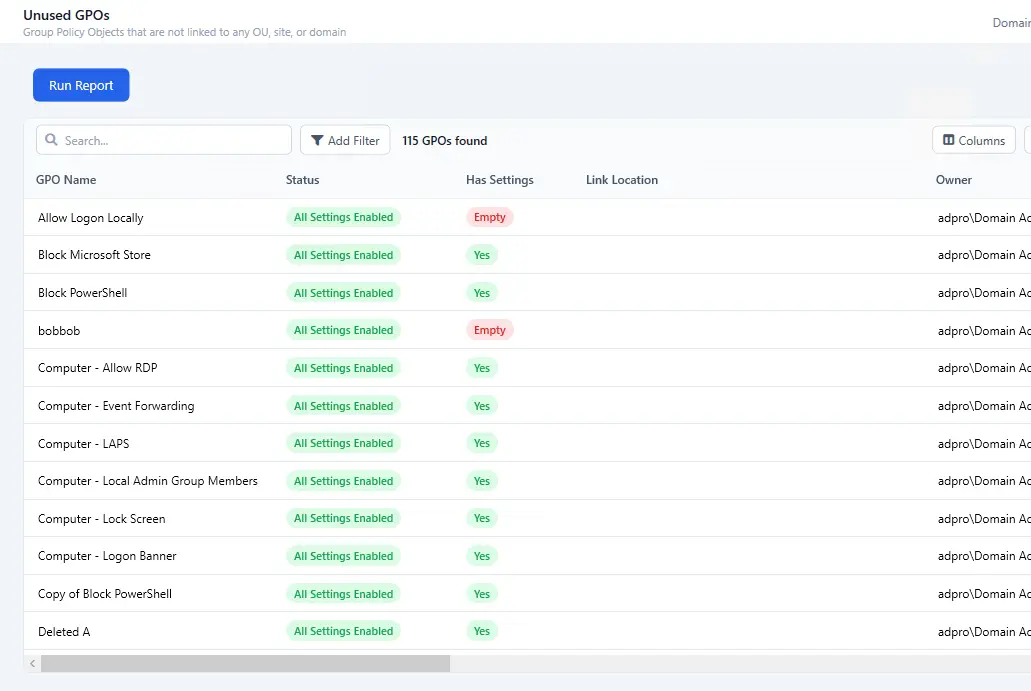
Group Policy cleanup helps maintain a stable and efficient AD environment by removing or consolidating outdated, unused, or conflicting GPOs. Over time, policies can accumulate through organizational changes, testing, or temporary configurations, leading to longer processing times and troubleshooting challenges.

  • Find unused GPOs
  • Find unlinked GPOs
  • Find empty GPOs
  • Find duplicate links GPOs

Find Empty Groups

Finding empty AD groups helps eliminate unnecessary groups that may no longer be in use. Over time, groups can be created for projects, permissions, or temporary tasks and then forgotten once they’re no longer needed.

Identifying groups with no members makes it easier to clean up clutter, simplify permission structures, and reduce confusion during audits. Removing or repurposing these unused groups contributes to a more organized, efficient, and manageable Active Directory.

Find Empty Groups
Disable and Expired Accounts

Disable and Expired Accounts

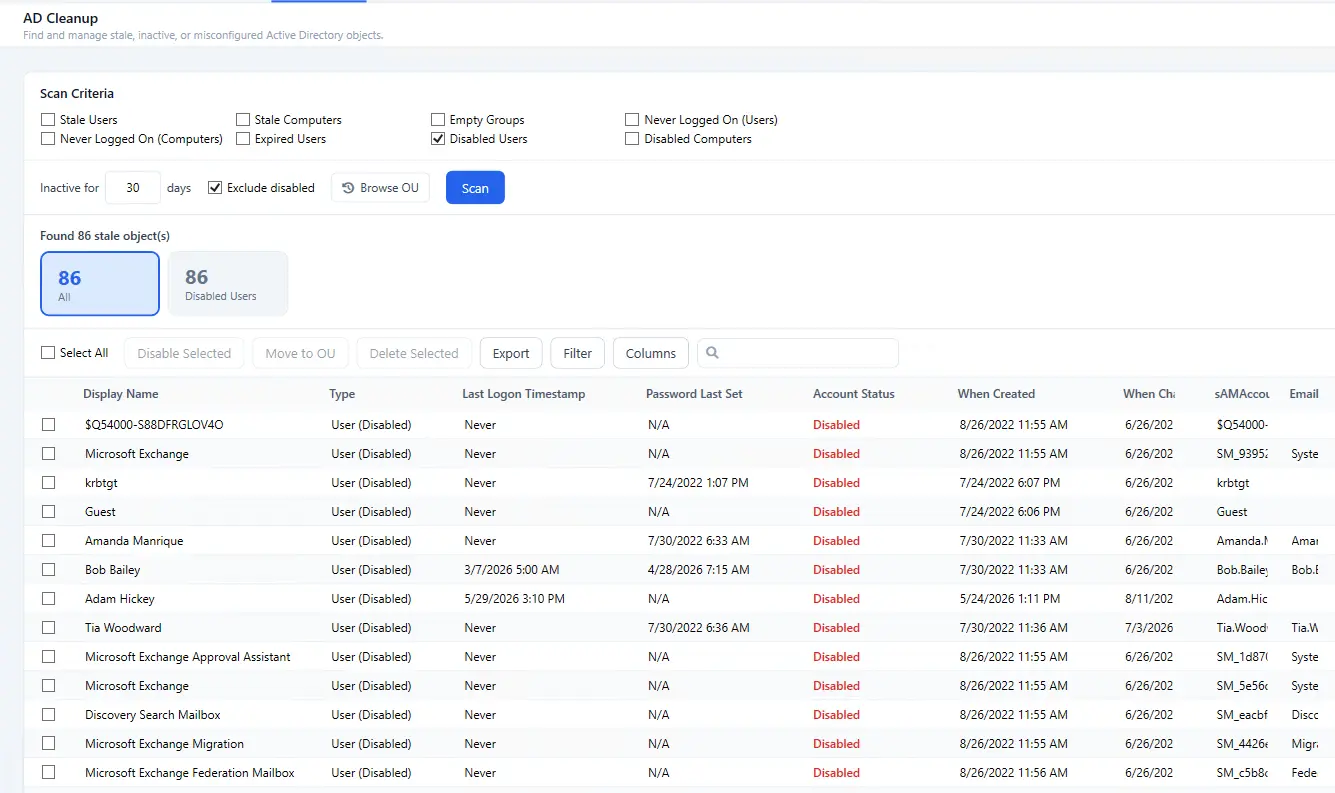
Disabled and expired AD user accounts often accumulate as employees change roles, leave the organization, or complete temporary assignments. While these accounts are no longer active, leaving them unmanaged can create unnecessary clutter and complicate audits.

Its import to review and clean up disabled or expired accounts to ensure an accurate directory, reduce administrative overhead, and supports a more secure overall AD environment.

Click the “Disable Users” or the “Expire Users” checkboxes to view a list of accounts.

Find Empty OUs

Easily find all organizational units that have no objects in them. Over time, unused OUs can accumulate as departments change, projects end, or migrations occur, creating clutter and making navigation more difficult. Removing OUs that no longer contain users, groups, or computers helps streamline administration, reduces confusion, and ensures your environment reflects the organization’s current structure.

To view empty OUs click on “OU Reports” and select the “All OUs and object count ” report.

Find Empty OUs

Keep Your AD Tidy
Try the AD Cleanup Tool Today!

Download Free Trial Schedule Demo