
In this guide, you will learn how to disable Active Directory user accounts with PowerShell. I’ll also show you how to disable users with the AD Pro Toolkit and ADUC.
PowerShell Disable AD User
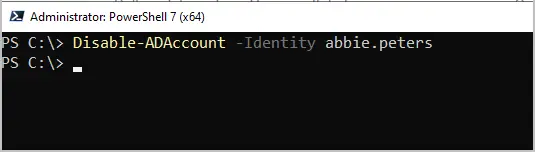
In this example, I will use the Disable-ADAccount command to disable a user.
Step 1: Open PowerShell as Administrator.
Step 2: To disable the user run the command below.
Disable-ADAccount -Identity abbie.peters
If the command is successful it will return to the prompt.
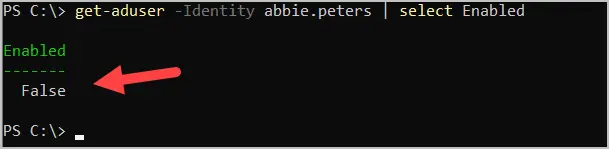
Step 3. To verify the account is disabled run this command. If the account is disabled it will display “False”.
get-aduser -Identity abbie.peters | select Enabled
Disable AD User with AD Pro Toolkit
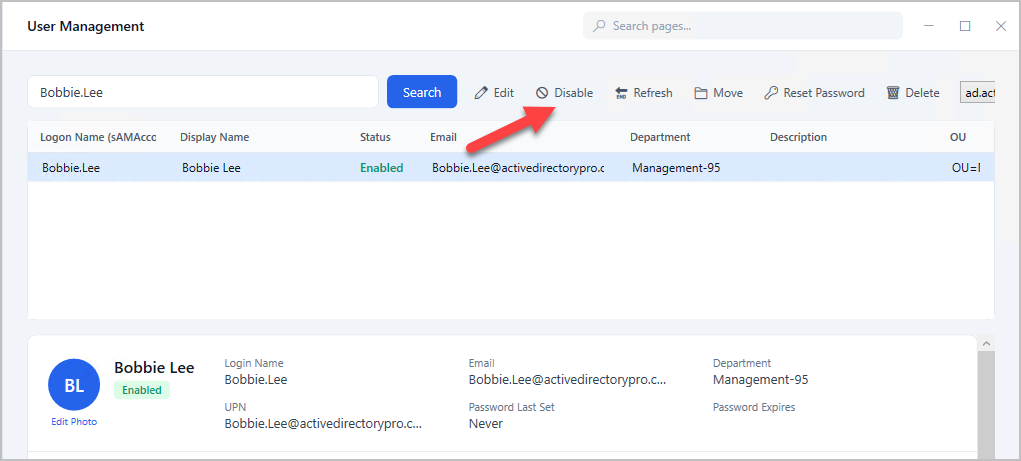
With the AD Pro Toolkit you can easily disable Active Directory Users.
Step 1. Search for the user
Step 2. Select the account and click “Disable”.
Bulk Disable AD Users with the AD Pro Toolkit
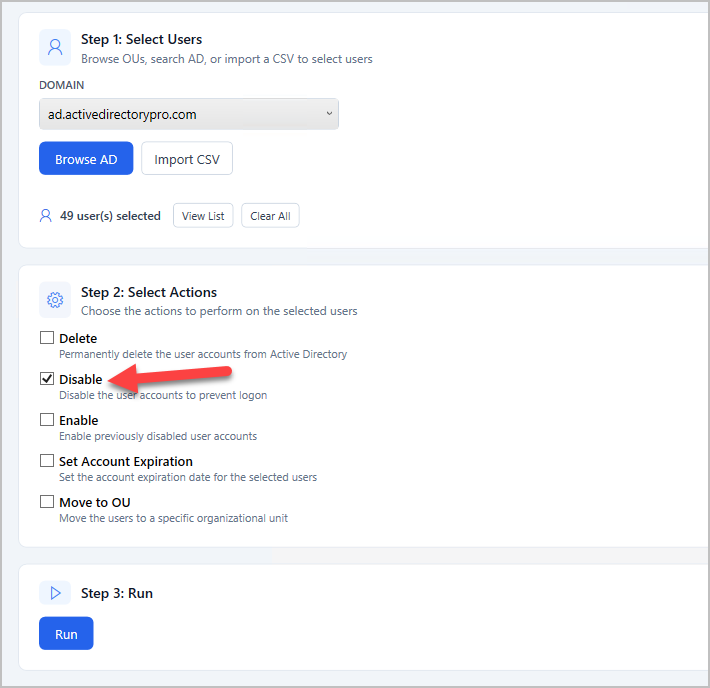
The AD Pro Toolkit includes a bulk user management tool that makes it easy to bulk disable, move and delete AD accounts.
Click Browse to select accounts or upload a list from a CSV file.
Select Disable and click “Run”.
How to Disable a User in Active Directory (ADUC)
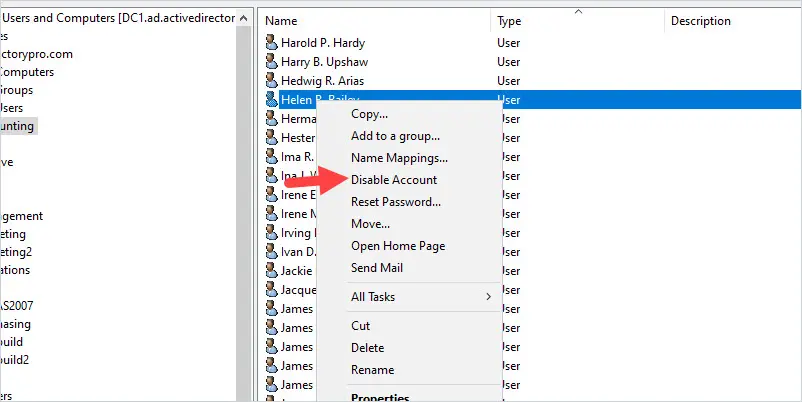
Using the ADUC console you can easily select one or more user accounts to disable.
To disable a single account just browse to the organizational unit, right-click on the account then select disable Account.
To disable multiple accounts just hold down the Ctrl key and select multiple accounts then right-click and select Disable Account. In this example, I just randomly selected multiple accounts from the Accounting OU.
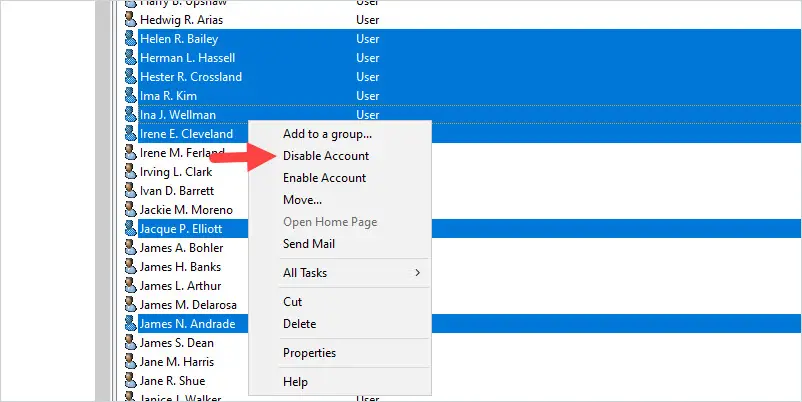
As you can see it is very easy to disable user accounts using the ADUC console. This method works well if you have a few accounts that are in the same OU. If you have a big list of accounts that are in various OUs then you will want to use PowerShell.
Disable AD User Account using PowerShell (Detailed Steps)
In this example, I will show you how to use the PowerShell cmdlet Disable-ADAccount to disable single and multiple user accounts.
You can identify accounts to disable with one of the following identities.
- A distinguished name
- A GUID (objectGUID)
- A Security Identifier (objectSid)
- A SAM Account Name (SAMAccountName)
I like to use the SAMAccountName to identify accounts as this is typically the user’s login name.
In this first example, I will disable the user Abel.Austin with the following command:
Disable-ADAccount -Identity Abel.Austin
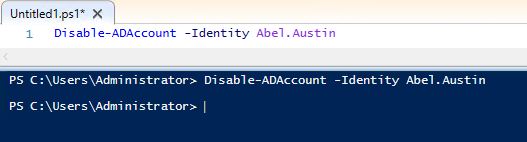
That is all there is to it. Now I will use Get-ADuser to confirm that the account was disabled.
Get-ADUser Abel.Austin | select name,enabled
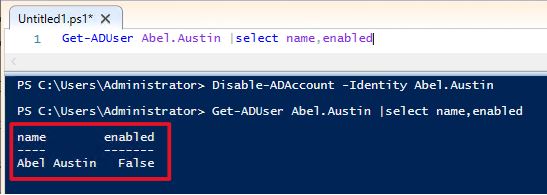
Yes, I can see from the command output that the account is now enabled. To disable multiple user accounts using PowerShell see example 3.
Bulk Disable Users in Active Directory using PowerShell
You can easily disable multiple user accounts from a text file with the script below.
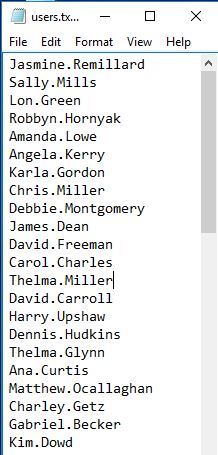
Step 1: Create a text file with the list of user names
Here is a screenshot of my text file. Save the text file to the computer that will be running the script.
Step 2: Copy and run the script in PowerShell
Warning: This will disable all of the accounts you have listed in the text file.
If you saved the text file to a different location than c:\it\users.txt you will need to update the script.
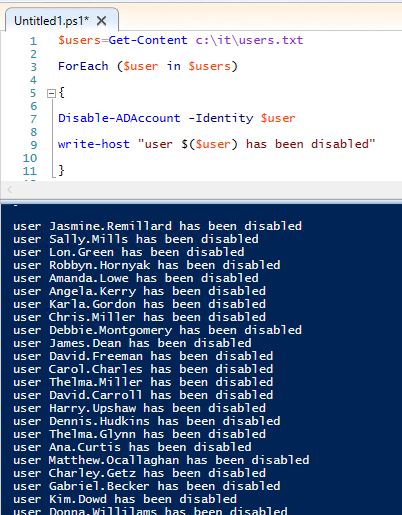
When you are ready, copy the script below into PowerShell ISE and click run.
$users=Get-Content c:\it\users.txt
ForEach ($user in $users)
{
Disable-ADAccount -Identity $user
write-host "user $($user) has been disabled"
}
Here is a screenshot of this running in my lab.
If you want to display all disabled user accounts, then check out my guide titled Find disabled Active Directory User accounts
If you have questions or comments, please post them in the comment section below.