In this guide, you will learn how to use PowerShell to get Azure AD users, all user properties and export them to a CSV file.
As an Administrator, you may need to review a list of Azure AD users and their related properties. This can be useful for a Security Audit, review of account configurations or used later in a script.
To get a list of Azure users you can use the PowerShell Get-MgUser command. With this command, you can get all Azure user accounts, search for specific accounts, and display all or specific user properties.
Important
Microsoft will retire the Azure AD Graph and MSonline API any time after June 30th, 2023. This includes the Get-AzureADUser cmdlet that has been used for years to get Azure users with PowerShell.
These APIs are being replaced with the Microsoft Graph API. For this guide, I’ll be using the newly supported Get-MgUser cmdlet to get Azure AD Users. Refer to the Microsoft Entra change announcements for more details.
Let’s get started.
Requirements
To follow along with this guide you will need the following:
- PowerShell 5.1 or later installed - How to update PowerShell
- Net Framework 4.7.2 or later installed
- Microsoft Graph Module installed - steps below
How to Get Azure AD User Properties with PowerShell
In this first example, I’ll show you how to get a list of all Azure AD users by using the get-mguser command.
Step 1. Install Microsoft Graph PowerShell SDK
You can install the Microsoft Graph module to the current user or all users.
To install the module for the current user run this command.
Install-Module Microsoft.Graph -Scope CurrentUser
To install the module for all users on your computer.
Install-Module Microsoft.Graph -Scope AllUsers
In this example, I will install the module for the current user.
You may get prompted that you are installing modules from an untrusted repository.
Type y to install from the untrusted repository.
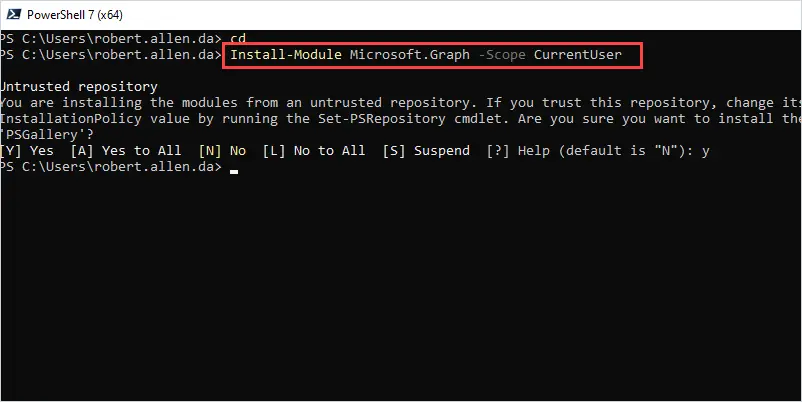
You should see various packages being installed. When completed it should return to the PowerShell prompt.
To verify the graph module is installed run the following command.
find-module microsoft.graph
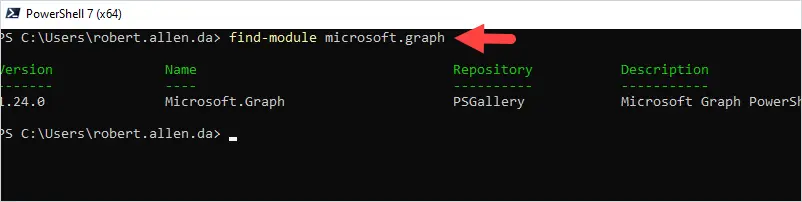
Install is complete.
Step 2. Connect to Microsoft Graph using PowerShell
Before you can get Azure users with PowerShell you first need to connect with the -scope parameter and the correct permissions. Refer to the Microsoft article Microsoft Graph permissions reference to view all the permissions.
The below command will permit you to read the full set of Azure user profile properties.
Connect-MgGraph -Scopes "User.Read.All"
When you run the above command you will be prompted to sign in.
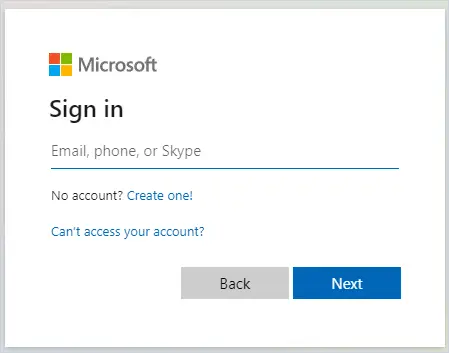
Sign in with your account to complete the connection to Microsoft Graph.
Step 3. Use Get-MgUser to get Azure AD Users
If you followed steps 1 and 2 you should be connected to Microsoft Graph and can no run the get-MgUser cmdlet.
To get all Azure users run this command.
get-mguser -all
This command will return the users Id, DisplayName, Mail, and UserPrincipalName properties.
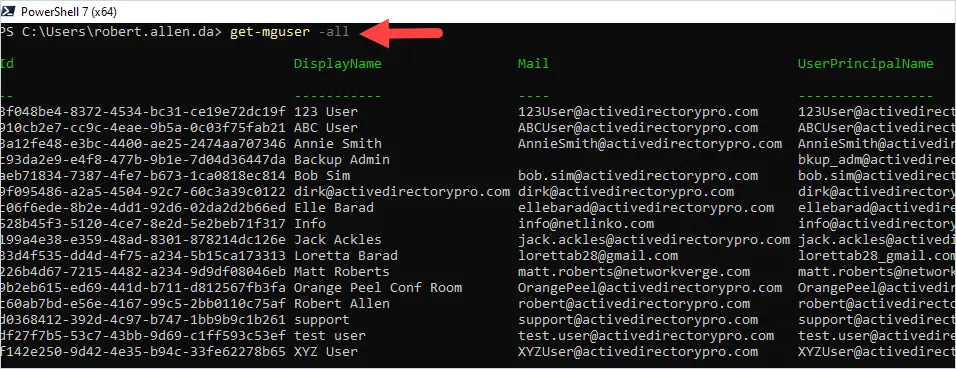
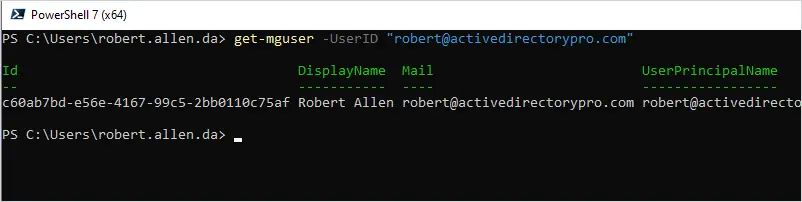
To get a single Azure user use the -UserID parameter.
get-mguser -UserID "robert@activedirectorypro.com"
Get-MgUser Examples
Below are some more examples of how to get Azure users with the Get-MGuser cmdlet.
1. Search for Specific Azure Users
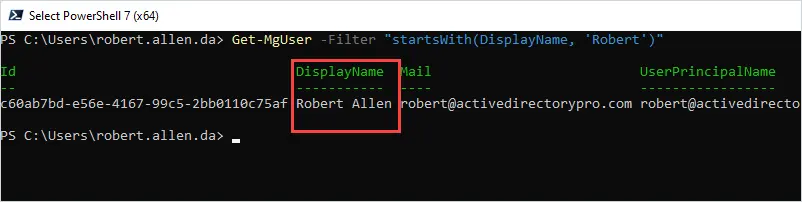
In this example, I’ll use the -Filter parameter to search for users with a specific display name.
Get-MgUser -Filter "startsWith(DisplayName, 'Robert')"
2. Get All Enabled Azure Users
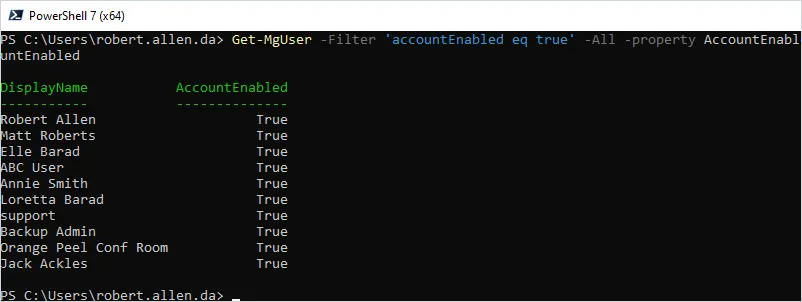
In this example, I’ll search and only get the enabled Azure AD Users.
Get-MgUser -Filter 'accountEnabled eq true' -All -property AccountEnabled, DisplayName | select DisplayName, AccountEnabled
3. Display All Azure User Properties
To display all properties for a user use the fl parameter.
get-mguser -UserID "robert@activedirectorypro.com" | fl
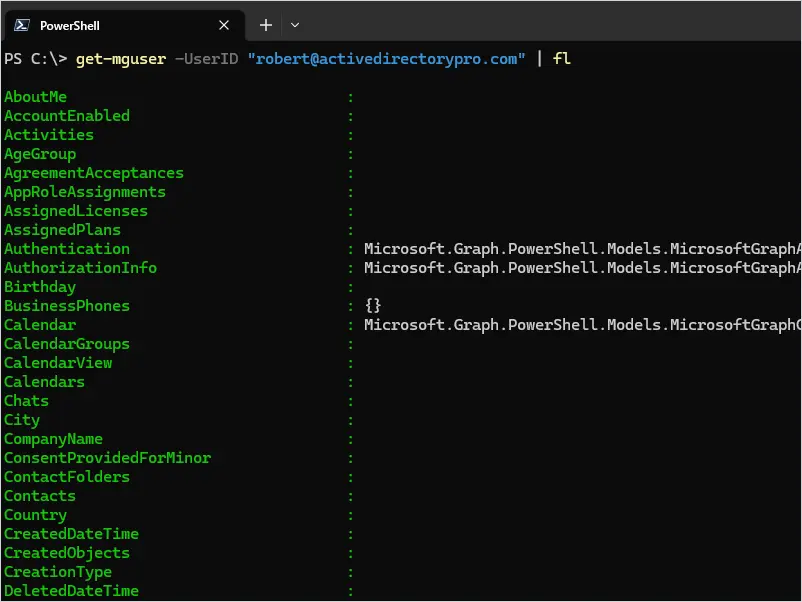
As you can see in the above screenshot most of the user properties are blank. This is by design, most attributes require that you specify which attribute data to display. See the next example for details.
4. Display Specific User Properties
To display user properties that are not displayed by default use the select parameter.
In this example, I will display the user’s Created Date Time.
get-mguser -UserID "robert@activedirectorypro.com" -Property CreatedDateTime | select CreatedDateTime
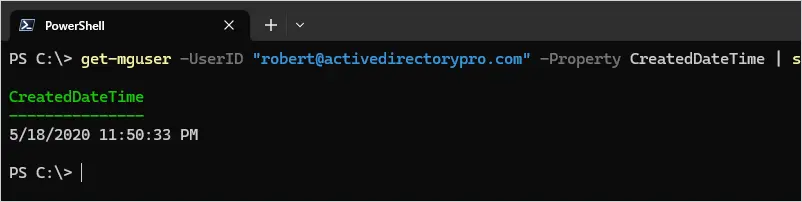
When using the select parameter you will need to list every property that you want to be displayed. Here is another example that includes the displayname.
get-mguser -UserID "robert@activedirectorypro.com" -Property CreatedDateTime, displayname | select CreatedDateTime, displayname
To see which attributes are displayed by default and which ones require using select see the table at the end of this post.
5. Search for Users by Department
In this example, I’ll search for all users that are in the “Accounting” department.
Get-MgUser -Filter "Department eq 'Accounting'"
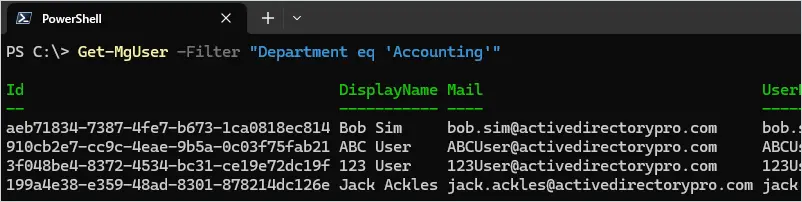
To display only the DisplayName and Department properties use this command.
Get-MgUser -Filter "Department eq 'Accounting'" -property displayname, department | select displayname, department
6. Expanding User Properties
When you display the full list of properties you will notice some say “Microsoft.Graph.PowerShell.Models“.
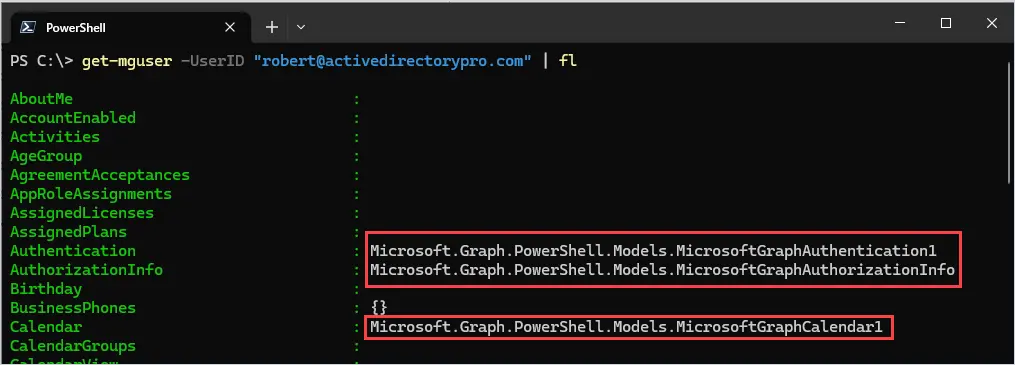
Some of these properties can easily be expanded to view the related data. The problem is not all can be expanded. Refer to the Azure User Resource type document for a complete list of properties that support being expanded.
Scroll down to Relationships and looks for the properties that say Supports $expand.
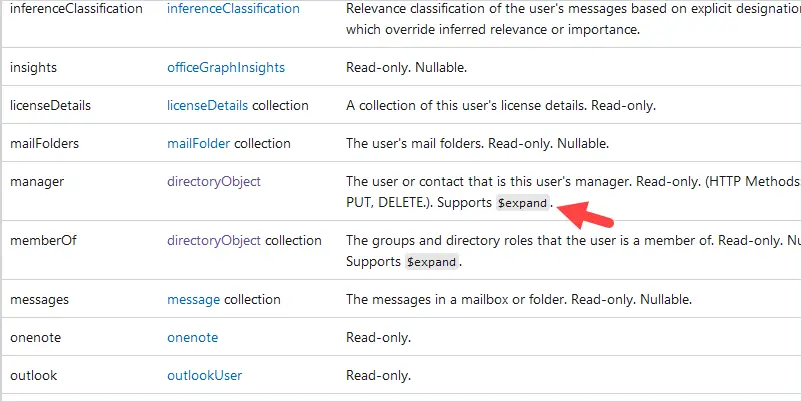
In the above screenshot, you can see the manager property supports expand.
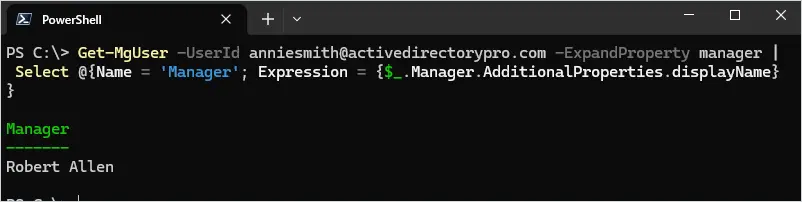
Here is an example of expanding the manager property.
Get-MgUser -UserId anniesmith@activedirectorypro.com -ExpandProperty manager | Select @{Name = 'Manager'; Expression = {$_.Manager.AdditionalProperties.displayName}}
7. Export Azure Users to CSV
To export Azure users to CSV use the export-csv command
get-mguser -UserID "robert@activedirectorypro.com" | export-csv c:\it\azure-1.csv -NoTypeInformation
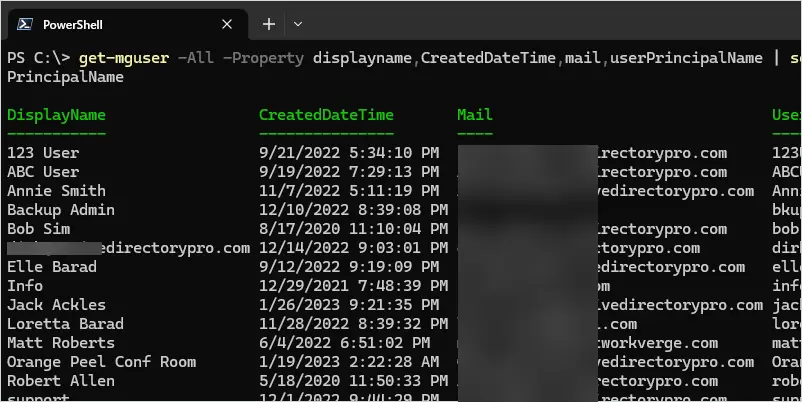
8. Get All Users Created Date Time
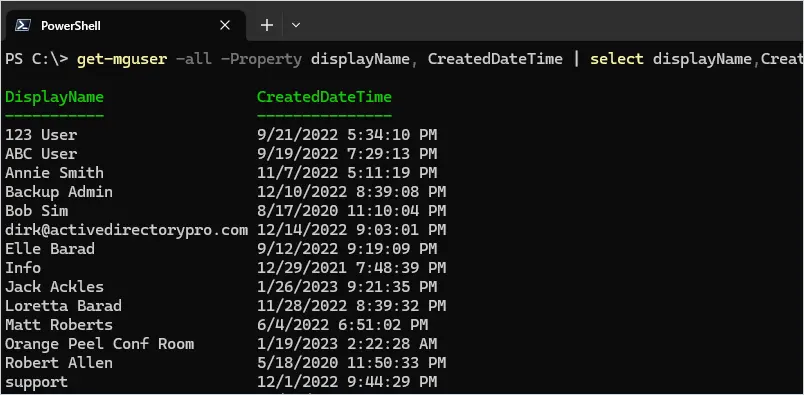
In this example, I’ll display all users DisplayName and Created Date Time.
get-mguser -all -Property displayName, CreatedDateTime | select displayName,CreatedDateTime
List of Azure User Properties
Below is a list of all user properties returned by the Get-MgUser cmdlet, there are 125 total.
Returned only on $select means you must use the select parameter followed by the property name for it to display any user data. See example 4 for details.
| Property | Returned only on $select |
|---|---|
| aboutMe | True |
| accountEnabled | True |
| Activities | NA |
| ageGroup | True |
| AgreementAcceptances | NA |
| AppRoleAssignments | NA |
| assignedLicenses | True |
| assignedPlans | True |
| Authentication | |
| AuthorizationInfo | |
| birthday | True |
| businessPhones | False - Returns by default |
| Calendar | |
| CalendarGroups | |
| CalendarView | |
| Calendars | |
| Chats | |
| city | True |
| companyName | True |
| consentProvidedForMinor | True |
| ContactFolders | |
| Contacts | |
| county | True |
| createdDateTime | True |
| CreatedObjects | |
| creationType | True |
| deletedDateTime | True |
| department | True |
| DeviceEnrollmentLimit | |
| DeviceManagementTroubleshootingEvents | |
| DirectReports | |
| displayName | False - Returns by default |
| Drive | |
| Drives | |
| employeeHireDate | True |
| employeeLeaveDateTime | False - Returns by default |
| employeeId | True |
| employeeOrgData | True |
| employeeType | True |
| Events | |
| Extensions | |
| externalUserState | True |
| externalUserStateChangeDateTime | True |
| faxNumber | True |
| FollowedSites | |
| givenName | False - Returns by default |
| hireDate | True |
| id | False - Returns by default |
| identities | True |
| imAddresses | True |
| InferenceClassification | |
| Insights | |
| interests | True |
| isResourceAccount | NA |
| jobTitle | False - Returned by default |
| JoinedTeams | |
| lastPasswordChangeDateTime | True |
| legalAgeGroupClassification | True |
| licenseAssignmentStates | True |
| LicenseDetails | |
| False - Returned by default | |
| MailFolders | |
| mailboxSettings | True |
| mailNickname | True |
| ManagedAppRegistrations | |
| ManagedDevices | |
| Manager | |
| MemberOf | |
| Messages | |
| mobilePhone | False - Returned by default |
| mySite | True |
| mySiteOauth2PermissionGrants | |
| officeLocation | False - Returned by default |
| onPremisesDistinguishedName | True |
| onPremisesDomainName | True |
| onPremisesExtensionAttributes | True |
| onPremisesImmutableId | True |
| onPremisesLastSyncDateTime | True |
| onPremisesProvisioningErrors | True |
| onPremisesSamAccountName | True |
| onPremisesSecurityIdentifier | True |
| onPremisesSyncEnabled | True |
| onPremisesUserPrincipalName | True |
| Onenote | |
| OnlineMeetings | |
| otherMails | True |
| Outlook | |
| OwnedDevices | |
| OwnedObjects | |
| passwordPolicies | True |
| passwordProfile | True |
| pastProjects | True |
| People | |
| Photo | |
| Photos | |
| Planner | |
| postalCode | True |
| preferredDataLocation | NA |
| preferredLanguage | False - Returned by default |
| preferredName | True |
| Presence | |
| provisionedPlans | True |
| proxyAddresses | True |
| RegisteredDevices | |
| responsibilities | True |
| schools | True |
| ScopedRoleMemberOf | |
| securityIdentifier | False - Returned by default |
| Settings | |
| showInAddressList | NA |
| signInSessionsValidFromDateTime | True |
| skills | True |
| state | True |
| streetAddress | True |
| surname | False - Returned by default |
| Teamwork | |
| Todo | |
| TransitiveMemberOf | |
| usageLocation | True |
| userPrincipalName | False - Returned by default |
| userType | True |
| AdditionalProperties |
Summary
In this guide, I walked through how to get Azure AD Users using PowerShell. Due to Microsoft retiring the Get-AzureADUser cmdlet I focused on using the newly supported Get-MgUser PowerShell commands.
In my opinion, Microsoft has made getting users from Azure more complicated than it should be. To get all user properties you have to use the expand option and look up the related commands to expand certain properties. Maybe there is a good reason for this, I don’t know.
In addition, ending support and replacing commands makes the situation even more frustrating. Too bad MS didn’t keep the Azure cmdlets simple like the PowerShell get-aduser commands for on-premises ADDS.