Find Service Accounts Tools
Find Service Accounts in Active Directory
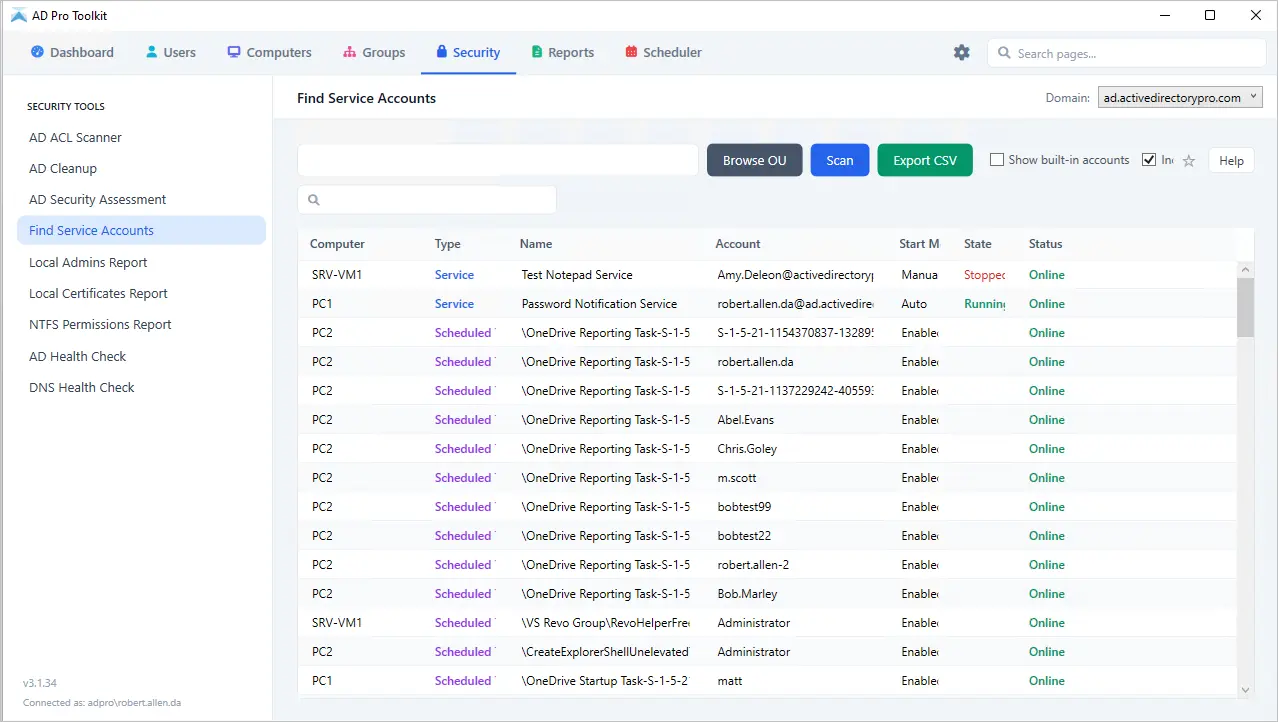
Scan all domain computers to get a list of Windows services and scheduled tasks. See which accounts are running as a service, export reports to csv.
Download Free Trial Schedule DemoKEY FEATures
Know Every Service Account in Your Environment
Quickly scan your domain to locate all service accounts, reduce security risks, and clean up unused credentials.
Scan Remote Computers for Service Accounts
Our Service Account Scanner quickly scans remote computers across your network to identify all scheduled tasks and Windows services, showing exactly which accounts are running each one. With a complete view of service account usage, you can easily detect misconfigured or over-privileged accounts, uncover forgotten or stale accounts, and take control of your Active Directory environment for improved security and compliance.
- Find domain accounts running as a service
- Local accounts
- Built-in account
Review Service Accounts List
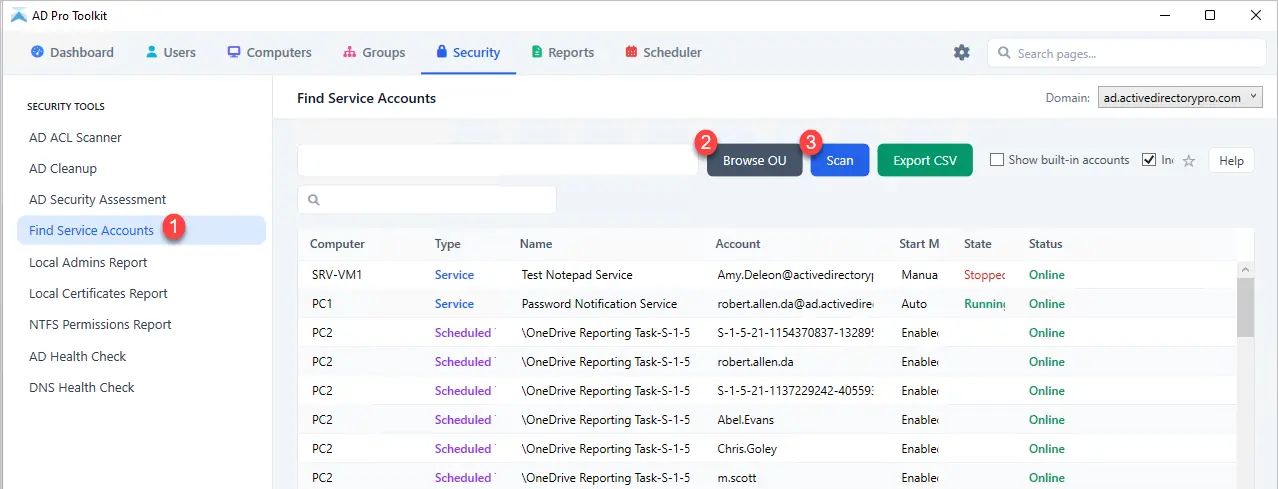
When the scan is complete you will have a list of computers and all the scheduled tasks, windows services and the account its Running As. You can search the report, filter and export it to a CSV, Excel or PDF file.
In the screenshot you can see Active Directory account on SRV-WEC is running a windows service called TestNotePad2.
- Filter and search for specific accounts
- Export report to csv
- Scan specific computers or OUs
Check Active Directory Accounts
Service accounts often are configured so their password never expires or do not require password changes. With the AD Pro Toolkit, you can easily find all accounts that have these special settings.
Click on User Reports > UserAccountControl for all users
In the userAccountControl column you can filter and quickly identify accounts that do not require a password, password does not expire and other risky configurations.
Find Specific Service Accounts
If you know the name of a service account, you can scan computers for that specific account.
Select the “Find” option and enter the service account name and click “Run”.
In the screenshot below, you can see the account is being used on multiple computers to run windows services and scheduled tasks.
Get Scheduled Task Details
You can add additional columns to the report to view details about scheduled tasks.
- Actions – Shows details on what the task is running
- Author – Who created the task
- Last Run Results – Status of the last time the task ran
- Last Run Time – Timestamp of last run time
- Next Run Time – Time the task will run next
Export Report to CSV or Excel
Easily export your service account findings to CSV for quick analysis, reporting, or compliance purposes. The export includes detailed information about each account, the scheduled tasks and services they run, last logon times, and more.
To export the report, click the “Export” button at the top right and select the exported format.
Scan Your Network for Service Accounts Now
Try AD Pro Toolkit for Free!
Trusted by 4,000 + Customers Worldwide
Download Free Trial Schedule Demo